


Key Takeaways
- AI video enhancement uses machine learning to remove noise, sharpen blurry frames, stabilize shaky footage, and improve color, turning low‑quality clips into more watchable content for YouTube and social media.
- Many tools now include an AI video enhancer free option, letting creators upload videos, apply basic AI filters, and download improved versions without installing software.
- AI video upscaling boosts resolution by predicting missing details, so 720p or 1080p footage can look closer to 4K while cropping or zooming for mobile‑first formats.
- A typical workflow to use an AI video enhancer is: import your video, enable AI enhancement presets, preview the before‑and‑after, and export at your preferred resolution and bitrate.
- AI enhancement is especially useful for reuse of archive footage, improving first‑impression quality on YouTube, and keeping social‑media content looking modern and professional with minimal extra shooting.
AI video enhancement is a set of technologies that use artificial intelligence to improve video quality. It fixes blurry footage, reduces noise, sharpens motion, and sometimes turns low‑resolution clips into near‑HD or 4K. For creators, marketers, and even casual smartphone users, this means you can rescue old videos, boost production value, and post higher‑quality content without expensive gear or hours of manual editing.
In 2026, AI video enhancer tools are no longer niche extras, they’re standard features in editors, browsers, and mobile apps. Many of these tools now offer AI video upscaling and “how to use AI video enhancer” tutorials right inside the UI, so you can upscale, denoise, and sharpen with just a few clicks.
How AI Video Enhancement Works
Modern AI video enhancement relies on deep‑learning models trained on millions of video frames. These models learn to recognize:
- Noise patterns (grain, compression artifacts)
- Motion blur and camera shake
- Soft edges and low‑contrast colors
When you upload a clip, the AI analyzes every frame and predicts a cleaner, sharper version. It then rebuilds details, smoothes motion, and enhances color and contrast while keeping the original look and feel.
Common techniques include:
- Super‑resolution upscaling: Increasing resolution (for example, 720p to 1080p or 4K).
- Noise reduction: Removing digital grain and compression artifacts.
- Stabilization: Reducing camera shake for smoother motion.
- Color and tone correction: Balancing brightness, contrast, and saturation.
These features are now packed into many AI video enhancer apps aimed at both beginners and professionals.
Why AI Video Enhancement Matters in 2026
In 2026, audiences expect polished, high‑resolution content everywhere, from YouTube long‑form videos to TikTok clips and Instagram Reels. Low‑quality, blurry, or pixelated footage can hurt watch time, engagement, and even brand perception.
AI video enhancement helps because it:
- Lets you repurpose old or low‑quality footage instead of re‑shooting.
- Lowers the barrier for creators who don’t have high‑end cameras or lighting.
- Speeds up editing workflows by automating tedious fixes like noise reduction and color grading.
For YouTube and social‑media creators, this is especially valuable. Better video quality often translates into higher retention, more recommendations, and a more professional channel image, all without hiring a full‑time colorist or editor.
AI Video Upscaling: From 720p to Near‑4K
AI video upscaling is a subset of AI video enhancement that focuses specifically on increasing resolution. Instead of just stretching pixels, AI models “guess” what missing details should look like, producing a higher‑resolution output that feels much sharper than traditional resizing.free.
Key benefits of AI video upscaling:
- Sharper images: Objects, faces, and text become clearer.
- Better cropping and zoom: You can crop or zoom in and still keep quality usable.
- Future‑proofing: Footage looks better as screens and platforms move toward 4K and even 8K.pixelbin+1
Many tools now offer upscaling to 1080p or 4K from SD or 720p sources, with some handling 4K to 8K for creators targeting high‑end displays. In 2026, several editors and web apps bundle AI video upscaling inside their “AI quality enhancer” panels, making it easy to toggle on during export.
When to Use AI Video Upscaling
AI upscaling is most useful when:
- Your footage was shot on a mid‑tier or older camera.
- You need to crop or zoom for a social‑media format (e.g., vertical 9:16).
- You want archive footage to match the quality of newer 4K clips.
However, it’s not magic. Extremely low‑resolution or heavily compressed videos may still show artifacts or softness, even after AI enhancement. For best results, start with the highest‑quality source possible and then apply AI where needed.
Free AI Video Enhancer: How to Start Without Paying
Many creators ask, “Is there an AI video enhancer free option?” The answer is yes—and more powerful than ever in 2026. Several tools now offer robust enhancement features through free tiers or completely free web apps.
Popular types of free AI video enhancers include:
- Browser‑based upscalers: You upload a video, the AI runs in your browser, and you download an improved version—all without installing software. Some of these are 100% client‑side and open source, so processing happens locally for privacy and speed.
- Mobile apps and editors: Many social‑video apps and editors include a free “AI video enhancer” filter that boosts clarity, stabilizes shaky footage, and improves color.
- Hybrid tools with free tiers: Some desktop editors and online platforms offer free usage up to a certain resolution or duration, then charge for higher‑quality exports or cloud processing.
A typical free workflow looks like this:
1. Upload or import your video.
2. Select an AI enhancement mode (e.g., “Upscale to 1080p” or “Reduce Noise”).
3. Preview the results.
4. Download the enhanced version or export to your platform.
Even if you plan to upgrade later, starting with a free AI video enhancer is a great way to see how much quality you can gain before investing in a paid plan.
How to Use an AI Video Enhancer (Step‑by‑Step)
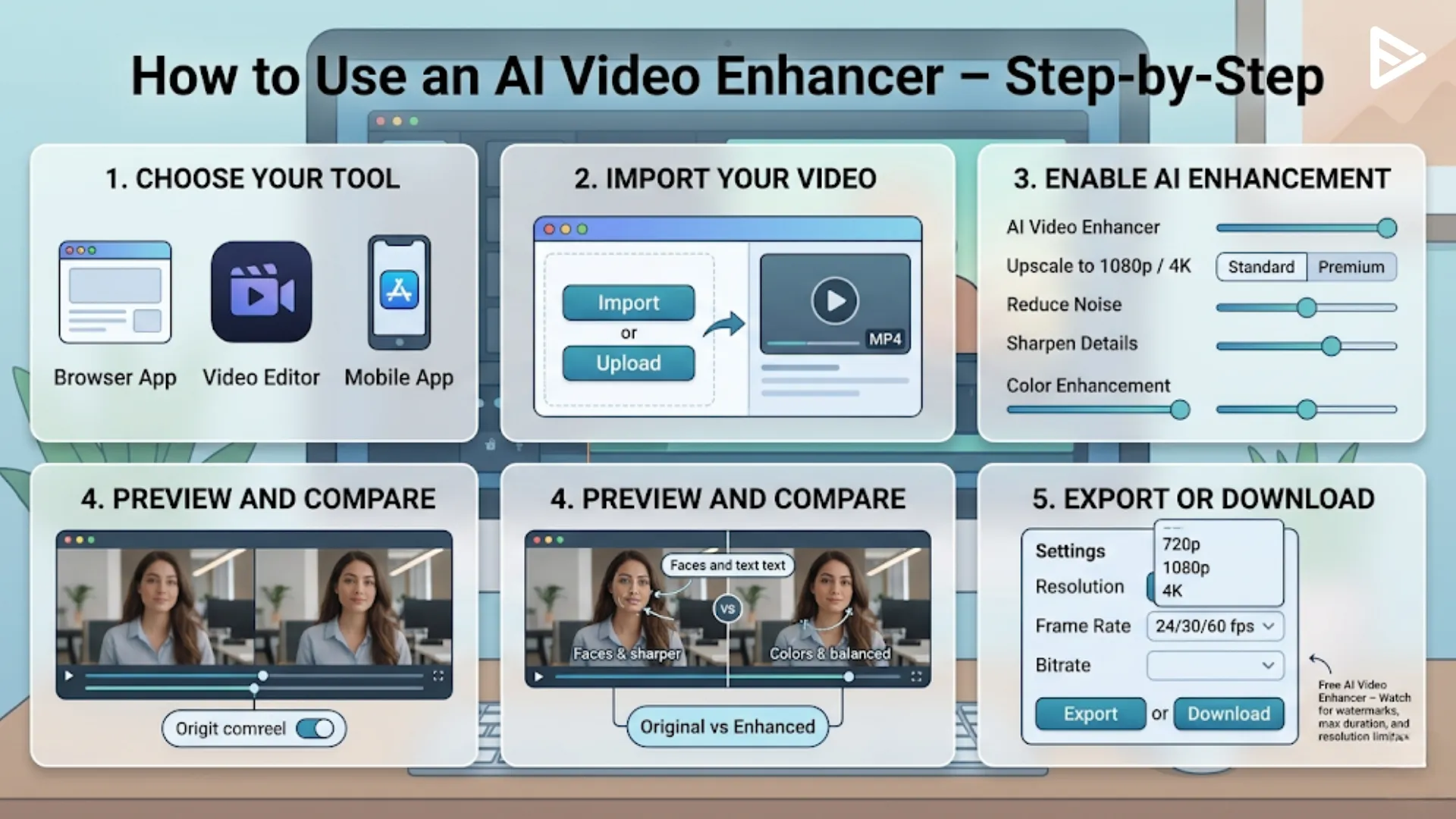
If you’ve never used an AI video enhancer before, the process is simpler than it sounds. Here’s a generic, cross‑platform workflow you can adapt to most tools in 2026.
Step 1: Choose Your Tool
Pick a tool that fits your workflow:
- Browser app: Good if you want to enhance one clip quickly without installing anything.
- Video editor: Better if you edit multiple clips, add music, or need detailed control.
- Mobile app: Handy if you shoot on your phone and want instant enhancement before sharing.
Look for clear labels like “AI video enhancer,” “AI video quality enhancer,” or “AI upscaling” in the interface. Many now design these panels to match the structure of professional editors, with sliders for denoise, sharpness, and color.
Step 2: Import Your Video
- Open the tool and click Import or Upload.
- Select your video file (MP4, MOV, AVI, etc.).
- Wait for the clip to load into the preview panel.
If the tool offers a resolution upgrade, it may automatically suggest higher output options such as 1080p or 4K.
Step 3: Enable AI Enhancement
1. Navigate to the AI enhancement or AI quality enhancer section.
2. Turn on options such as:
- Upscale to 1080p / 4K
- Reduce noise
- Sharpen details
- Color enhancement
Some tools combine these into preset modes like “Standard,” “Premium,” or “Archive Repair.” Others let you fine‑tune each factor with sliders.
Step 4: Preview and Compare
- Click the Preview or Compare button.
- Toggle between the original and enhanced versions frame by frame.
Pay attention to:
- Faces and text: Do they look sharper without banding or artifacts?
- Color: Are shadows and highlights more balanced?
- Motion: Is the footage smoother, or does it look over‑processed?
If something looks unnatural (over‑sharpened, waxy faces, strange motion blur), dial back the enhancement intensity or switch to a lighter preset.
Step 5: Export or Download
1. Choose your export profile:
- Resolution (e.g., 720p, 1080p, 4K)
- Frame rate (e.g., 24, 30, 60 fps)
- Bitrate (higher for better quality but larger files).
2. Start the export or click Download.
When using a free AI video enhancer, check for limitations such as:
- Watermarks on free exports.
- Maximum duration (e.g., 5–10 minutes per clip).
- Lower maximum resolution for free users.
Tips for Best Results
- Trim before enhancing: Remove unnecessary parts of your video to reduce processing time and file size.
- Use the highest‑quality source: Even AI works better with less compression and higher bitrates.
- Avoid over‑processing: Too much sharpening or noise reduction can make footage look artificial.
AI Video Enhancement for YouTube and Social Media
On platforms like YouTube and Instagram, viewers quickly notice poor video quality. AI video enhancement helps you stay competitive by:
- Making older thumbnails and thumbnails‑with‑text look cleaner.
- Preparing mobile‑shot clips for horizontal long‑form content.
- Giving your channel a consistent, high‑production look without studio gear.
For YouTube specifically, AI enhancement can improve:
- First‑impression clarity: A crisp, well‑lit thumbnail and intro grab attention.
- Watch time: Viewers are less likely to drop off if the video looks smooth and professional.
- Cross‑platform reuse: Enhanced clips can easily be reformatted for Shorts, Reels, or TikTok.
Creators using AI video upscaling and AI video enhancer tools report being able to reuse archive footage, fix mistakes from early uploads, and experiment with new formats without retaking shots.
Limitations and Best Practices
While AI video enhancement is powerful, it isn’t a miracle fix. To set realistic expectations and avoid disappointment:
- AI can’t invent details that weren’t in the original frame. Very small, out‑of‑focus, or heavily compressed footage will still show limits after enhancement.
- Over‑sharpening or aggressive noise reduction can create halos, artifacts, or “waxy” skin tones. Always preview with your intended audience in mind (e.g., YouTube thumbnails vs. offline playback).
- Large resolution jumps (e.g., from 480p to 4K) can still look “soft” compared with native 4K footage.
Best practices:
- Test on representative clips: Run your AI enhancement on a short sample before processing all your videos.
- Keep originals safe: Store un‑enhanced versions in case you or a client later change their mind.
- Use enhancement as part of a workflow: Combine AI tools with basic editing (color grading, stabilization, cropping) for a more polished result.clipchamp+1
Final Thoughts
If you’re working on YouTube, social‑media content, or personal videos, AI video enhancement is one of the most practical upgrades you can make in 2026. Whether you pick a free AI video enhancer to test on a single clip or invest in a full editor with AI video upscaling and noise‑reduction tools, the goal is the same: cleaner, sharper, and more engaging footage without extra shooting time.
By understanding how to use an AI video enhancer and when to apply AI video upscaling, you can turn low‑resolution or shaky footage into presentable, platform‑ready content, and keep your channel looking modern and professional.
Frequently Asked Questions
Q1. What is AI video enhancement?
AI video enhancement is the use of artificial intelligence to improve video quality. It can reduce noise, sharpen blurry footage, stabilize shaky clips, and enhance color and contrast, often turning low‑resolution videos into cleaner, more professional‑looking content. It’s widely used by YouTube creators, marketers, and everyday users to boost their footage without expensive cameras or manual editing.
Q2. Is there a free AI video enhancer I can use?
Yes. Many tools now offer AI video enhancer free options either as web apps, mobile filters, or editors with a free tier. These typically let you upload a video, apply basic AI enhancement (like noise reduction or mild upscaling), and download a cleaner version. Some limit resolution, duration, or add watermarks on free exports, so check the plan details before relying on them for long videos.
Q3. How does AI video upscaling work?
AI video upscaling uses deep‑learning models to increase a video’s resolution beyond its original size. Instead of just stretching pixels, the AI predicts and adds missing details, making 720p look closer to 1080p or 1080p closer to 4K. This helps when you need to crop, zoom, or match older footage with newer high‑resolution clips, although results still depend heavily on the quality of the source.
Q4. How do I use an AI video enhancer step by step?
Most tools follow a simple workflow: import your video, open the AI enhancement panel, choose settings like “Upscale to 1080p,” “Reduce Noise,” and “Sharpen,” then preview the result. If it looks natural, export the enhanced version. For beginners, starting with light presets and free tiers is a good way to learn “how to use an AI video enhancer” without over‑processing or paying upfront.
