


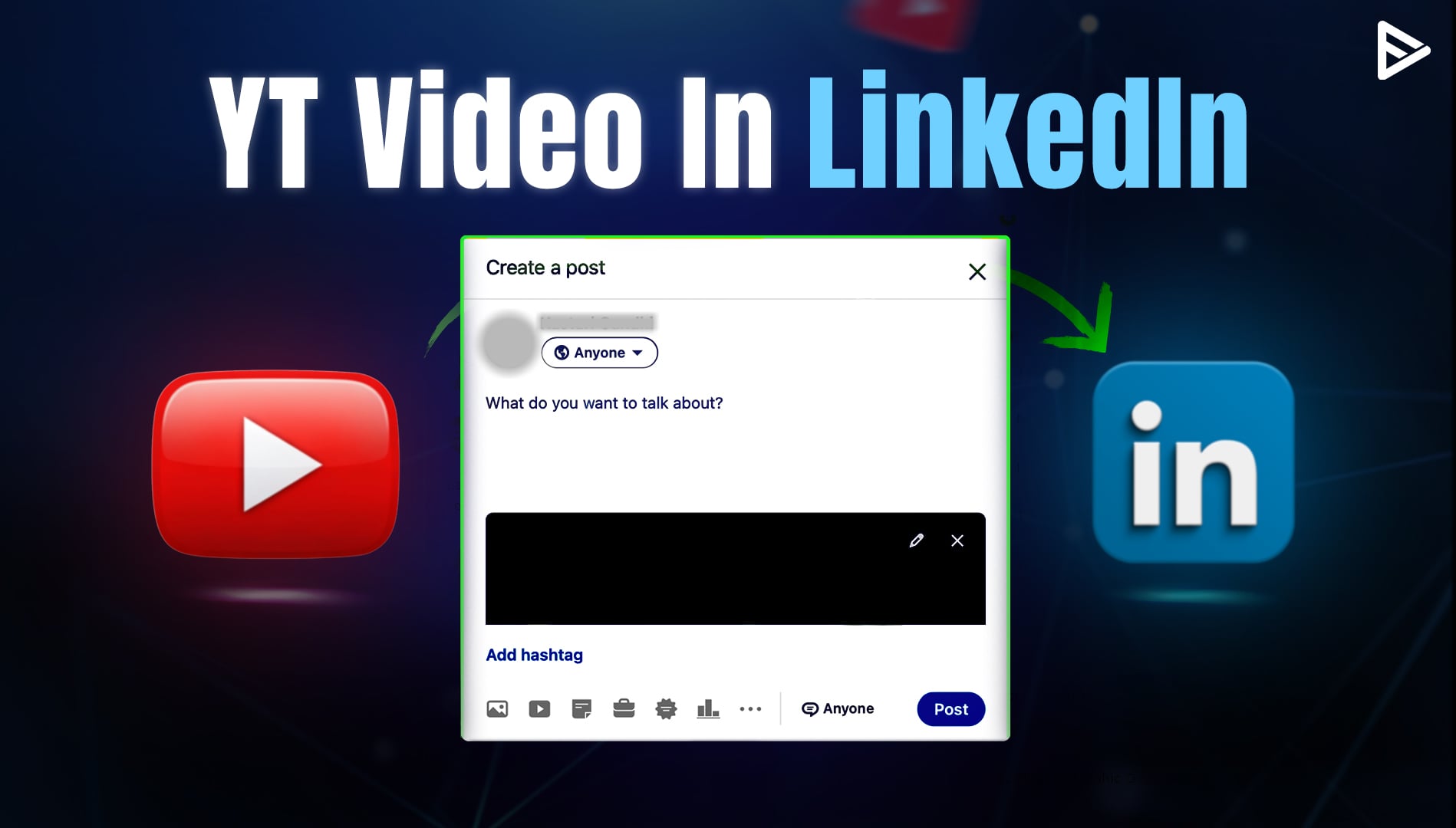
Your creativity needs to be seen by a Linkedin professional. You demonstrate your creativity to a corporate audience that is constantly searching for a YouTube creator. By embedding your video on the linkedin platform, you can get brand collaboration opportunities and sponsorship deals. Additionally, you establish yourself as a niche expert or industry leader. In this blog, we’ll see how to embed YouTube video in linkedin post.
Why Embed YouTube Videos on Linkedin?
There are some key benefits of adding a YouTube video to your linkedin profile. Let’s see some:
Different but relevant content
Linkedin is a slightly different platform. You see posts that provide value to people’s careers and skills. Adding YouTube videos to this approach increases engagement and demonstrates leadership expertise.
LinkedIn users repost such videos that provide value to their connections. You will not see a comment-oriented approach on linkedin; instead, users share or repost the content. This brings unique viewers to the video and your channel.
Niche Expert
When you consistently upload high-quality, optimized YouTube videos. You establish yourself as an authoritative creator in that niche. However, those experts are relevant only to YouTube viewers.
On the other hand, when embedding a YouTube video on Linkedin, you establish your expertise to advertisers, brands, founders, industry experts, and thought leaders. These people are not just viewers; they are opportunities for your creator career.
Engagement & constructive criticism
YouTube videos are shared on other social platforms to bring engagement from different sources. Each platform has its own type of audience. Similarly, the linkedin audience has its own perspective.
As discussed, you find advertisers and brands on Linkedin. When they show engagement, they bring a unique perspective. The comments are explanatory or critical, giving the channel owner an insight into a professional’s mind.
Now that we have seen the reasons, let’s see how to embed YouTube video in Linkedin post.
How to Embed YouTube Video in Linkedin Post?
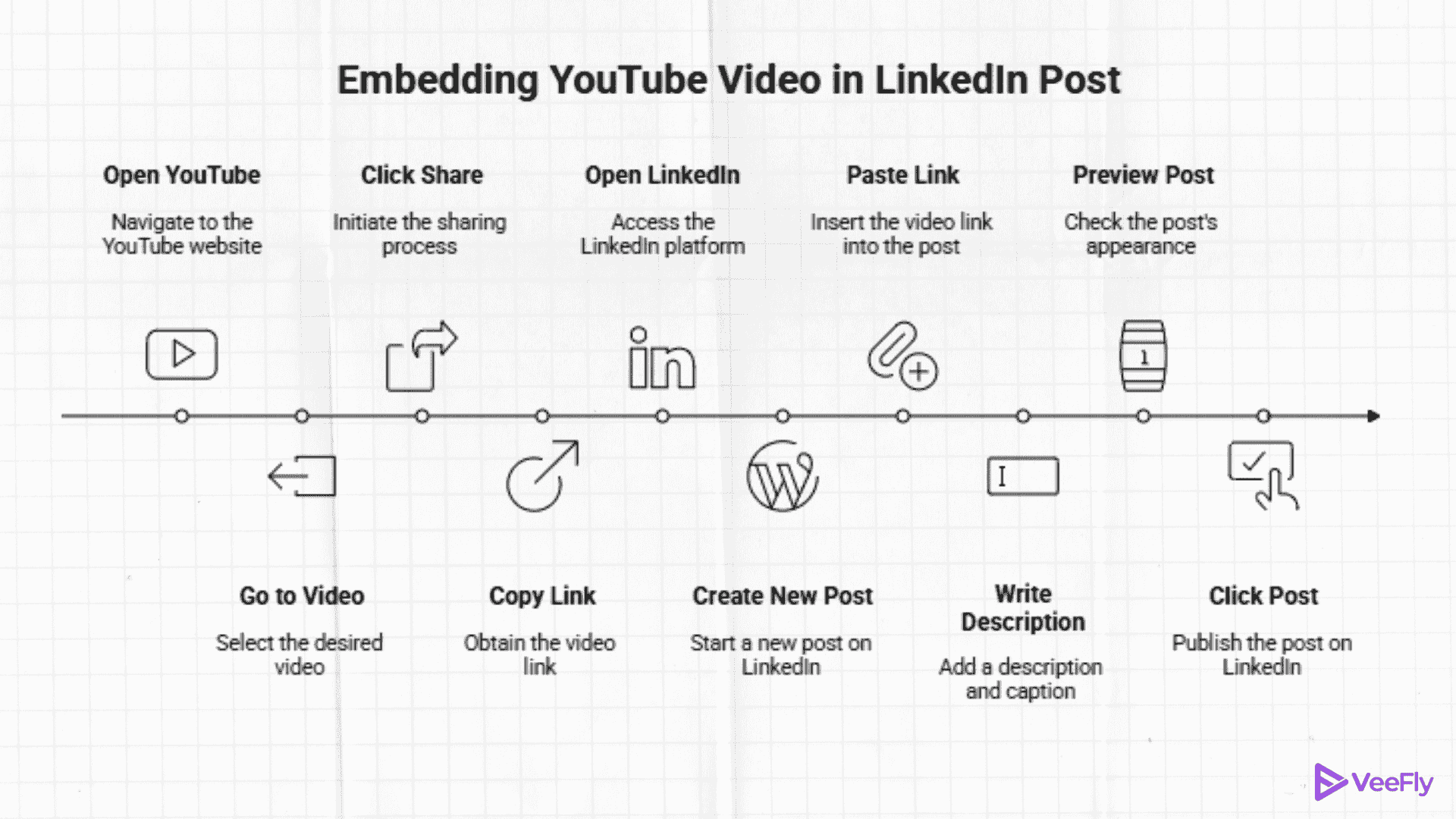
Let’s see the step-by-step process to embed a YouTube video.
- Open YouTube, go to the video, and click Share
- Copy the link or choose the Linkedin app
- Paste the link of the video in the new post
- Write something(description & caption), use hashtags for visibility.
- When previewing, you will see the YouTube thumbnail and video title.
- Click Post
One alternative is to embed a YouTube video in articles. Just add the link at the needed spot. The thumbnail will appear in the article as well. Viewers can watch a video on the platform or go to YouTube; either way, it will count as a view on your channel.
Although you optimized your videos on YouTube for better SEO. You need to optimize it for linkedin as well. Such as the dimensions of thumbnail should be correct, hashtags in the video, CTA in post, engaging within comments, sharing with connection, and reposting it.
Best Practices for Sharing Videos on LinkedIn
You can try these methods to get the best from your embedding.
Crafting Title and Descriptions
On YouTube, you can A/B test the thumbnail and title. Which is suitable for the YouTube audience, but for LinkedIn, you need a different approach. Although you can use the analytics data to understand the intent but for linkedin, you need to craft a title that can get you clicks.
Optimizing video, according to the platform
The video dimension on linkedin is slightly different; you need to adjust your video according to the platform. Make the video fit for linkedin and change the video length to 1-3 minutes max. As the long-format video doesn’t work here.
Add a click to action
The LinkedIn views are just for awareness; the actual benefit comes when viewers land on the YouTube video. As it potentially impacts the algorithm and your earnings.
Long video in segments
Just like creators make Shorts out of podcasts or very long videos. You need to cut 3-4 minute snippets from long videos. When uploading, add CTA. This increases your chances of getting engagement on a single video from multiple sources.
Measuring the results from YouTube video embedding
Firstly, measure the results of the post on the Linkedin platform. See if embedding works on articles or posts. The metrics will help you tweak your strategy. Such as focusing on CTA, title, content, video length, etc.
Secondly, check the YouTube Source metric for LinkedIn to see whether unique viewers are coming in. The count should be high to be sure that LinkedIn viewers are landing on the video.
Conclusion
Getting reach is essential, and promoting your content on different social platforms is helpful. As each has its own audience. When promoting the video on LinkedIn, it acquires a professional audience. These audiences are often advertisers and brands. This increases your chances of earning through brand deals or gives you sufficient exposure to professional personas. In the blog, we discussed how to embed YouTube video in LinkedIn post and some tips to make it result-driven.
Frequently Asked Questions
Q1. How do I embed a YouTube video in a post?
Go to the video, click the share button, copy the link, open LinkedIn, and create a post. Write descriptions, optimize, and paste the link that the blog will embed in the post.
Q2. How to add YouTube link in LinkedIn profile?
Copy the channel URL, go to the LinkedIn featured section, click the ‘+’ icon, and add the copied link. Linkedin will generate the preview with the YouTube video thumbnail and title.
Q3. How to add YouTube link in LinkedIn profile?
You can add a YouTube link as featured content by going to your profile, opening the featured section. Tap the “+” icon to add a link. Once the preview is generated, you can publish the changes.
Q4. How to embed YouTube video on LinkedIn?
You can’t embed a video on linkedin. Instead, you can share it as a video post or add it to your profile section.