


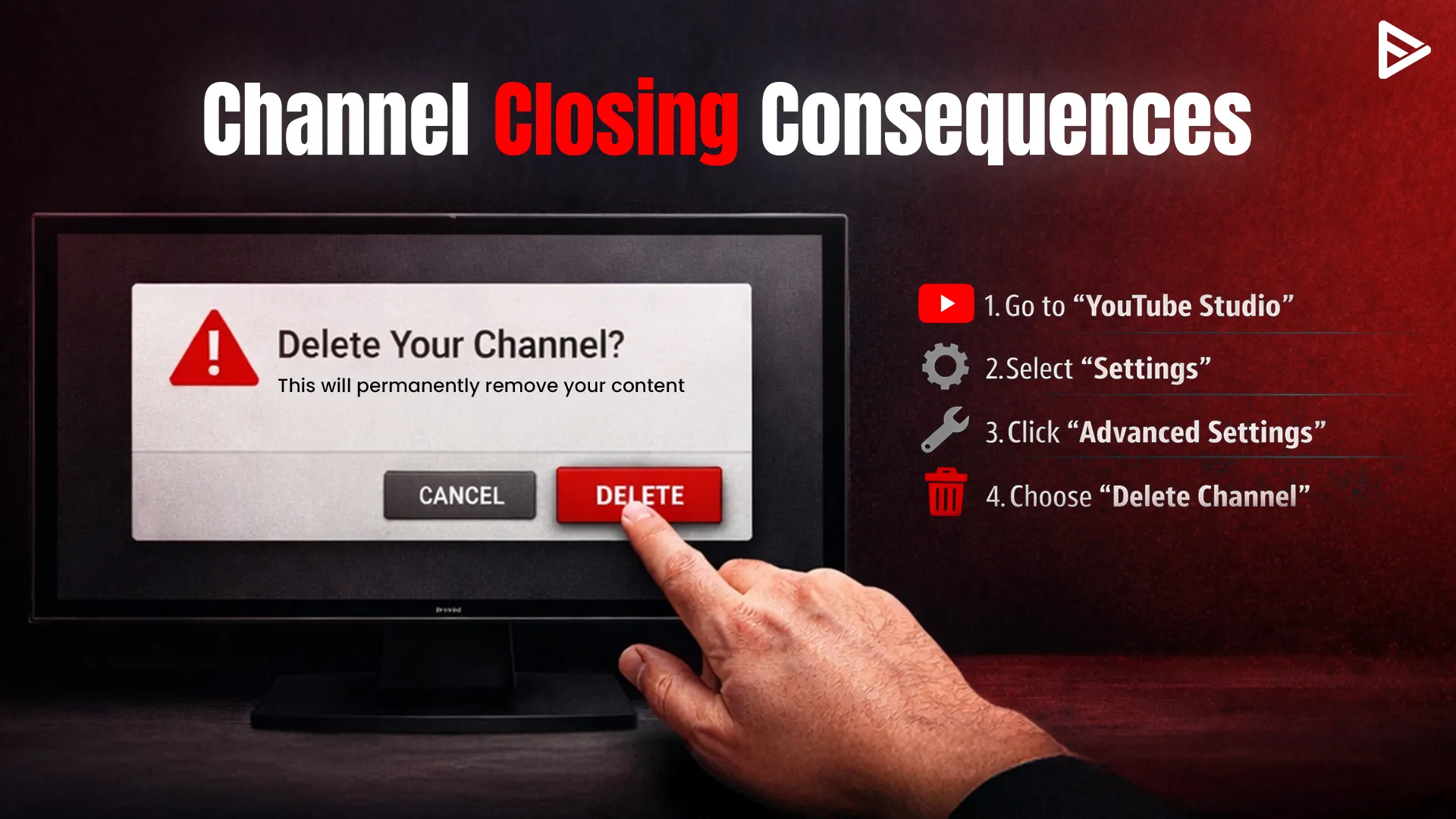
Key Takeaways
- The channel can’t be restored once you delete YouTube channel data.
- All videos, comments, messages, and playlists will be deleted.
- Google Account Safety: Your primary Google account (Gmail/Drive) will remain active.
- You normally require a computer to delete youtube channel permanently.
- If there are any pending payments, your partnership will be lost instantly.
Are you considering a move to another platform? Or perhaps you just want to begin again with a new brand? Whatever the reason, it is essential to understand how to delete any YouTube channel correctly. This is because if you do not, you could lose all your hard work or have old content remain on the internet that you no longer want viewed.
How to Delete Any YouTube Channel: Step by Step
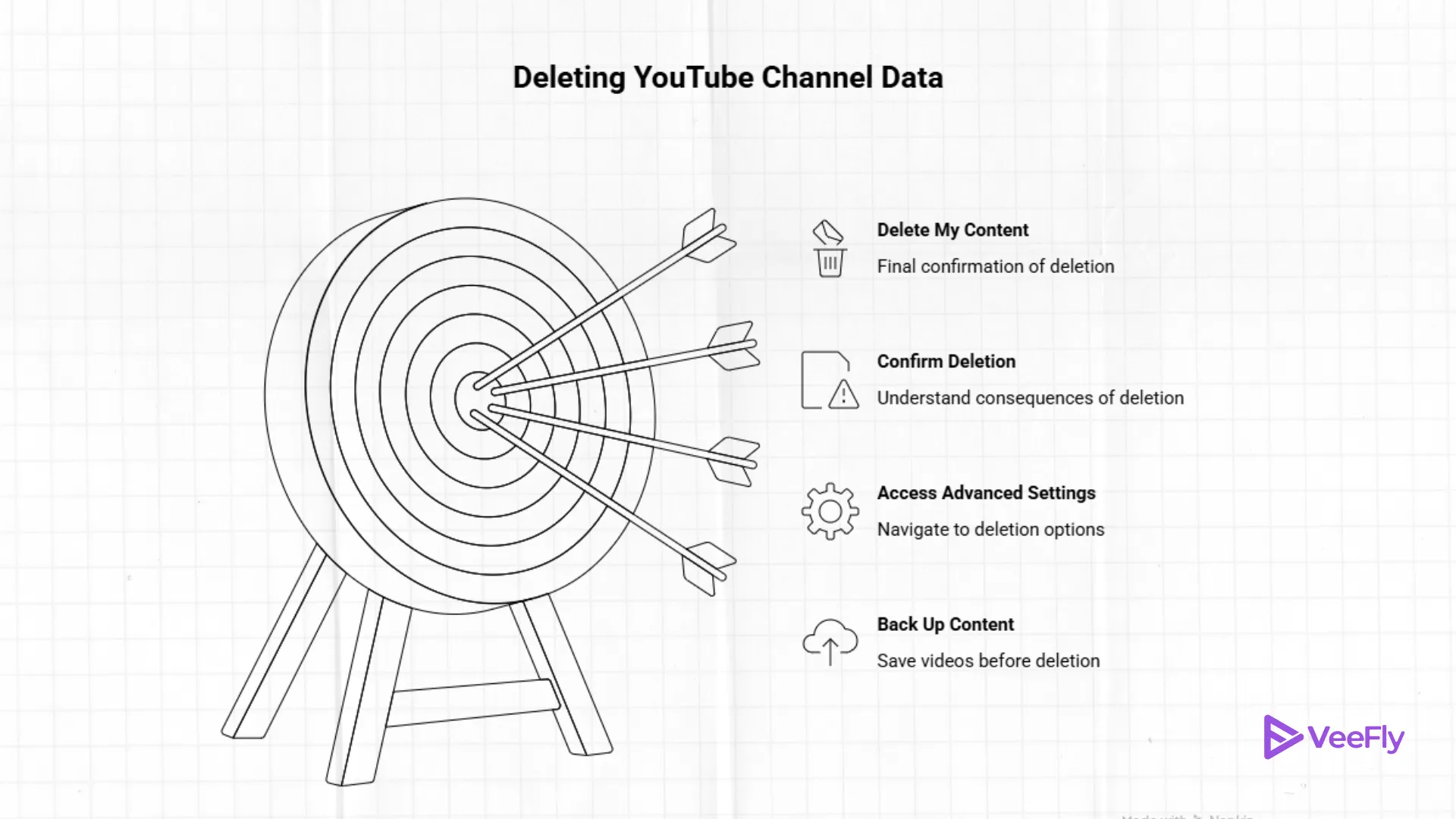
If you are ready to bid farewell, here are the simple steps to follow. This will help you delete YouTube channel data in the correct manner without harming your Google account.
Step 1: Back Up Your Content
Before you remove YouTube channel videos, download them! To do that, go to YouTube Studio, click on your “Content” tab, and download your favorite videos. If you delete YouTube channel permanently, those videos will be erased from the internet.
Step 2: Access Advanced Settings
You cannot easily delete YouTube channel on phone apps; it is best to do it on a desktop browser.
- Log in to your YouTube Studio account.
- Click on Settings in the left-hand sidebar.
- Click on Channel and then click on Advanced Settings.
- Scroll down to the bottom and click on Remove YouTube Content.
Step 3: Confirm Permanent Deletion
- Google will ask you if you want to hide your content or delete youtube channel permanently.
- Click on “I want to permanently delete my content.”
- You will have to check the boxes to confirm that you understand that your comments and subscriptions will be deleted.
- Type your email address to confirm, and click Delete My Content.
How to Delete YouTube Channel on Phone?
If you do not have a computer, you can delete YouTube channel on phone by using a mobile browser such as Chrome or Safari.
1. Open your browser and go to YouTube.com.
2. Turn on “Desktop Site” mode in your browser settings.
3. Follow the same steps as above.
The “Remove Content” button is not available on the mobile app version of YouTube for security purposes, so the only option you have to delete your YouTube channel is through the browser.
What Happens to Your Monetisation?
The most important question that YouTubers always have is: what happens when you delete youtube channel when it comes to money?
If you are monetising your YouTube channel through the YouTube Partner Program (YPP), then deleting your YouTube channel will immediately terminate your agreement.
- Unpaid Balances: If you have not yet earned the $100 payment threshold in AdSense, you could lose this money.
- Watch Time: All of your 4,000 hours of watch time will be reset to zero.
- AdSense: Your AdSense account will remain active, but it will no longer receive information from your deleted YouTube channel.
When you delete YouTube channel assets, you are essentially quitting your job at YouTube. If you ever want to earn money again, you will have to start with zero subscribers and have to re-earn all 4,000 hours of watch time again. This is why many people choose to “Hide” the channel instead of choosing to delete youtube channel permanently.
Why Creators Are Opting to Delete YouTube Channels
Based on information from Tubular Labs, the creator economy is undergoing a transformation, and although YouTube is still a behemoth, many creators are opting to diversify their platforms in a bid to have more control over their content. In fact, it is estimated that nearly 30% of professional creators are seeking alternative hosting platforms such as Vimeo or Patreon due to rigid algorithm changes.
When you opt to delete YouTube channel access, you are faced with the dilemma of choosing between “hiding” and “deleting.” Many YouTubers understand that having multiple dead channels is detrimental to their SEO. However, before you delete your channel, you need to appreciate the gravity of your decision.
Alternatives to Deleting Your Channel
If you are not absolutely sure that you want to delete your YouTube account, consider the following alternatives:
1. Hide Your Channel: This will make everything private. You can always unhide it later if you change your mind.
2. Unlist Videos: If you are only mad at some of your videos, you can simply unlist them. This will keep your channel but hide your videos from public view.
3. Rebrand: You can always change your name and logo in the Customization tab without deleting channel history.
Final Thoughts
Learning how to delete a YouTube channel is easy, but the consequences are final. Before you click that delete button, make sure that you have downloaded your best content, and that you understand that your monetization will stop immediately, and the YouTube promotions will be lost. If you are switching to a site that gives you more control, such as Vimeo, deleting the old noise can be a fantastic way to start a new chapter. Just remember that once you delete channel history, there is no “undo” button. Breathe a sigh of relief, download your files, and begin your new artistic adventure!
Frequently Asked Questions
Q1. How long does it take to delete a YouTube channel?
Deleting a YouTube channel is an instant process. Once you confirm and verify the identity, the channel and all data get removed instantly. In a few days, Google servers will also remove them.
Q2. Can I recover my YouTube channel after deleting it?
No, once you delete your channel, you can’t recover it. You can safeguard you channel data by hiding you channel instead of deletig it.
Q3. Can I delete a YouTube channel without deleting my Google account?
Yes, you can delete your channel, but your Google account and its services will be there.
Q4. Can I delete a channel on a mobile device?
You can’t delete a channel from the mobile app. However, you can use a mobile browser to delete a channel.