


Key Takeaways:
- To create a YouTube video, you must have a clear goal for the channel with a pre-determined niche to focus on.
- About 70% of content creators started with basic equipment like a smartphone and minimal editing skills, and upgraded only after their channel grew.
- Be consistent with your uploads, as it matters more than perfection.
Making your first YouTube video can feel overwhelming. If you’ve ever asked yourself, “How do I create a YouTube video?” you’re not alone. The good news? It’s much simpler than it looks.
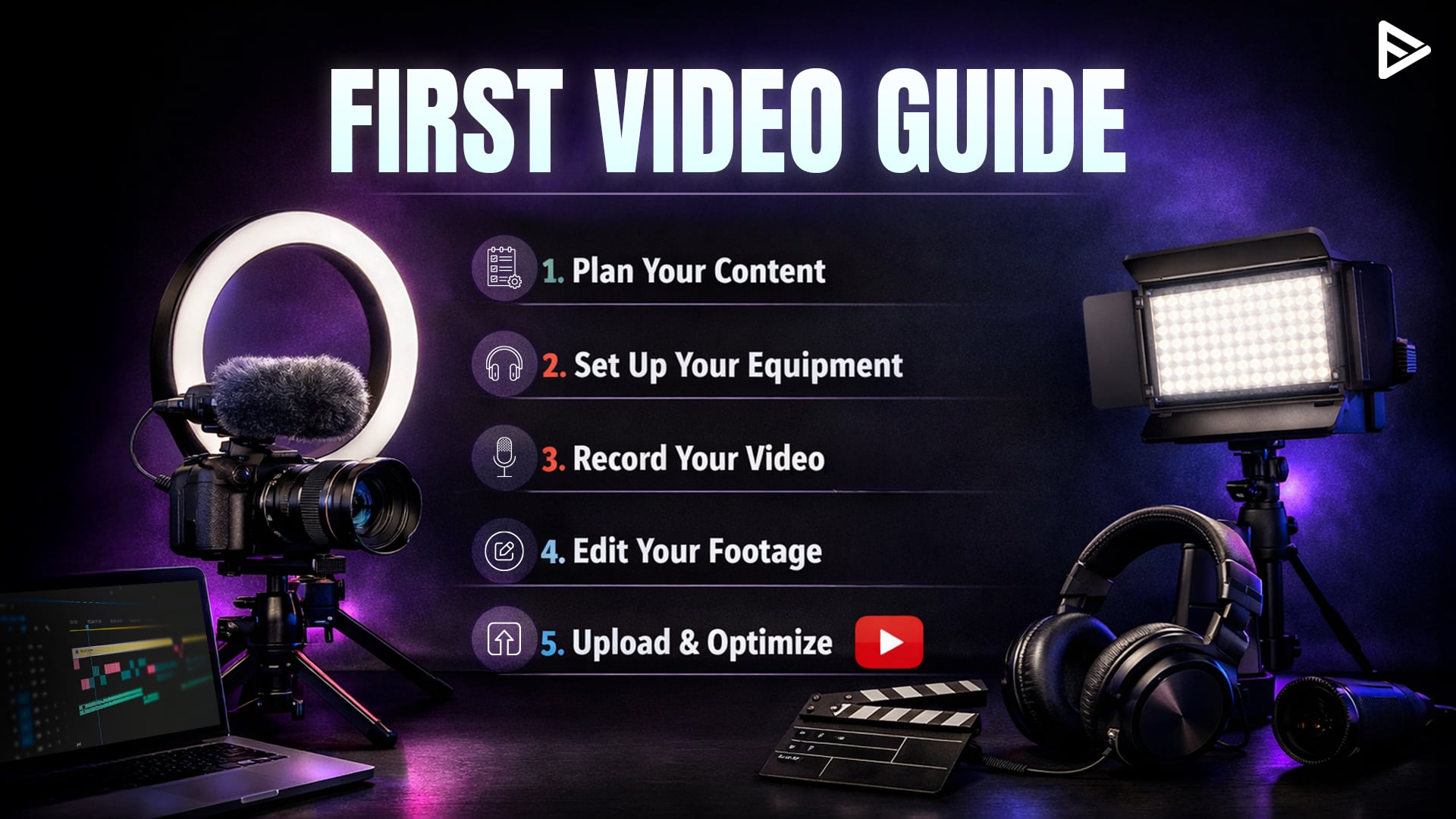
This guide breaks down exactly how to make a YouTube video, step by step, from planning to publishing. Whether you’re using your phone or your computer, you can start today with what you already have.
How To Make a YouTube Video?
Let us begin with the first step that sets everything up for success. The process is quite simple with a clear structure:
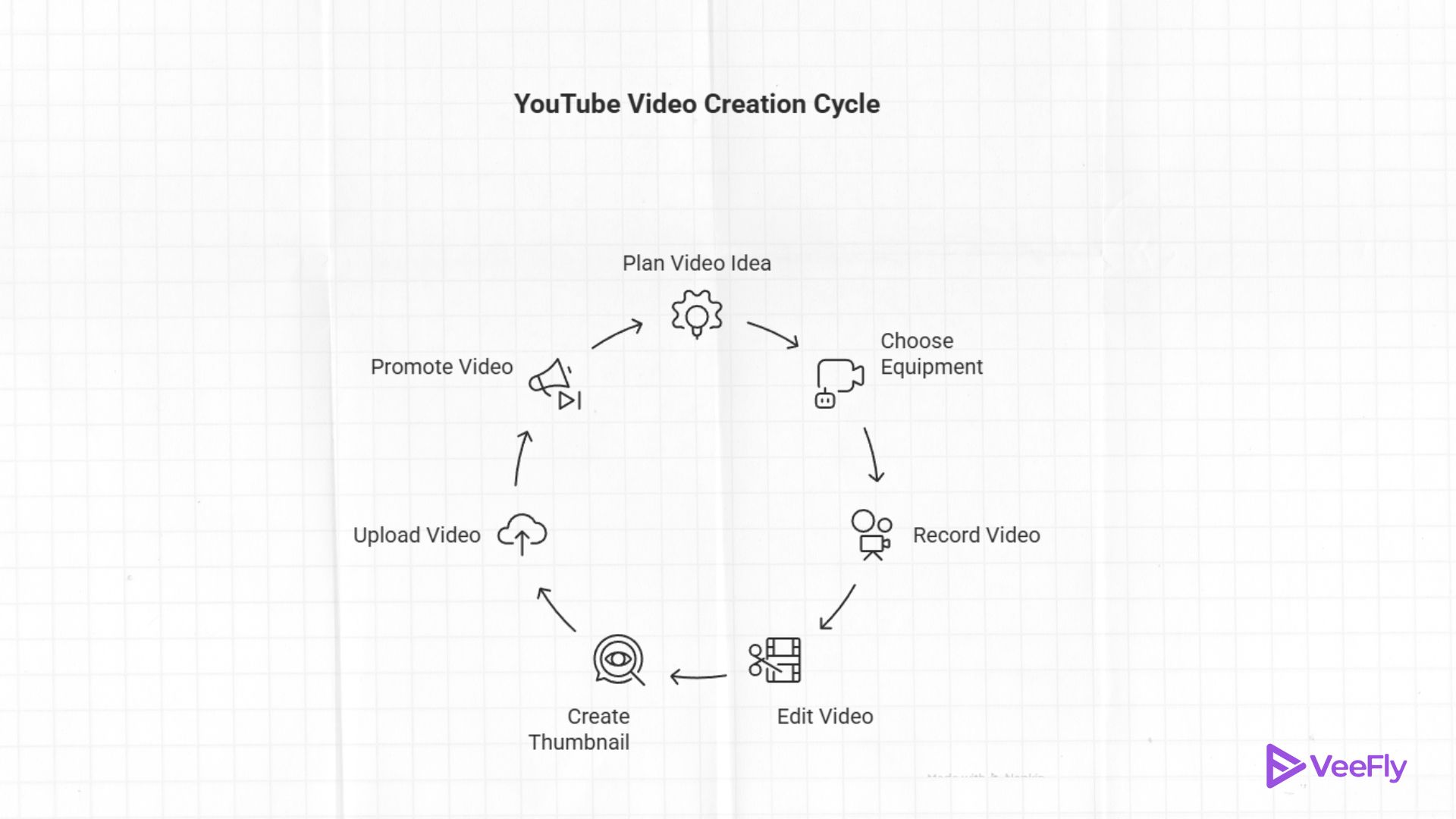
Plan Your First Video Idea & Script
Strong videos answer one clear question. Before you record, search for your topic on YouTube and review the autocomplete suggestions. These reflect what real viewers are searching for and can help you shape your angle. Keep your script simple:
- Hook (0–15 seconds): State what viewers will gain.
- Main Value: Deliver your steps or insights clearly and in order.
- Call-to-Action (final 15 seconds): Ask viewers to subscribe, comment, or watch another video.
Instead of writing a long script, use bullet points. It keeps your delivery natural. There’s no perfect video length. Shorter videos are often easier for beginners to manage, but retention matters more than duration.
Choose & Set Up Your Equipment
You probably already have everything you need. A smartphone or laptop webcam is all you need to start recording your YouTube videos. Some other essentials are:
- Natural window light
- Quiet room
- Basic editing software
- For better audio, use wired earphones with a mic or a simple USB microphone.
Some optional upgrades for when you’re ready for later use:
- Tripod or phone stand
- Ring Light
- Lavalier Mic.
Start simple. Upgrade after you’ve published a few videos. You can start creating YouTube videos on a budget that are of professional quality without breaking the bank.
How to Make a YouTube Video With Your Phone?
Follow this straightforward process to know how to create a YouTube video in the correct order:
Set Up
- Shoot in landscape mode (unless creating Shorts).
- Place your phone at eye level.
- Face a natural light source.
- Keep your background clean.
Record
- Speak clearly and naturally.
- Pause and repeat if you make mistakes.
- Keep your framing steady.
- If you’re screen recording:
- On iPhone: Enable Screen Recording in Control Centre.
- On Android: Use the built-in Screen Record option in Quick Settings.
-
For camera recordings, simply open your Camera app. Always shoot in landscape mode unless you’re creating Shorts (vertical)
- For better audio, plug in wired earbuds or use a clip-on mic.
How to Make a YouTube Video on PC?
If you prefer desktop creation, here’s how to make a YouTube video on PC:
For Screen Recordings:
- Windows users can open the Xbox Game Bar (press Windows + G) and click the record button.
- To record YouTube videos on a Mac, launch QuickTime Player, select File > New Screen Recording, and select the area you want to record.
- If you’re doing a software tutorial, enable both the microphone and system audio so viewers hear what you hear.
- Do a quick countdown or clap before your main content to mark the start.
- When finished, save your file to a clearly labeled folder, such as “YouTube_ProjectName_Date”, so you can find it easily during editing.
For Talking-Head Videos:
- If you are using a webcam or an external camera for recording. Ensure the camera is positioned at eye level.
- Record the video in a quiet space.
- Once you are done recording, save the footage in a clearly labelled folder.
- Export in 1080p MP4 format.
Edit & Polish for YouTube
Editing separates amateur videos from watchable ones. For basic cuts, YouTube Studio’s built-in editor lets you trim directly after upload. For more control, try multiple clips, text overlays, and music, and use free tools like CapCut (mobile/desktop) or iMovie (Mac/iOS). Quick editing priorities:
- Cut any dead air, long pauses, or stumbles
- Add text overlays to emphasise key points
- Balance audio levels so your voice stays clear over music or effects
- Include captions. It makes it easier for people with hearing disabilities to transcribe all the audio in the video (sound effects, dialogue, music). You can use YouTube to generate auto-captions, but review them for errors
Thumbnail Checklist:
- High contrast colours that pop in a small preview
- Three to four words of bold, readable text
- Your face showing emotion OR a clear focal object
A strong thumbnail increases your click-through rate more than almost anything else.
Upload & Optimise Metadata
Head to YouTube Studio, click Create > Upload Videos, and drag your file into the upload window. While it processes, fill in your details:
- Title: Include your target keyword naturally (e.g., “How to Create a YouTube Video in 5 Easy Steps”).
- Description: Write two clear lines explaining what viewers will learn, then add any relevant links.
- Tags: Add three to five keywords related to your topic.
- Playlist: Assign to an existing playlist or create a new one for series content.
- Category: Choose the most relevant option.
- Thumbnail: Upload your custom image.
- Subtitles: Enable auto-generated captions or upload your own.
- End Screen & Cards: Set up prompts to other videos or a subscribe button.
Set visibility to Unlisted first so you can preview everything before going live.
Publish & Promote Your Video
When you’re satisfied with your preview, switch visibility to Public (or schedule it for your ideal time). Then get proactive about promotion:
- Share the link on one social platform where your audience already hangs out.
- Post in a relevant online community (Reddit, Facebook group, Discord server) where self-promotion is allowed.
- Pin a comment on your video that invites viewers to subscribe or ask questions.
- Respond to your first five comments within 24 hours; early engagement signals to the algorithm that your video is worth recommending.
Final Thoughts
If you’ve been searching for how do I create a YouTube video or how to make a YouTube video, the answer is simple: start. The real growth happens once you hit publish. It is essential to take the leap and learn everything as you grow your channel. Creating a YouTube video is all about having a clear idea, with great execution and even better packaging skills.
Frequently Asked Questions
Q1. How long can your video be on YouTube?
On YouTube, verified accounts can upload videos up to 12 hours long or 256 GB in size, whichever comes first. However, for beginners, shorter videos are usually more effective because they are easier to create, edit, and maintain viewer attention.
Q2. Can you create YouTube videos for free?
Yes, ofcourse you can create YT videos for free. You do not require an expensive camera to record the videos. Additionally, you can use free online editing apps and a thumbnail maker to upload engaging videos to your channel.
Q3. What is the 7 second rule on YouTube?
The 7-second rule is to hook viewers at the beginning of the video, because first impressions matter, and viewers don’t click away without watching it. The other 7-second rule is relaxation in advertising and profanity policy.
Q4. What makes a YouTube video go viral?
To make a youTube video viral, create videos on trending topics, a compelling hook in the initial 5-7 seconds, high CTR thumbnails, and a title. The video should quickly provide value to the viewer.
Q5. What are common YouTube mistakes?
Common YouTube mistakes include weak introductions, poor audio quality, inconsistent posting, ignoring thumbnails and titles, and failing to include a clear call to action. Most of these mistakes improve with practice and by focusing on clarity and consistency.
