


Key Takeaways:
- Update your channel photo on desktop, Android, or iOS in under five minutes.
- Your profile picture must be JPG, PNG, BMP, or GIF (non-animated), under 15 MB, and render at 98×98 pixels.
- Changes apply across your entire Google account and may take up to 24 hours to appear everywhere.
- Profile picture edits are separate from channel name or banner updates.
- Clear the cache if your new image does not display immediately after upload.
What Are the Requirements of a YouTube Profile Picture?
Before you learn how to change a profile pic on YouTube, confirm your image meets YouTube’s technical and policy standards.
- YouTube accepts JPG, PNG, BMP, and GIF files. Animated GIFs are not supported; only the first frame will display.
- The maximum file size is 15 MB, YouTube compresses and crops your upload to 98×98 pixels and displays it as a circle.
- Use a square aspect ratio (1:1) to avoid awkward cropping. High-contrast images with a centered focal point work best because fine details disappear at small sizes.
- Your profile picture must follow YouTube Community Guidelines. Avoid nudity, violence, hate symbols, or misleading brand impersonation. YouTube may remove non-compliant images without notice.
- Changing your YouTube profile picture affects your entire Google account. If you update your photo through YouTube Studio, Gmail, and Google Drive, it will reflect the same image.
How to Change Profile Picture On Desktop
Desktop users access profile picture settings through YouTube Studio. This method gives you the most control over cropping and preview before you publish. YouTube applies a circular crop automatically. Preview the result before you publish to ensure your focal point stays centered. If your new image does not appear immediately, refresh the page. Full propagation across all YouTube surfaces can take up to 24 hours. Follow these steps to update your image on a computer:
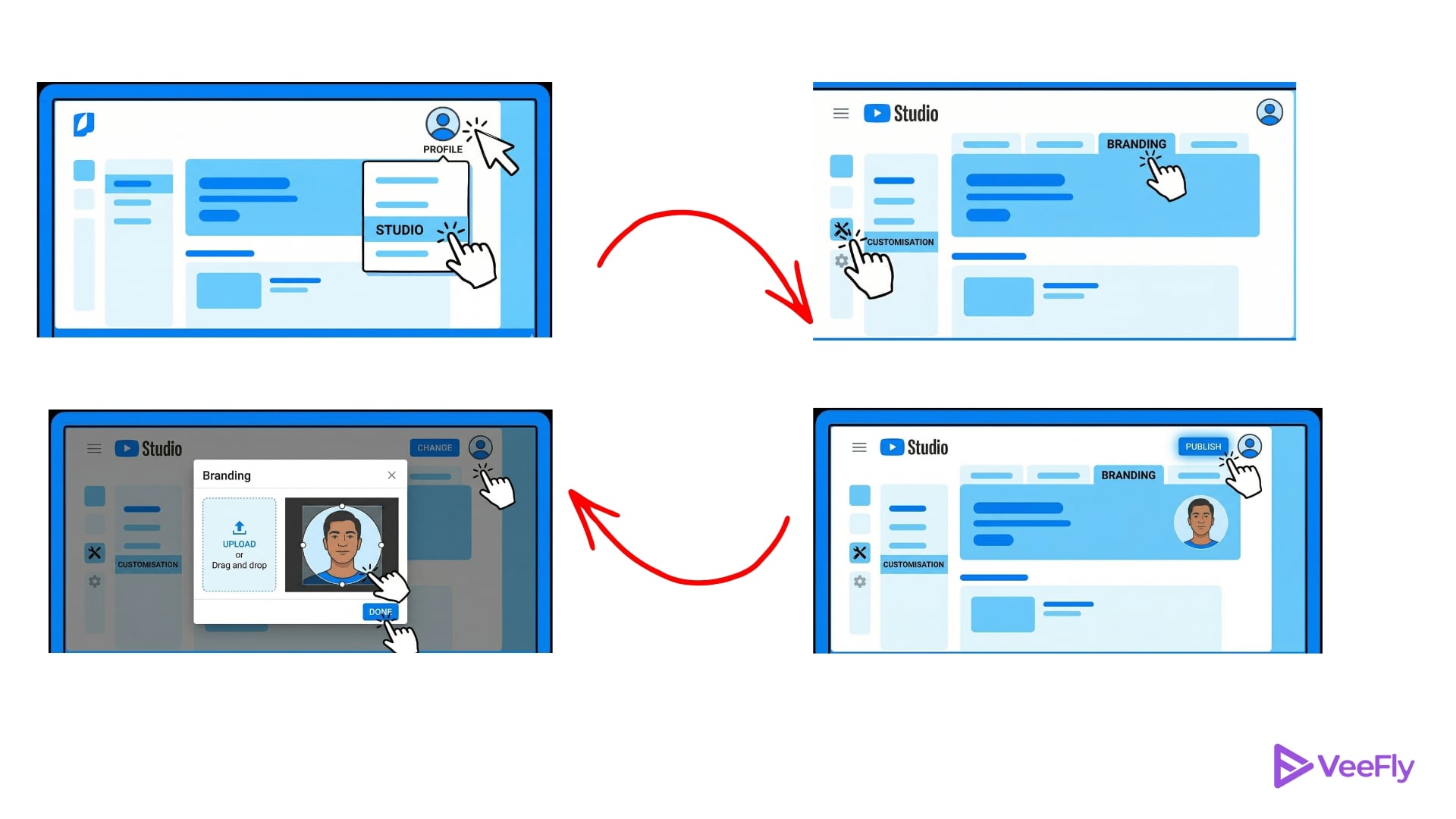
- Sign in to YouTube and click your profile icon in the top-right corner.
- Select YouTube Studio from the dropdown menu.
- In the left sidebar, click Customisation, then choose the Branding tab.
- Under Picture, click the Change button.
- Upload your image file by clicking Upload or dragging the file into the dialog box.
- Adjust the crop area if needed, then click Done.
- Click Publish in the top-right corner to save your changes.
Change Profile Picture On Android App
Android users can update their profile picture directly from the YouTube app or through the YouTube Studio app. Both paths lead to the same result. If you are looking for the answer to ‘How do I change profile picture on YouTube,’ Here is how to change your profile pic on YouTube using the standard YouTube app on Android:
- Open the YouTube app and tap your profile icon in the top-right corner.
- Tap Your Channel from the menu.
- Tap the pencil icon (Edit) next to your profile picture.
- Tap your current profile image.
- Choose Select Photo to pick an existing image from your gallery, or Take Photo to capture a new one.
- Adjust the crop if needed, then tap Save or Select.
Change Profile Picture on iOS App
iOS users follow a nearly identical process, with minor interface differences. How do you change your profile picture on YouTube on an iPhone or iPad? The YouTube app places the profile icon in the bottom-right corner instead of the top-right, Steps for iOS:
- Open the YouTube app and tap your profile icon in the bottom-right corner.
- Tap Your Channel.
- Tap the pencil icon (Edit) next to your profile picture.
- Tap your current profile image.
- Choose From Library to select an existing photo, or Take Photo to use your camera.
- Grant photo and camera permissions if prompted.
- Crop the image, then tap Choose or Done.
How Long Does a YouTube Profile Picture Take to Update?
Most profile picture updates are complete within minutes, but YouTube’s caching system can delay full propagation up to 24 hours. Changes appear first on your channel page, then gradually roll out to comments, video thumbnails, and mobile apps. If your new image does not show up after an hour, try these fixes:
- Clear Browser Cache: Press Ctrl+Shift+Delete (Windows) or Cmd+Shift+Delete (Mac), select Cached images and files, then click Clear data.
- Clear App Data: On Android, go to Settings > Apps > YouTube > Storage, then tap Clear Cache. On iOS, delete and reinstall the YouTube app.
- Check File Format: Animated GIFs and WebP files will not work. Convert your image to JPG or PNG.
- Verify File Size: Files larger than 15 MB will fail to upload. Compress your image using a free tool like TinyPNG or Squoosh.
- Sign Out and Back In: This forces YouTube to refresh your account data immediately.
Final Thoughts
Your profile picture is one piece of a cohesive channel identity. Pair it with a custom banner image that reflects your content niche and a recognizable channel name. Consistent branding across all visual elements makes your channel easier to find and remember. High-contrast profile photos perform better in search results and suggested video thumbnails.
Use a centered face or logo with bold colors that stand out at small sizes. Avoid text overlays because they become unreadable at 98×98 pixels. Profile picture updates sync across your entire Google ecosystem. When you change your YouTube image, the same photo appears in Gmail, Google Drive, Google Calendar, and any other Google service linked to your account.
Frequently Asked Questions
Q1)Why does my old profile picture still show on some devices?
Your old YouTube profile picture may still be appearing due to sync delays. You can refresh and restart the app, and clear the cache.
Q2)Why Won’t YouTube Accept My Photo?
YouTube rejects images that exceed 15 MB, use unsupported formats like animated GIFs or WebP, or violate Community Guidelines. Convert your file to JPG or PNG and ensure it meets size and policy requirements.
Q3)Can I Change Profile Picture Without Changing Google Account Image?
No. Your YouTube profile picture is the same as your Google account image. Updating it through YouTube Studio changes the photo across Gmail, Drive, and all Google services.
Q4)Does changing my profile picture affect my YouTube channel branding?
Yes, your YouTube profile picture is a key part of your channel identity. Hence, for strong branding, use a clear and consistent logo.
Q5)How Often Can I Change My YouTube Profile Photo?
You can update your profile picture as often as you want. There is no limit or waiting period between changes.
