


Key Takeaways:
- Monitor real-time performance through the YouTube Studio Analytics tab.
- Focus on Average View Duration (AVD) and Click-Through Rate (CTR) for algorithmic growth.
- Use third-party tools to analyze competitor channel statistics on YouTube.
- Understand audience demographics to tailor content to specific age groups and regions.
- Compare long-form video stats with YouTube Shorts to optimize your content mix.
YouTube remains a dominant platform for online content sharing. It has over 2.6 billion returning users, making it a perfect ecosystem for advertisers and creators. To make a successful career as a YouTuber, you need to understand the audience and platform. This can be easily done by analyzing channel statistics. You must consistently track your channel’s progress to grow amid stiff competition.
How will you track your channel’s progress? Understanding YouTube Analytics helps you gain data-driven insights about your channel’s performance. Observing and studying your YouTube channel statistics might sound complex and tedious, right? Well… today I will discuss how to view YouTube channel statistics in detail, making it enjoyable and straightforward for you.
What Are YouTube Channel Statistics?
YouTube Analytics gives an overview of your channel’s progress. It helps you learn what content your viewers are interested in and provides deeper insight into what fuels your channel’s growth.
However, YouTube Analytics is quite vast and time-consuming to understand. YouTube Channel Statistics are an essential part of understanding YouTube analytics and will help you determine if the progress line on the graph is climbing upward!
Are you able to meet the numbers that you are expecting? Or is there something crucial that you are missing that is hindering the growth of your YouTube channel? You can review specific statistics and then dig deeper into the detailed reports when you understand YouTube analytics.
Why YouTube Channel Statistics Matter for Growth?
The channel statistics provide data on user behavior, watch time, audience intent, and preferences, etc. All these metrics, obtained from the YouTube analytics dashboard, help create a content strategy that drives channel growth.
Audience retention points
You can use the watch duration metric to find where viewers are skipping or bouncing from your video. For example, you upload videos between 8 and 12 minutes long, and viewers leave after 4-5 minutes (average).
Now you know where to add hook elements to surprise viewers with additional value or information. Resulting in increased watch time.
Engagement indicators
The highest engagement indicators are likes, comments, and sharing. Let’s say you are getting likes but not enough comments, or people are interacting but not sharing videos with new viewers.
The metrics tell you in what area you should focus. You can persuade viewers to respond or share their opinions in the comments to boost engagement.
Source of traffic
If YouTube analytics is showing that traffic is coming from TikTok, will you spend more energy on Facebook, instagram, or will you shift your attention to TikTok? Even if you are optimizing or promoting your YouTube video, you know where to find the target audience.
CTR of thumbnails and titles
YouTube offers an A/B testing feature for thumbnails and titles. You can add up to three pairs of thumbnails and a title to one video. The video getting the highest views will be chosen as the primary.
After testing, you will have enough data to ideate which types of thumbnails and titles are working, helping increase the click-through rate.
New vs returning viewers
If you are seeing a rise in new viewers, this indicates that your optimization and SEO strategy are working. The videos are getting recommended to new viewers.
If you are seeing a rise in returning viewers, it means your content quality is good; now you need to persuade them to subscribe and engage more with your content.
Steps To View YouTube Channel Statistics
Let’s see how to view channel stats on YouTube:
- Visit YouTube.com and log in with your credentials.
- Click on the profile picture in the top right corner and select ‘YouTube Studio.’
- Go to the ‘Content‘ option in your YouTube Studio dashboard.
- Under the dashboard, select ‘Analytics.‘
- In the analytics section, you can see various types of data, such as Real-time data cards and overviews.
- Similarly, the content section contains detailed reports on returning viewers, engagement, impressions, and engaged views.
- One of the most crucial parameters is Audience retention, which defines your channel strategy. Based on these key metrics, you must develop a content strategy that attracts more views and subscribers.
The ‘Content’ option explains:
- The list of videos that you have uploaded
- To whom is the video visible
- If any restrictions are impacting your reach or your ability to earn monetary benefits
- The date you uploaded the videos
- Number of times your video has been viewed. It keeps fluctuating when you upload a new video.
- The number of comments your video has received.
- How many likes and dislikes has your video received? Look at how many likes a video has received and what appeals to your audience.
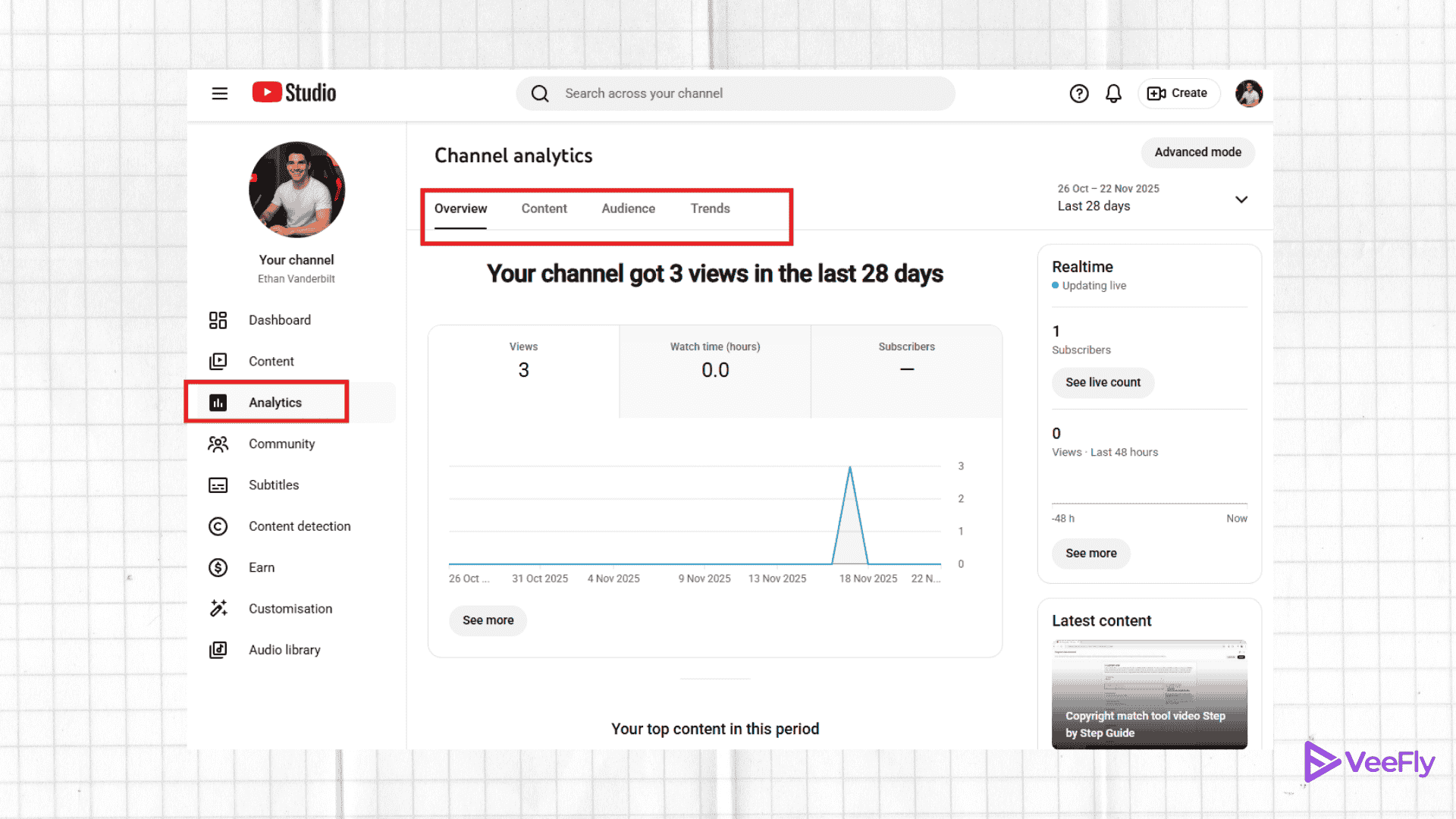
The ‘Analytics’ option has an overview, reach, engagement, and audience.
Real-time: This gives you an overview of how many viewers watch your channel and your videos. You can check this tab, especially when you upload new videos.
Watch time: the total number of minutes your video is watched by your viewers. YouTube will suggest and recommend videos with higher watch times. You can also find out how many minutes your video is watched, who is watching it, where they are discovering it, and which part has caught their attention.
Interaction: Check how your viewers are reacting to your videos. Are they liking or disliking your video? Are they adding your video to the playlist or sharing it on social media?
Tracking Your Progress With YouTube Channel Statistics
Let’s understand how to see your YouTube stats and track your progress with YouTube channel Statistics. Keep your eyes on the three most important metrics.
1. Watchtime
Watch time is the most crucial metric content creators should track when monitoring their success on YouTube. It is the total time viewers spend watching your video, reported as the average across all users who watched it.
Your goal should be to target 50%-60 % watch time on your videos. Higher watch time indicates your audience likes your content and is more likely to subscribe to your channel. When you know how YouTube analytics works, you can closely notice at what point viewers stopped watching your video. It indicates the point at which the content in your video becomes boring or uninteresting.
2. Clickthrough Rate (CTR)
Next in the list of YouTube channel statistics is the click-through rate. When your YouTube video thumbnail is actually clicked by users scrolling through YouTube or other social media platforms, it is called the clickthrough rate. A CTR of 10% or higher is an ideal benchmark for creators to aim for. Besides, it also indicates the degree of relevance of your content to your audience. A higher CTR shows that your audience is actually interested in the content you are putting out. You can also improve the CTR of your YouTube videos using these tips.
3. Traffic Sources
When you dive deeper into understanding YouTube analytics, you can track your traffic sources. To witness steady growth on YouTube, you should aim to attract a significant share of viewers from within YouTube. The longer viewers watch your video, the more likely YT will suggest your videos to other users. This will increase the time you spend watching your videos. As watch time increases, so will the impressions and the CTR. Higher CTR and longer watch time will cause the YouTube algorithm to show your videos to a broader audience.
Monitoring views and subscribers is important, but the three primary metrics described above are even more significant for driving growth in your subscriber base. When you know how YouTube Analytics works, you can get personalized overview reports that show a comparison chart of your channel’s performance.
How to See YouTube Stats of Competitors?
To view competitors’ YouTube channel stats, you can use third-party tools like VidIQ and TubeBuddy to analyze the competition. These platforms give you access to public performance data, including metrics such as estimated views, growth, and SEO scores. These tools will provide a clear picture and develop a strategy to improve your engagement metrics.
Another way to analyze other channels is to track trends and benchmark your growth. For example, you can pick a competitor channel within your niche and evaluate their performance with your videos. Identify gaps in your content, take inspiration, and create videos with your own unique style.
How to level up your video content with analytics data?
To level up the YouTube channel stats for your content, follow these tips:
-
Focus on High-Performing Content
One way to level up is to focus on your popular videos. Identify the high points that your audience likes the most and resonates with. Study the pattern, tone, video length, and format, and continue creating videos that drive growth and views. It is easier to double down on proven content and keep your loyal audiences engaged.
-
Track Click-through Rates
Analyze the videos with higher CTR to understand which elements attracted viewers to click the video. Thumbnails and titles that drive higher impressions and CTR to improve the chances of getting more clicks on the video. This is why it is essential to experiment with similar thumbnails, colors, fonts, and designs to help you attract viewers to the video.
-
Track Viewer Behavior and Engagement Metrics
Once you understand your competitors’ YouTube channel stats, it is also essential to know how your audience is engaging with your content. Metrics such as likes, watch time, audience retention, average view duration, feedback, and suggestions will help you gauge your audience’s engagement. This will encourage you to create videos that resonate most with them, building a loyal following that returns to watch your content.
3 Tools to Monitor YouTube Analytics Data
Let’s understand how to view YouTube stats on mobile using these tools and apps, and find monitoring tools to collect analytics data for your YouTube videos.
1. VidIQ
One of the most famous tools among creators. VidIQ assists with keyword research, SEO, and competitor tracking. The platform has a VidIQ score that indicates how well a video is likely to perform on YouTube.
2. Morning Frame
A specifically designed tool for YouTubers. MorningFrame provides simple UI, deeper insights, and actionable metrics. Gives video performance feedback. Additionally, offered research tools and strategies based on past video performance.
3. Google Analytics
Google Analytics 4, the latest version, can give real-time metrics. If you’re focused on collecting metrics and sessions, then GA4 is for you. The tool can be used throughout the entire ecosystem to collect data from a website or landing page to YouTube and vice versa.
There are some more tools, such as TubeBuddy, Social Blade, Tubular Labs, and Facelift Data Studio. You can subscribe to our newsletter to know about the latest features of the YouTubers’ tools.
Final Thoughts
Consistently tracking YouTube Analytics reports will give you a clear idea of your channel’s progress. Monitoring your YouTube channel statistics can help you find hidden gems about what’s working and what’s not. Once you know it, you can work towards the same goal, or just buy YouTube views to improve your YouTube videos’ performance and help them appear in search results. The blog aimed to help you understand how to view stats for YouTube channel.
Frequently Asked Questions
Q1.Why are my YouTube view stats different in real-time versus the reports?
Real-time stats are estimates of current activity, while the official reports undergo a verification process to remove spam and bot views, which can cause a slight delay in finalized numbers.
Q2. How Do I View Stats For A YouTube Video?
Sign in to your YouTube account, tap on your profile picture, and select YouTube Studio. From the dashboard, select Content, hover over the video, and select Analytics.
Q3. Can I check stats for YouTube channels without logging in?
You cannot access full channel statistics on YouTube without logging in, but limited stats for YouTube channels, like public views and subscribers, are visible. For deeper YouTube view stats, you must use YouTube Studio with account access.
Q4. How often should I check my analytics?
You can give a regular glance daily; however, to analyze performance, you need to wait a week or a month for the results.
