


Key Takeaways
- By default, all YouTube channels are public. If you want to make your channel private, it will not be visible to the general public.
- If you want to make a YouTube channel private, you have to go to the “Remove YouTube Content” option under the Advanced Settings option in the YouTube Studio and choose “I want to hide my content.”
- It is worth noting that if you want to hide your channel, you will not be able to unhide it. Also, hiding your channel will permanently delete all the comments you have made on the platform.
- You do not have to hide your channel if you want to keep certain videos private. You can mark the videos as “Private” and share them with people you want to share them with by entering their email IDs.
- The option to make individual videos private can be managed from the YouTube mobile application under the “Library” and “Edit” option.
Want to exercise complete control of your channel and restrict its viewership to a limited audience? Then, you must know how to make YouTube Channel Private? By default, your YouTube channel is set to public, and your video content is accessible to everyone. Let’s wall through the nuances of what is a private YT channel, why you must have one and understand how to make a YouTube Channel private.
What is a Private YouTube Channel?
A private YouTube channel is a channel where you can hide the videos and playlists from the public. Only the viewers with whom you share the link of your videos can watch your content. Besides, if your channel is set to private, your videos will not appear in search results on YouTube, and you cannot monetize them. Learning how to make a YouTube channel private is helpful when you want a specific community only to watch your videos.
Steps to Make a YouTube Channel Private (Hide Channel)
To make your YouTube channel private, you need to hide your YouTube channel using the YouTube settings. This will hide all your videos, playlists, and subscriptions from the general public. Here are the steps to hide your YouTube videos:
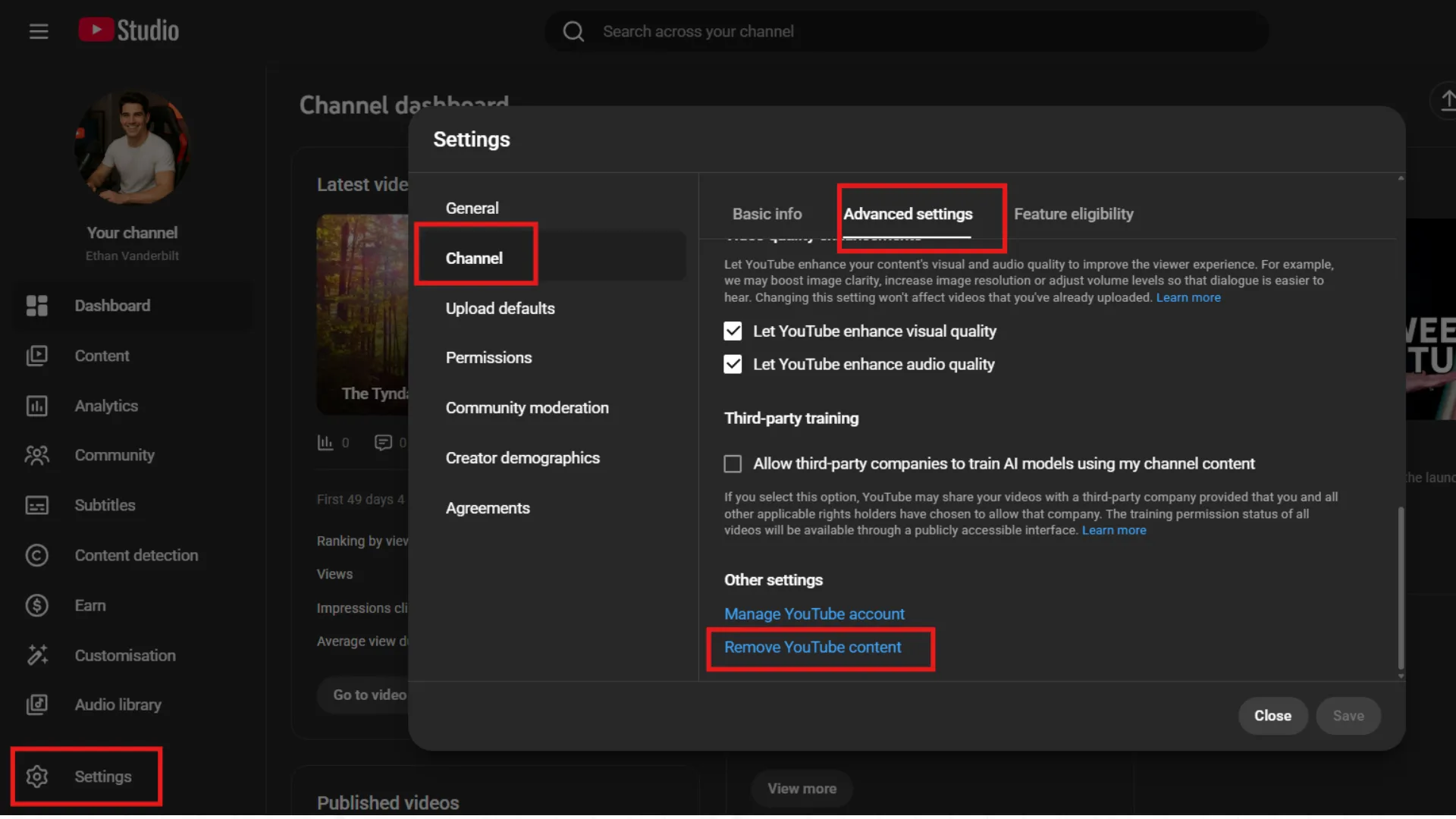
1. Sign in to YouTube Studio using your computer.
2. Go to the left side menu, click Settings.
3. Click Channel and select Advanced Settings.
4. Click Remove YouTube Content at the bottom.
Note: You may be prompted to enter your sign-in details/password to proceed, which is a security feature.
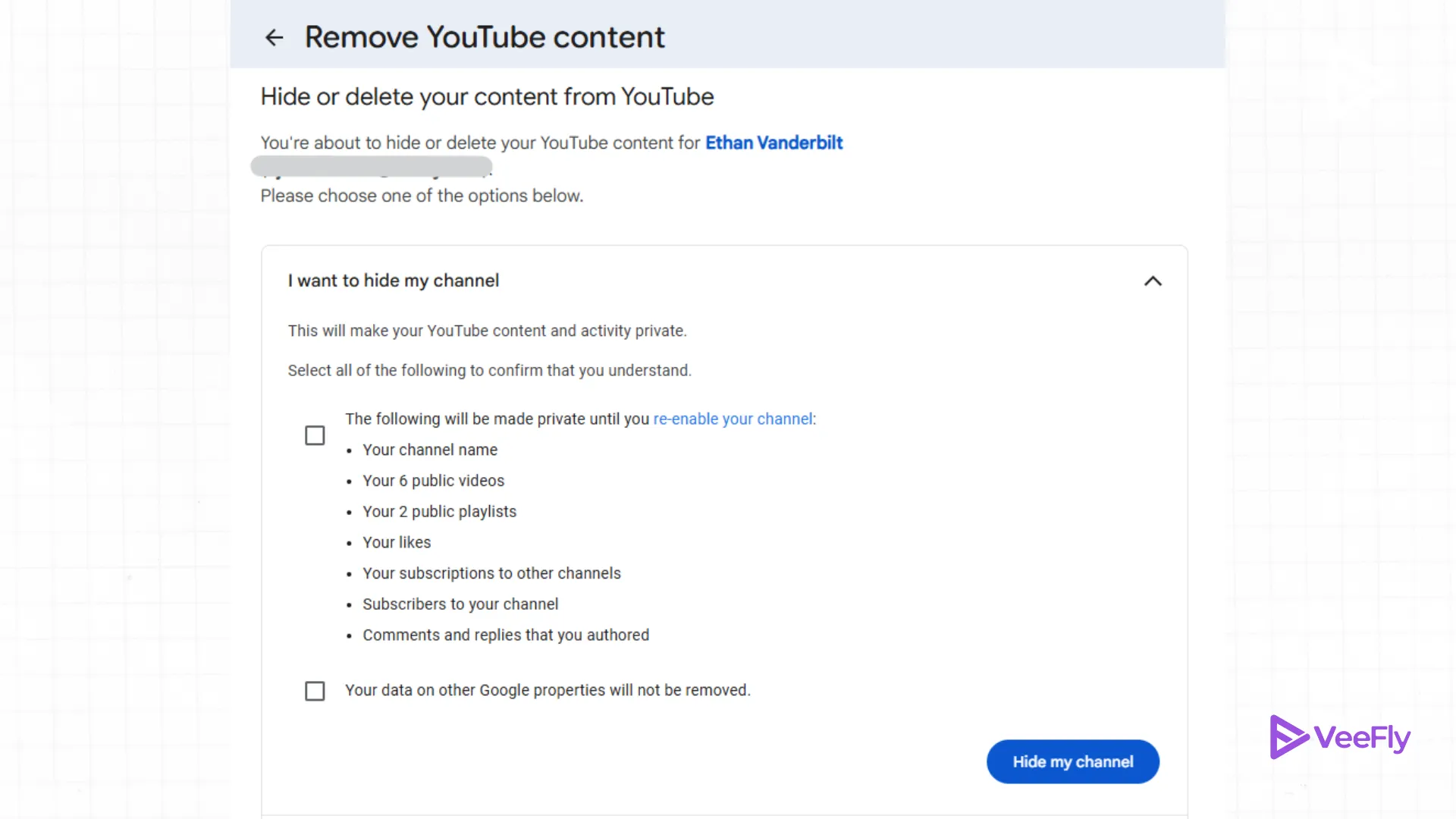
5. Click I want to hide my channel.
6. Click the checkboxes to select the options, and then click Hide my channel.
Key Information About Hidden Channels
- Visibility: The name of your YouTube channel, your videos, your likes, and your subscriptions will be private and not visible to the general public.
- Comments/Replies: All your comments and replies that you have posted on YouTube will be permanently deleted.
- Re-enabling: You can re-enable your YouTube videos and channel anytime you want using the settings menu.
- Data: Your Google account will not be deleted from other Google products such as Gmail, Google Drive, etc.
How to Share Private Videos on YouTube
You can share your YouTube videos even if they are marked as private. The video cannot be seen by the general YouTube audience; it can only be viewed by those who have been shared the link.
Let’s see the steps:
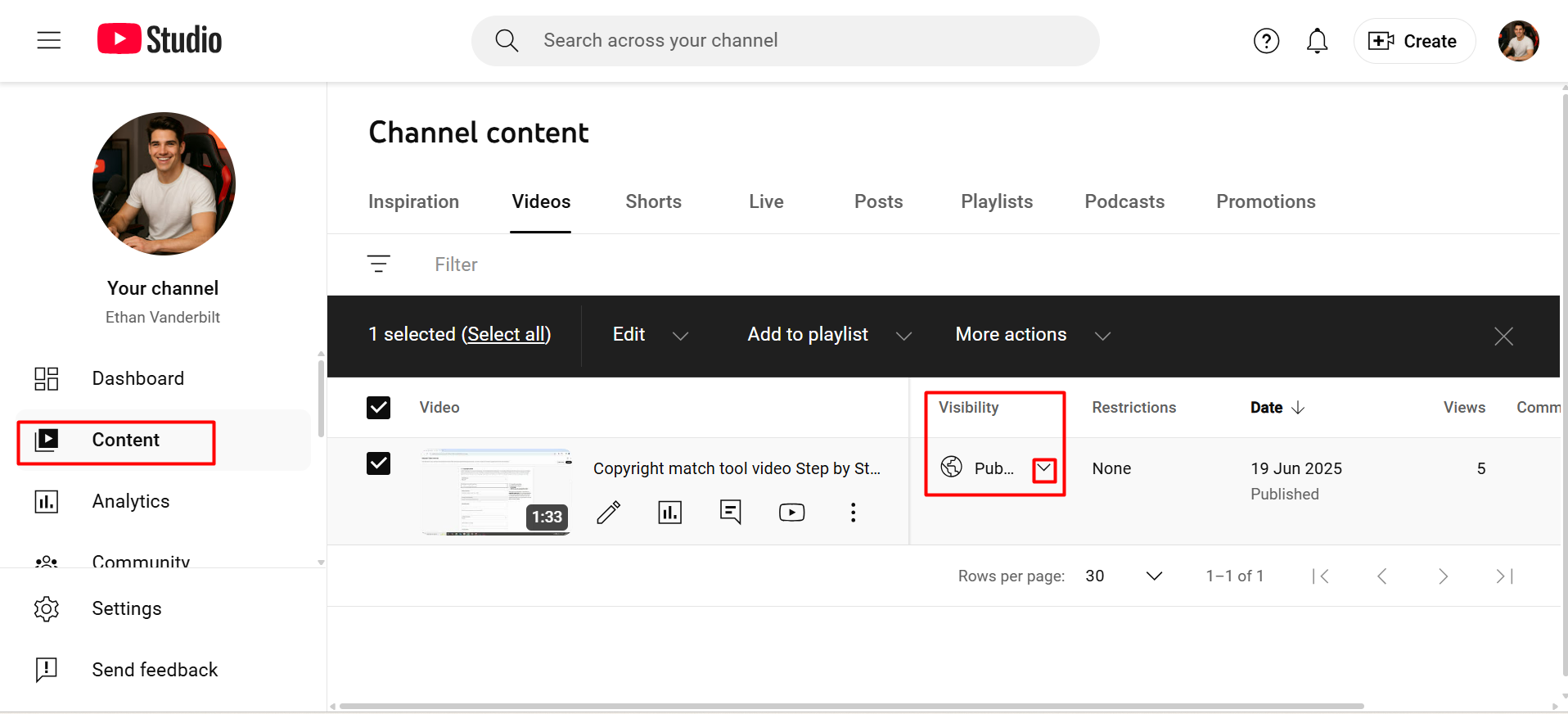
1. Go to YouTube Studio
2. Navigate to Content Tab
3. Select your video
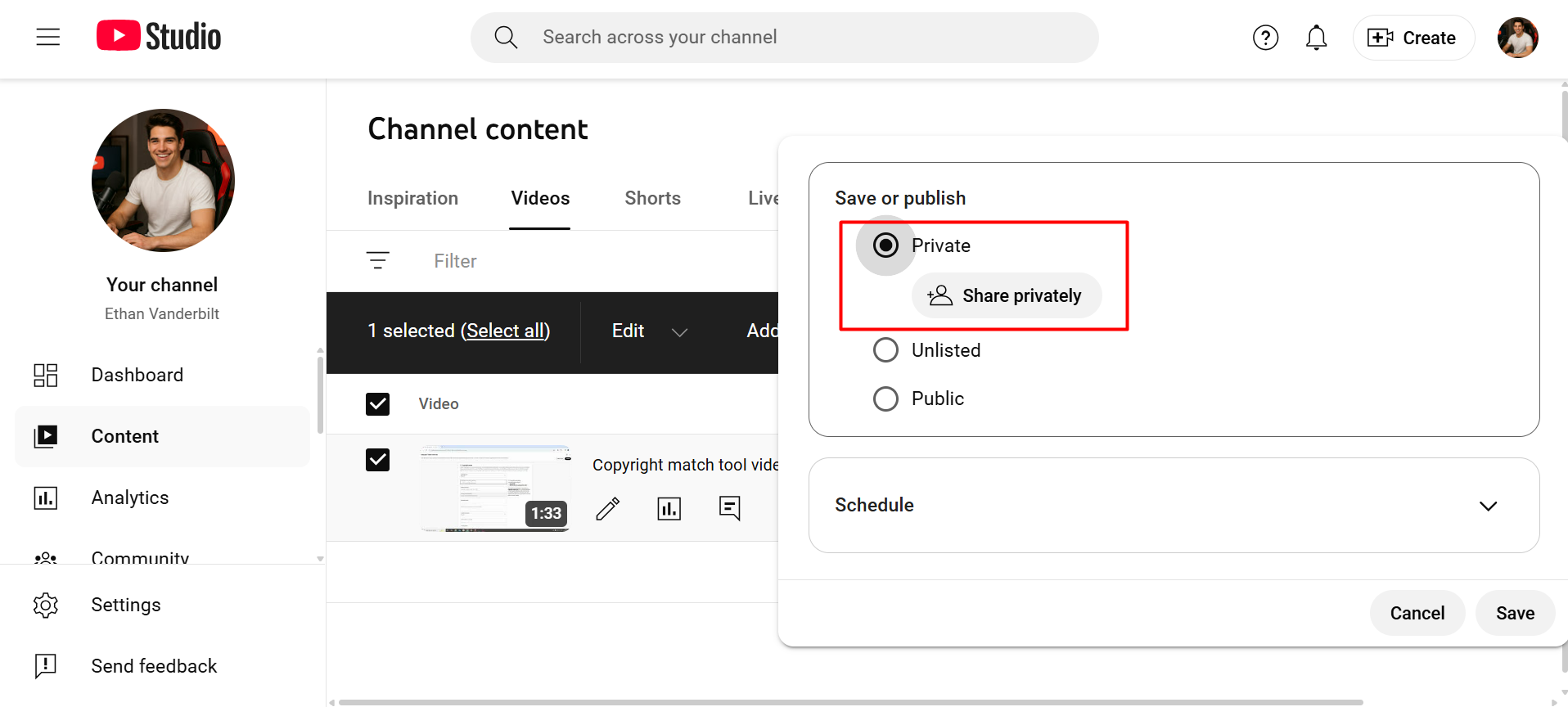
4. Look for the Visibility option (Private, unlisted public)
5. Click the dropdown button in the visibility option and select share privately
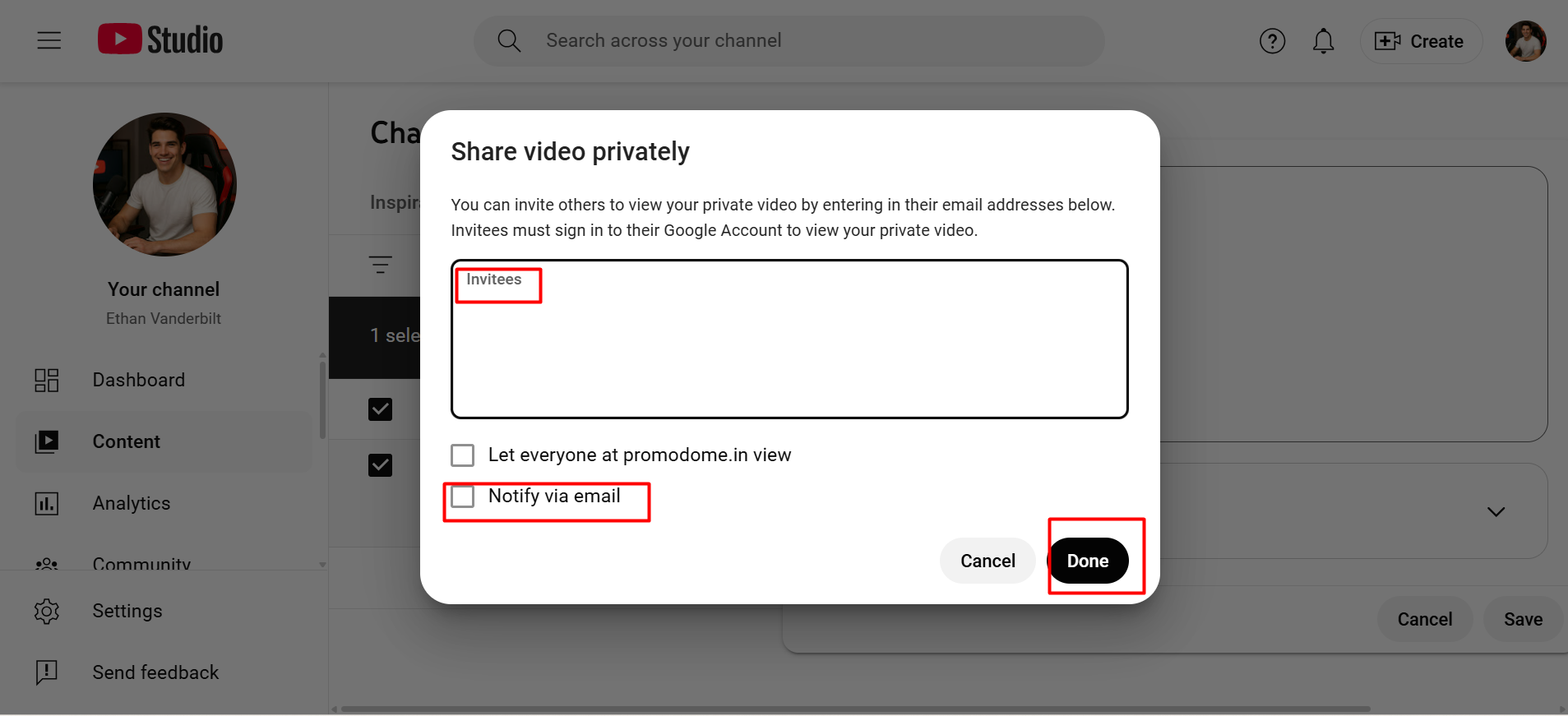
6. Add email address and check box (notify via email)
7. Click on Done
If you observe that the views on your videos have become stagnant, you can explore the top 3 ways to increase the viewership count on your YT videos.
Final Thoughts
Choosing to make your YouTube channel private is a highly effective means of controlling your digital footprint, whether you are looking to revamp your online presence or share some memories with a small group of people. The process of how to create a private YouTube channel is essentially about “hiding” your existing online presence, but it also provides you with the flexibility of controlling your audience. By following the steps mentioned above, you are able to confidently go through the settings and ensure that your videos are viewed by only the intended people.
Frequently Asked Questions
Q1. Can you monetize private YouTube videos?
No. These are not eligible for monetization. These videos will not be monetized because ads cannot be displayed on them and cannot be viewed by the general public.
Q2. Can subscribers see private videos?
No. The person should be a subscriber of your channel; still, they will not be able to view your private videos. These will not be displayed on your channel or on their subscription list unless you invite them via email.
Q3. Can I make only some videos private on YouTube?
Yes. You can change the status of your video from public, unlisted, or private at any time using the “Content” page on YouTube Studio.
Q4. Do private videos count toward watch time or views?
No. The watch time of your private videos will not be included in your total 4,000 watch hours needed for YouTube’s Partner Program. The watch time of your video will be deleted if you change it from public to private.
Q5. Can private YouTube videos appear in search results?
No. Your private videos will not be displayed on YouTube’s search engine or on external search engines like Google.
