


Key Takeaways:
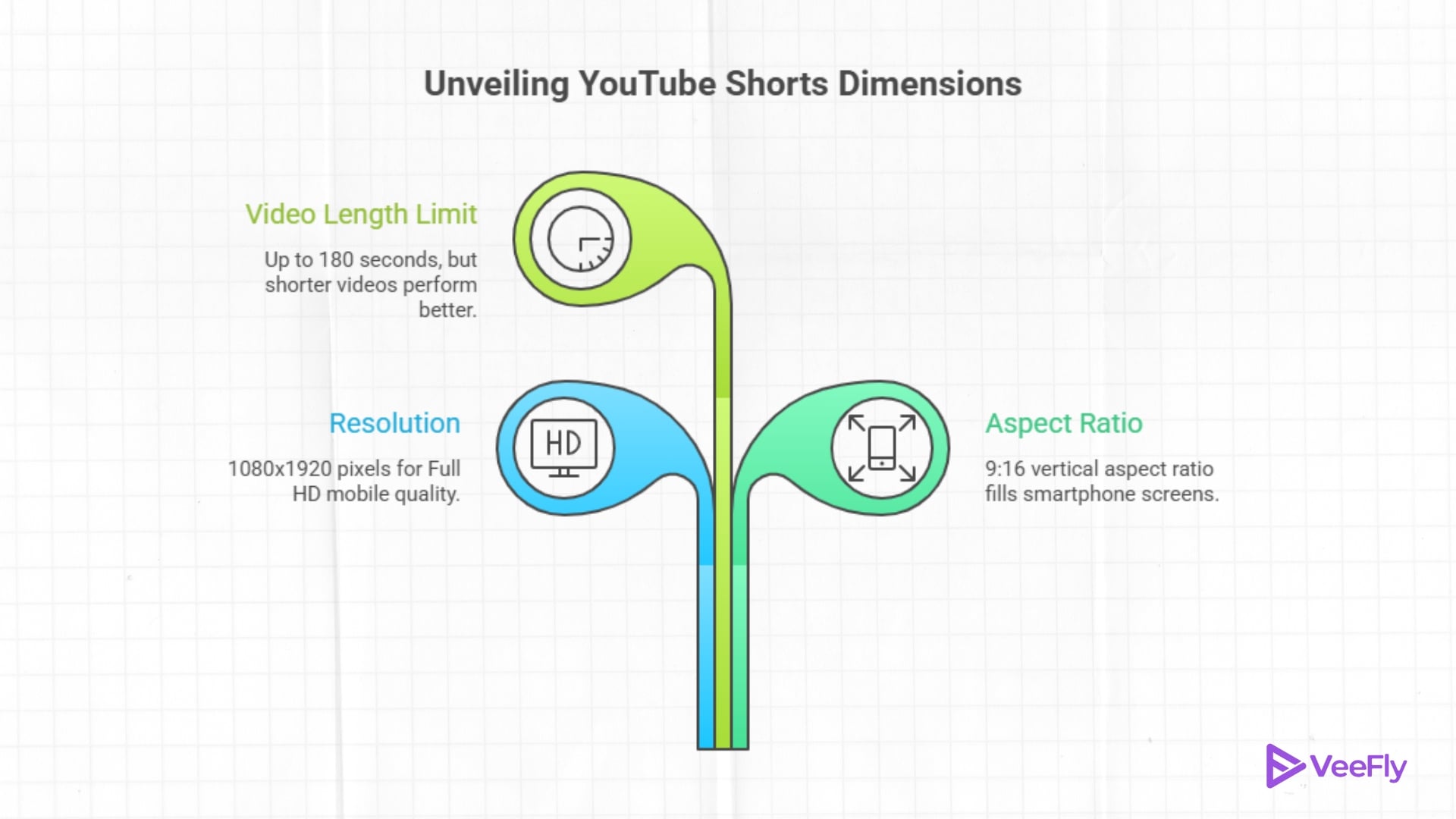
- Ideal YouTube Shorts dimensions are 1080×1920 pixels in a 9:16 vertical aspect ratio
- Shorts can now run up to 180 seconds, but Content ID claims block videos over one minute
- Safe zone is 1080×1720 pixels to avoid UI overlay cropping
- Export at 5-10 Mbps bitrate using H.264 codec for best quality
YouTube Shorts changed how creators make and share vertical video content on mobile devices. To maximize your reach and maintain professional quality, you need to understand the correct YouTube Shorts dimensions, technical requirements, and export settings for 2026. This guide covers resolution specs, aspect ratios, safe zones, and common formatting mistakes so your content displays perfectly across all devices.
What Are the Best YouTube Shorts Dimensions in 2026?
The best size for YouTube Shorts is 1080×1920 pixels in a 9:16 vertical format. This portrait orientation fills smartphone screens, creating an engaging viewing experience without black bars or cropping. Here’s everything you should know:
Recommended Resolution
The best resolution for YouTube Shorts is 1080×1920 pixels, which delivers Full HD quality on mobile devices. YouTube’s platform documentation confirms a maximum resolution of 1080p for Shorts uploads, so exporting at higher resolutions like 4K offers no quality benefit and wastes storage space.
This YouTube short resolutions ensures sharp, clear visuals without bloating file size. YouTube automatically processes your upload to optimize playback across different connection speeds and devices.
Aspect Ratio
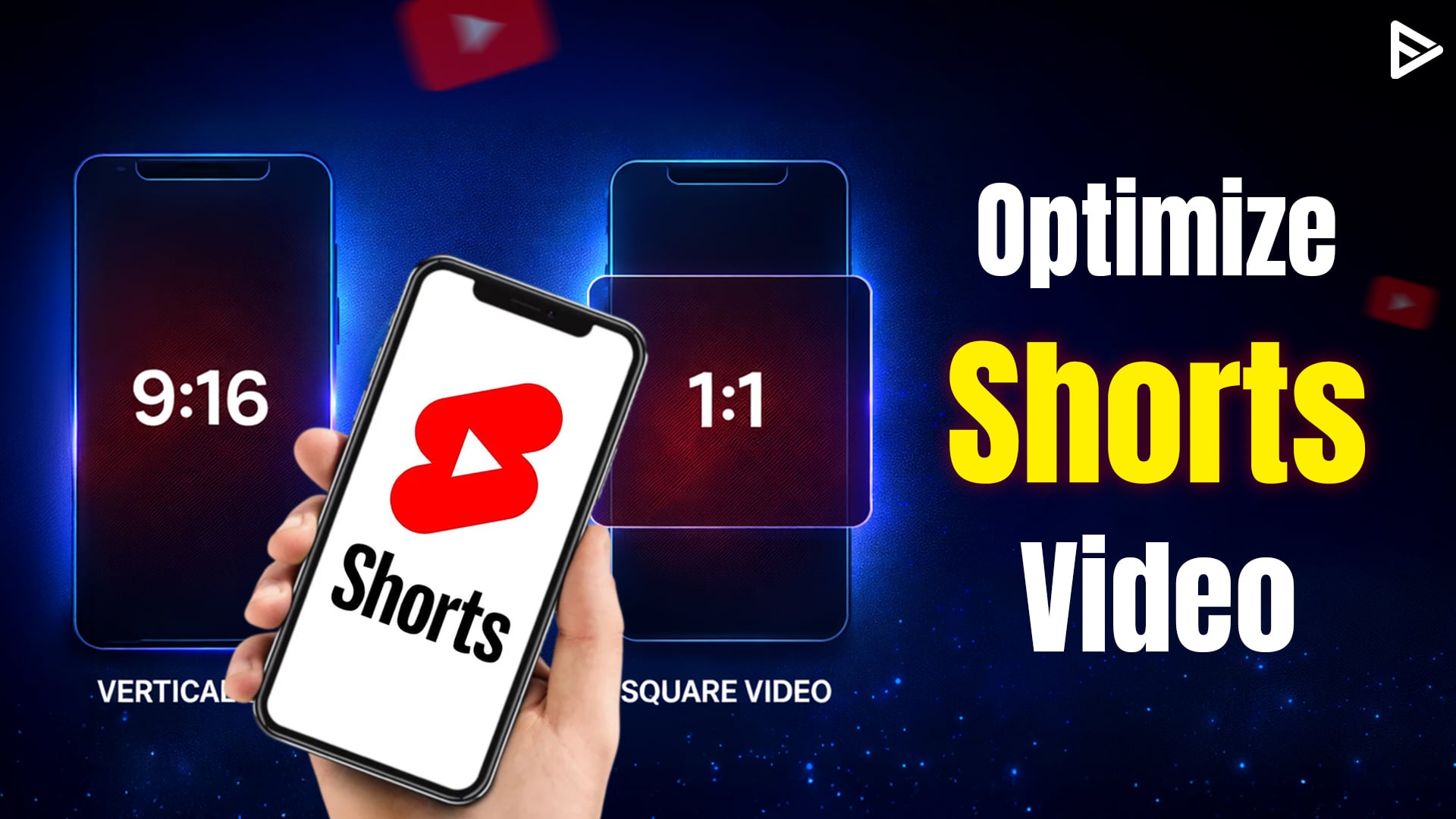
The standard YouTube Shorts size ratio is 9:16 vertical. This aspect ratio matches how people naturally hold their phones and fills the entire screen during playback.
You can upload videos in other formats like 16:9 landscape or 1:1 square, and YouTube will still classify them as Shorts if they’re under three minutes. However, non-vertical formats display with letterboxing or black bars, which reduces visual impact and viewer engagement. Square 1:1 videos work for Shorts, but they don’t maximize screen real estate the way 9:16 videos do.
Video Length Limit
As of October 15, 2024, YouTube short videos can extend up to 180 seconds (three minutes). This expansion gives you more flexibility for storytelling and tutorials while keeping content mobile-friendly.
However, there’s a critical restriction: Shorts longer than one minute with Content ID claims will be blocked from the Shorts feed until claims are resolved. If you’re using copyrighted music, keep your Short under 60 seconds to avoid removal.
Shorter videos, 15-60 seconds, typically perform better for viewer retention and completion rates. Test different lengths using YouTube Studio Analytics to see what works for your audience.
YouTube Shorts Technical Requirements
Meeting YouTube’s technical specifications prevents upload errors and maintains playback quality across devices.
File Format and Codec
The recommended YouTube Shorts video format is an MP4 container with H.264 video and AAC audio codecs. This combination works across all devices and streaming platforms without compatibility issues.
YouTube also supports MOV and WebM, but MP4 remains the safest choice for consistent results. Using the wrong codec can cause processing delays or quality degradation during upload.
Frame Rate and Bitrate
YouTube supports frame rates from 24 fps up to 60 fps for Shorts. Match your export frame rate to your source footage to prevent choppy playback or motion artifacts.
For bitrate, target 5-10 Mbps at 1080p resolution. This range balances sharp image quality with reasonable file sizes for faster uploads. Higher bitrates improve clarity slightly but create larger files that take longer to process.
File Size Considerations
While YouTube doesn’t publish a strict file size limit for Shorts, keeping files optimized helps prevent upload delays, especially on mobile networks. Using efficient codec settings and an appropriate bitrate keeps file sizes manageable without sacrificing quality.
Compress your video during export rather than uploading massive files that YouTube has to process heavily. It saves time and reduces the chance of processing errors.
YouTube Shorts Safe Area Guidelines
YouTube’s mobile app overlays UI elements on top of your video during playback. To prevent important content from being hidden, respect safe zone boundaries when editing.
- UI Overlay Zones: UI components cover the bottom 15-20% of the screen and portions of the left and right edges. The central safe area measures 1080×1720 pixels. Keep faces, logos, product shots, and critical visual elements within this zone to ensure they remain visible.
- Text and Caption Safe Zones: Position on-screen text and captions within the central 80% width and avoid the lowest 20% of the frame height. It prevents your text from being obscured by buttons and UI overlays.
Best Export Settings for YouTube Shorts
Correct export settings maintain video quality and compatibility when uploading from mobile or desktop editors.
Export Settings for Mobile Editors
- Mobile apps like CapCut and InShot simplify the export process with preset options:
- Resolution: Set to 1080×1920 px (YouTube Shorts video size width and height)
- Format: Choose MP4 with H.264 codec
- Frame Rate: Match your source footage (typically 30 fps)
- Bitrate: Select “High Quality” preset or manually set to approximately 8 Mbps
- Aspect Ratio: Configure project settings to vertical 9:16 before editing
- Preview your export before uploading to confirm there are no black bars, cropping, or quality issues.
Export Settings for Desktop Editors
In Adobe Premiere Pro, Final Cut Pro, or DaVinci Resolve, follow these steps:
- Set sequence/project dimensions to 1080 width by 1920 height pixels
- Use H.264 codec with High profile setting
- Match frame rate to source footage (24-60 fps)
- Set target bitrate to 8 Mbps
- Export in MP4 container format
- Enable “Render at Maximum Depth” if available
- Use safe area guides to verify content placement
YouTube’s Edit with AI feature is now available in YouTube Studio, letting you create Shorts directly from longer videos with automated formatting. It can save time if you’re repurposing existing content.
Common YouTube Shorts Dimension Mistakes
Avoid these YouTube short dimensions formatting errors that commonly hurt video quality and viewer experience:
- Uploading landscape (16:9) instead of vertical (9:16): Results in black bars on sides and reduced screen coverage. Always shoot and edit in portrait orientation.
- Using a lower resolution like 720×1280: Reduces clarity and makes your content look unprofessional compared to properly formatted Shorts.
- Placing text or logos near screen edges: Gets obscured by app UI overlays, making key information invisible to viewers.
- Mismatched export frame rates: cause jittery, choppy playback when export settings don’t match the source footage’s frame rate.
- Ignoring Content ID restrictions: Shorts over 60 seconds that use YouTube copyrighted music are blocked from the Shorts feed entirely.
- Double-check your project settings and preview exports before uploading to catch these issues early.
Final Thoughts
By following these YouTube Shorts dimensions specifications, technical requirements, safe zone guidelines, and export settings for 2026, you’ll create polished vertical videos optimized for mobile viewing. Proper formatting prevents common mistakes like cropping, black bars, and Content ID blocks that limit your reach.
Frequently Asked Questions
Q1) What’s the optimal length for a YouTube short?
The optimal length for YouTube Shorts is 15-30 seconds.
Q2) Why does my YouTube Short have black bars?
Black bars appear when you upload horizontal (16:9) or square (1:1) videos instead of vertical (9:16). Always format Shorts in portrait orientation to fill smartphone screens.
Q3) What happens if I upload a horizontal video as a Short?
YouTube will still classify videos under 3 minutes as Shorts, but horizontal formats display with black bars on the sides, significantly reducing visual impact and screen coverage.
Q5) Do YouTube Shorts need a specific frame rate?
