


YouTube Keyboard Shortcuts: Key Takeaways
- Playback Controls & Navigation shortcuts include Play & Pause, Fast Forward and Seek to Video Position.
- Audio Shortcuts are for instant volume control, while Captions & Subtitles Shortcuts for accessibility.
- Playback Speed & Video Control help to quicken through process and Quality YouTube Shortcuts help to enhance the viewing.
- Keyboard Shortcuts help cut down mouse use and scrub footage to review and edit YouTube videos much quicker.
As a YouTube creator, researching and producing a video takes a lot of time. You are already on a time budget, and if your devices aren’t in sync, you will inevitably lose your momentum. A simple pause and rewind with your laptop cursor or pc mouse can cause several interruptions in your workflow. That’s precisely why YouTube keyboard shortcuts matter more than you realize.
Most creators know a few basic commands, but only a few take full advantage of YouTube video keyboard shortcuts, YouTube playback speed shortcuts, volume, and subtitle controls. Navigating your entire workflow with your fingers without losing focus can save you a lot of time. Here are the shortcuts for long-term growth:
Why Are YouTube Keyboard Shortcuts Essential?
Every second in your workflow counts. Juggling uploads, editing, research, and monitoring analytics is essential. But the last thing you want is to waste time hunting for tiny buttons on the YouTube interface. In that case, your keyboard becomes your one-stop solution.
Creators who move entirely on the keyboard don’t just act faster, but think quicker too; your entire workflow is on one device. Since speed equals output, the more you streamline your actions, the more energy you preserve for what actually matters: producing content.
25 YouTube Keyboard Shortcuts for Faster Workflow
Even though YouTube has a simple interface, there are several tasks you, as a creator, have to go through. Here’s a list of reliable navigation keys that will help avoid all the micro-delays:
Playback Controls & Navigation
The constant play-and-pause must be exhausting; it may also wear out your cursor or mouse. The fastest way to move through your timeline is with shortcut key for YouTube. Playback controls will enable faster footage review, jumping between chapters, and re-watching specific scenes.
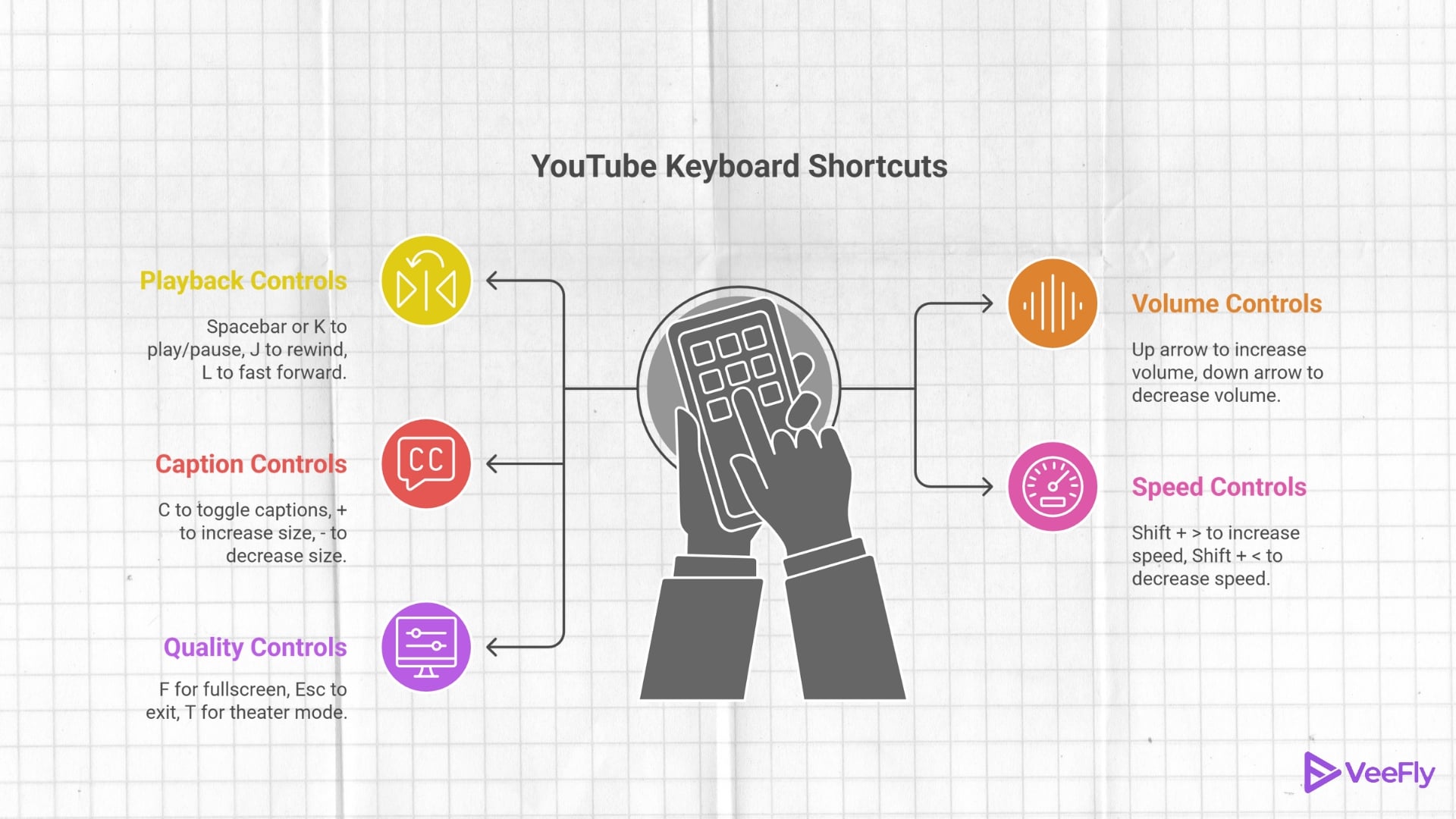
1. Play & Pause – Space bar or Letter K
2. Rewind – Letter J to rewind 10 seconds under YouTube keyboard commands
3. Fast Forward – Letter L to move forward by 10 seconds
4. Next Video – Shift bar + Letter N
5. Previous Video – Shift bar + Letter P
6. Seek to Video Position – Number keys from 0-9. It will help jump to the particular section of the video. For instance, Number Key 0 will lead to the beginning of the video, Number Key 1 will lead to 10% video, and so on.
Volume & Audio Shortcuts
Audio management should never slow down a creator; volume and audio shortcuts help in instant control. It helps in live streams and detailed audio reviews.
7. Volume Up – Arrow Up increases volume by 5% under YouTube shortcut keyboard
8. Volume Down – Arrow Down decreases volume by 5%
9. Mute & Unmute – Letter M
10. System Volume – Media Keys for monitoring sound levels
Captions & Subtitles
To enhance accessibility and provide clarity, you can add captions and subtitles timings without disrupting workflow.
11. Toggle Captions – Letter C to switch subtitles on and off
12. Increase Subtitle Size – Press + (Plus)
13. Decrease Subtitle Size – Press – (Dash)
14. Change Subtitle Background Opacity – Letter O
15. Toggle Caption Style – Shift + Settings
Playback Speed & Video Control
As a creator, you might want to slow down tutorials, analyze movements, or speed through repetitive clips.
16. Increase Speed – Shift + > to double the speed
17. Decrease Speed – Shift + < To analyze transitions slowly
18. Reset Speed – Number Key 0 in speed menu
19. Loop Video – Shift + Letter L, helping you in best video transitions.
Quality YouTube Shortcuts
Video quality is essential for instant control over how your video appears to viewers. Right from visual quality and compression to thumbnails and color grading, everything is necessary.
20. Fullscreen – Letter F for reviewing color accuracy and final visuals
21. Exit Fullscreen – Esc Bar
22. Theater Mode – Letter T
23. Mini Player – Letter I
24. Quality Settings – Shift + Open Settings Menu
25. CTRL +F4 – Important to close the current tab for better view under YouTube shortcuts keys
Conclusion
YouTube keyboard shortcuts aren’t just a few clever tricks; they are a productive hack that gives a clear competitive advantage. Creators who train their fingers to navigate the platform directly become faster thinkers and ultimately accelerate their YouTube audience growth. Use them daily to have a much smoother workflow.
Frequently Asked Questions
Q1. What Are All the YouTube Keyboard Shortcuts?
YouTube offers a wide range of keyboard shortcuts for navigation. However, most creators use around 25-30 keyboard shortcuts.
Q2. What Are the 20 Keyboard Shortcuts?
There are 20 essential YouTube keyboard shortcuts, including play, pause, rewind, fast forward, and skip.
Q3. How to Enable Keyboard Shortcuts in YouTube?
YouTube keyboard shortcuts are enabled by default. Simply click the video player to ensure it’s in focus, then use the keys.
Q4. What is CTRL +F4 Used For?
CTRL +F4 is a YouTube shortcut that closes the current tab, window, or document in many apps.
Q5. What Is the YouTube Skip Ad Keyboard Shortcut?
The YouTube skip ad keyboard shortcut is typically tab enter.
