


Key Takeaways
- YouTube Shorts has built-in tools for both desktop and mobile users.
- You can use YouTube Studio, the mobile app, or third-party tools.
- Scheduling via a computer allows for the most detailed settings and easy file management.
- The YouTube app supports scheduling directly from your phone’s gallery.
- Scheduling does not negatively affect your views; in fact, it helps by hitting peak audience times.
This guide provides simple, step-by-step instructions to help you automate your content so you can focus on creating rather than clicking “publish” every single day.
Can You Schedule YouTube Shorts? Here’s How
Can you schedule YouTube Shorts? Yes, you can schedule them to go live at any future date and time. According to Sprout Social, posting consistently signals to the algorithm that your channel is active, which can boost your visibility in search results and the Shorts feed.
Here are the 5 biggest benefits of scheduling:
- Keep your channel active even when you are on vacation or busy.
- Use features like ViralPost® to publish when your specific audience is most active.
- Film all your content at once and set it to drip out over the week.
- Regular uploads build a routine that the YouTube algorithm rewards.
- Stop worrying about daily deadlines by planning your calendar weeks in advance.
A common misconception among creators is does scheduling YouTube Shorts affects views. Creators, be assured, it does not harm your reach.
How to Schedule YouTube Shorts on Desktop (YouTube Studio)
Scheduling on a computer is the most reliable way to manage your channel. Ensure your video is vertical (9:16) or square and under 3 minutes long.
1. Sign in to YouTube Studio on your computer.
2. Click Create in the top right and select Upload videos.
3. Select the file you want to upload.
4. Fill in details: Give your video a title and description.
5. Proceed through the Video elements and Checks tabs by clicking Next.
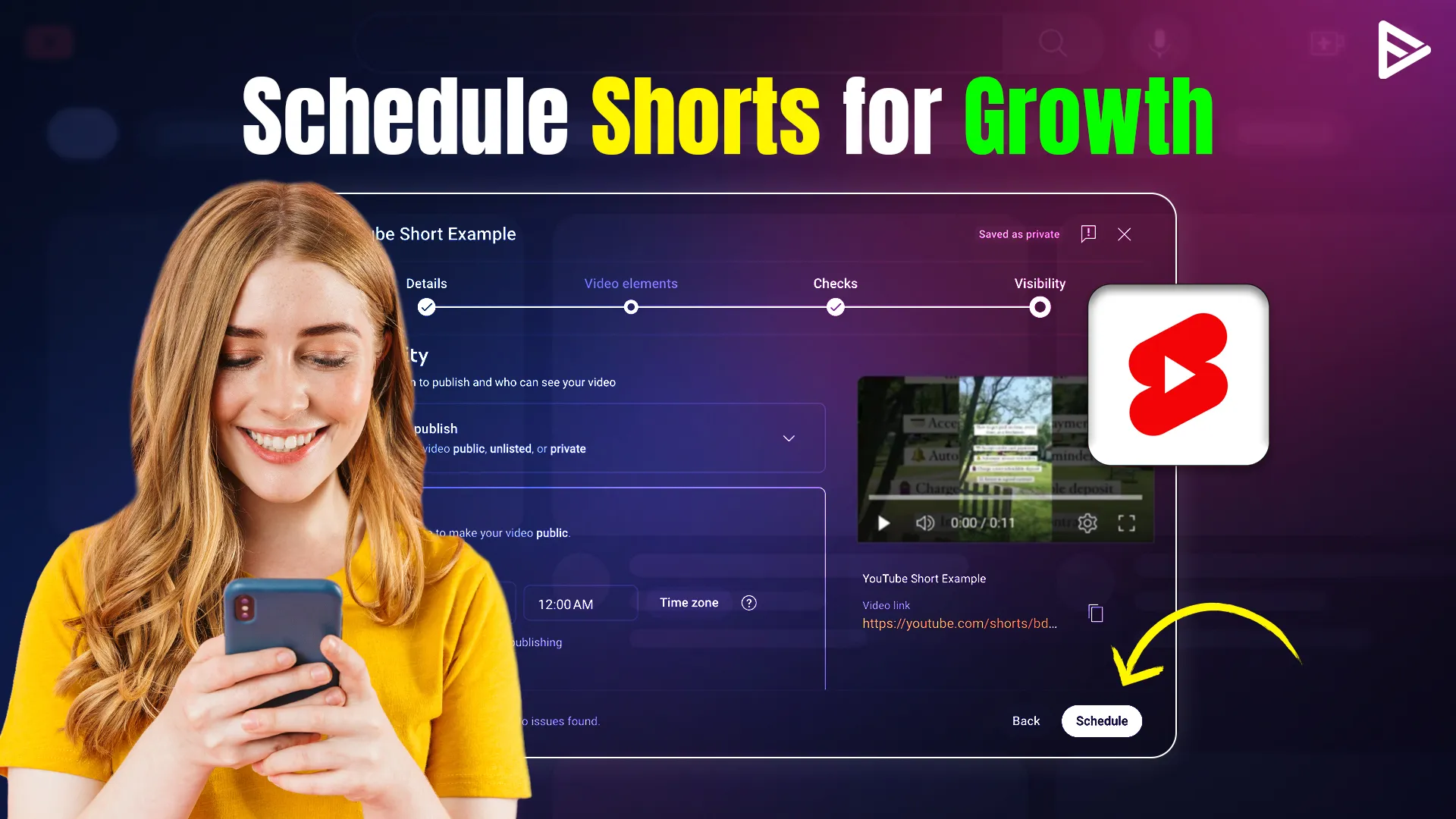
6. On the Visibility tab, select Schedule.
7. Choose the date, time, and time zone you want the Short to go live.
8. Click Schedule on the bottom right to finish.
If you need to change the time later, go to the Content tab, hover over the video, and click the pencil icon to edit the visibility settings.
How to Schedule YouTube Shorts on Your Phone
If you are wondering how to schedule YouTube Shorts on phone, the process is built right into the official app.
1. Open the YouTube app and tap the + (Create) button.
2. Tap Upload a video (best for pre-edited clips).
3. Select your video and tap Next.
4. Add your title and caption.
5. Tap Visibility (it usually says “Public” by default).
6. Tap Schedule at the bottom of the list.
7. Select your desired date and time, then tap the back arrow.
8. Verify that the correct time now shows under Visibility.
9. Tap Upload Short.
Tip: You can save your video as a draft if you aren’t ready to set a time yet, though you’ll need to return to the visibility menu to finalize the schedule.
YouTube Studio or Third-Party Tools: Which Is Better for Scheduling Shorts?
The tools should fit your workflow. Usually, Solo creators often stick to the native YouTube Studio, but for a professional approach, teams might prefer a management tool like Sprout Social.
Comparison Table: Scheduling Methods
| Feature | YouTube Studio | Sprout Social | Buffer / Later |
| For | Solo creators | Teams & Businesses | Individual social managers |
| Price | Free | Paid (Professional) | Free & Paid tiers |
| Pros | Full feature access | Optimal post times | Easy cross-platform posting |
| Cons | No cross-platform | Higher cost | Limited free features |
How to Schedule YouTube Shorts with Later, Sprout & Buffer
Third-party tools are perfect for creators who manage multiple social media accounts at once.
Sprout Social
To use Sprout, select the camera icon in the Compose box and upload your video. You can use the YouTube Video Options to add tags and categories. A major pro is ViralPost®, which automatically picks the best time for engagement.
- Pro: Advanced analytics and automatic “Best Time to Post”.
- Con: Requires a paid subscription.
Later & Buffer
Later is excellent for visual planning, while Buffer is known for its simple queue system. Both allow you to cross-post your Short to Instagram Reels or TikTok simultaneously.
- Pro: Save time by posting one video to three different platforms at once.
- Con: Free versions often have monthly upload limits.
Best Time to Schedule YouTube Shorts for More Views
In order to schedule YouTube Shorts for 2026, the following steps should be followed:
Steps to Schedule YouTube Shorts (Desktop & Mobile)
1. Upload the Short: In YouTube Studio, go to “Create” > “Upload videos.”
2. Add Details: Add the title, description, and hashtags to the YouTube Shorts.
3. Set Visibility: Proceed to the “Visibility” step in YouTube Studio and select “Schedule.”
4. Choose Date/Time: Choose the date, time, and time zone when the YouTube Shorts should go live.
5. Finalize: Click “Schedule.”
Key Tips for 2026
Best Times to Post
Using YouTube Studio, you can view real-time audience interactions. With this, you get to know the active region and the timezone. Generally, the best times to post YouTube Shorts are 12-2 PM, 5-7 PM, 8-10 PM.
Time Zones
While scheduling YouTube Shorts, it is important to ensure that the time zone used is the audience’s time zone and not the creator’s time zone.
Processing Time
Ensure that the YouTube Shorts are processed in high definition to avoid poor quality when the YouTube Shorts are released.
Batching
Use third-party tools to schedule multiple YouTube Shorts at once to save 5-10 hours every week.
Final Thoughts
Scheduling your YouTube Shorts is an important step in moving from a hobbyist creator to a more professional content creator. It removes the pressure of manually uploading content every day and helps you plan your content strategy more effectively. If you also publish long-form videos, you can schedule your YouTube videos in advance to maintain a consistent posting schedule across your channel. Whether you’re using YouTube Studio or 3rd party tools. The goal remains the same: stay organized, stay consistent, and let the algorithm work for you.
Frequently Asked Questions
Q1. What is the minimum/maximum Short length for scheduling?
The YouTube Shorts must be between 1 second and 3 minutes long. The duration is suggested by Google’s official page.
Q2. Can you schedule more than one Short per day?
Yes, there is no limit to how many Shorts you can schedule in a single day.
Q3. Will scheduled Shorts notify subscribers?
Yes, as long as you have the “Publish to subscriptions feed and notify subscribers” box checked in the Advanced Settings.
Q4. How to add thumbnails to scheduled Shorts?
On a desktop, you can upload a custom thumbnail during the “Details” step. On mobile, you must select a frame during the upload process before hitting schedule.
Q5. Can you bulk-schedule Shorts in YouTube Studio?
While you can upload multiple files at once, you must set the specific schedule time for each video individually.