


Key Takeaways:
- Veo 3 solves the production constraint by creating cinematic visuals, but the YouTube Shorts algorithm still prioritizes audience retention and video structure over the AI tool itself.
- Avoid slow, sweeping AI animations at the start. Open with an immediate visual and psychological hook in the first 1.5 to 3 seconds to stop the user from swiping away.
- Do not let a single Veo 3 generation play out for its full duration. Cut, zoom, or swap the visual perspective every 2 to 3 seconds to keep the hook active and match short-form attention spans.
- Structure your video’s script so the final sentence connects back into the opening hook, reinforcing completion rates and signaling high value to the algorithm.
- Organic reach is inherently unpredictable for new accounts. Combine high-retention AI content with targeted distribution platforms like VeeFly to reach your ideal audience faster after the initial algorithm testing phase.
What Is Veo 3 and Why Creators Are Using It
Why Do Most AI-Generated YouTube Shorts Fail?
- Starting a Short with a beautiful but slow, sweeping landscape generated by Veo 3 is not the best idea. The modern viewer decides whether to swipe away within the first 1.5 seconds, and if nothing happens immediately, they leave.
- AI-generated clips often suffer from pacing issues. A single, slow-motion 8-second Veo 3 generation loop feels sluggish to a viewer.
- Creators upload raw AI clips with robotic voiceovers and generic scripts. The YouTube algorithm measures audience retention and engagement, so if your Short looks and sounds exactly like 10,000 other automated videos, it will be flagged as low-value, mass-produced content.
How to Use Veo 3 for YouTube Shorts (Step-by-Step)
Step 1: Choose a High-Retention Idea: Do not start with the prompt; start with the premise. What core curiosity gap will keep the viewer watching?
- Tip: Base your idea on a proven, high-search-volume topic your audience already cares about.
- Mistake: Generating random cool-looking clips without a narrative spine.
- Optimization: Write a complete, fast-paced script before opening your video generator, so every scene serves the viewer’s interest.
Step 2: Write a Performance-Focused Prompt: Veo 3 thrives on detail. Instead of prompting a scary forest, guide the camera angle, lighting, and motion to match the viewer’s expected impact.
- Tip: Use camera direction tags like Drone shot, fast push-in, hyper-realistic, moody lighting to keep the viewer locked in.
- Mistake: Using vague prompts that result in generic, slow-moving AI artifacts.
- Optimization: Use Veo 3’s image-to-video capabilities by uploading a specific reference frame to anchor the composition.
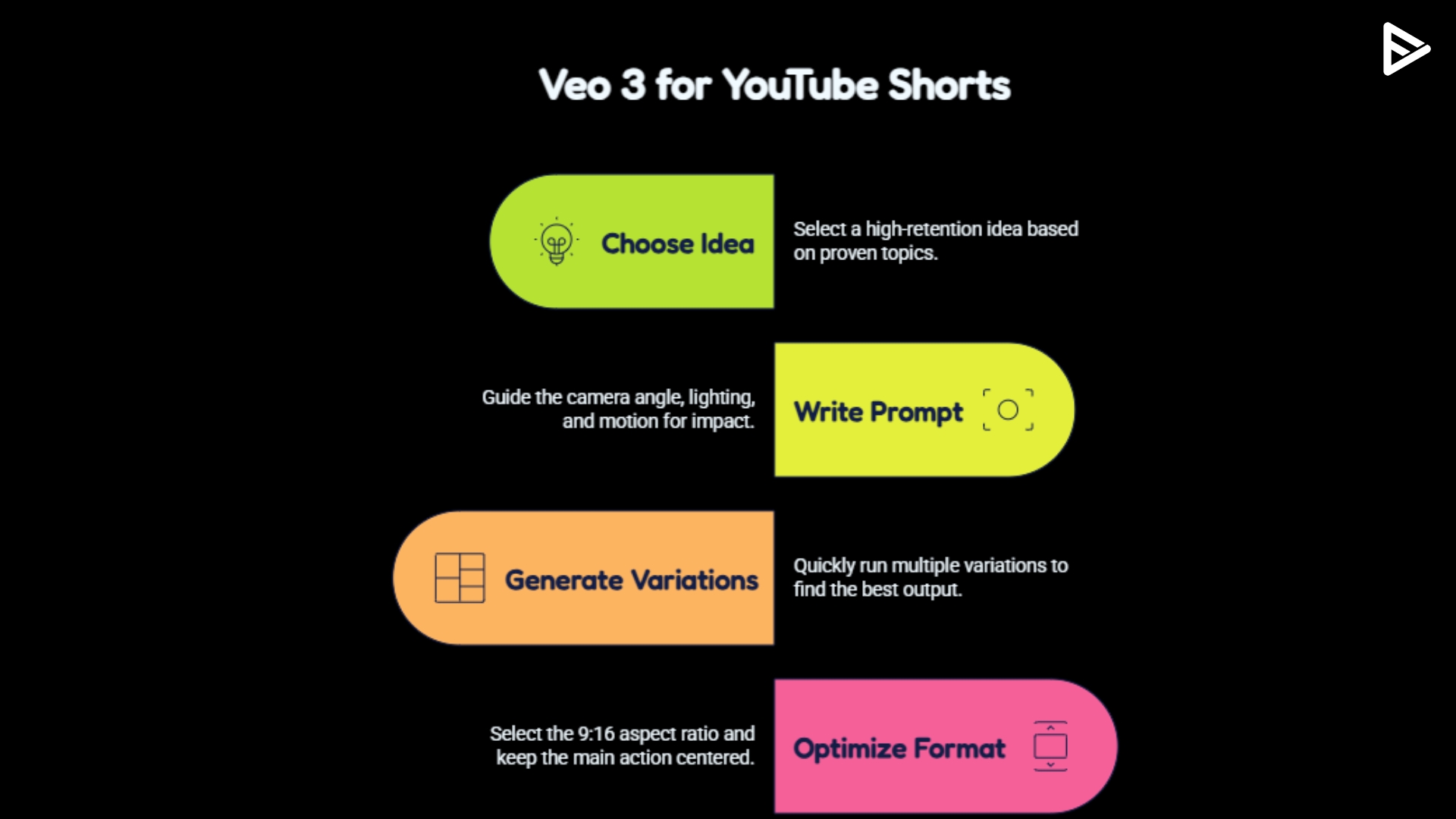
Step 3: Generate Multiple Variations: Your first output will rarely be perfect. Use Veo 3’s fast YouTube generation modes to quickly run 5-6 variations of the same prompt.
- Tip: Look for the generation that has the most dynamic movement in the first two seconds to grab the viewer immediately.
- Mistake: Settling for a clip where the subject’s face morphs or the physics breaks.
- Optimization: Use Veo 3.1’s end frame feature to maintain strict continuity from the start to the finish of the clip.
Step 4: Optimize for Shorts Format: Veo 3 can generate landscape or portrait videos. Always select the 9:16 aspect ratio so you do not have to aggressively crop the generated video, losing visual fidelity.
- Tip: Keep the main action centered, as YouTube’s UI overlays will cover the right and bottom of the screen for viewers.
- Mistake: Exporting in 16:9 and letting an automated editor awkwardly pan-and-scan the footage.
- Optimization: Export at the highest resolution possible so the viewer can see your video clearly in a feed full of compressed, YouTube blurry videos.
Step 5: Add Hooks & Retention Elements: Bring your Veo 3 clips into an editor like CapCut. Edit the raw AI clip before uploading it.
- Tip: Add massive, high-contrast captions, fast zoom-ins, and sound effects to punctuate every visual beat for the viewer.
- Mistake: Letting a single Veo 3 clip run for its entire 8-second duration without a cut.
- Optimization: Cut the video every 2-3 seconds to reset the viewer’s attention span.
Step 6: Upload & Optimize: Add a trending audio track underneath your native Veo 3 sound effects, write a keyword-rich title for the viewer, and post.
- Tip: Select the most visually striking frame from your Veo 3 generation as your custom Shorts cover to attract viewers.
- Mistake: Ignoring tags and descriptions; AI videos still require metadata to be categorized correctly.
- Optimization: Pin a comment asking a question to prompt immediate viewer interaction.