


Key Takeaways:
- Use the principle of “least privilege.” Only assign the exact role (Manager, Editor, or Viewer) that a team member needs to complete their specific job.
- YouTube lets you manage permissions directly in YouTube Studio for standard channels, or via Google Account settings for legacy Brand Accounts.
- You retain ultimate control. If an employee or freelancer leaves your team, you can revoke their channel access instantly with a single click.
When Should You Grant Access to Your YouTube Channel?
If you’re not an Individual YouTube creator, you’ll likely need to grant collaborators access. At times, it becomes necessary to provide access to fast-paced content production. Or in managing content, analytics, or community.
- Content creators or editors upload, edit, make changes, optimize, or schedule videos.
- To moderate comments to facilitate live chats.
- Give access to a data analyst to retrieve or analyze Studio Analytics data.
- To your team member for a dedicated task.
Grant access to professionals
Let’s see how to give access to YouTube channel and the people who needs permission.
Managers
You can’t micromanage everything. There are times when a social media manager and content manager might need to make a slight adjustment. Asking for access to small tasks can cause a hindrance to the workflow. By giving access to managers, you are eliminating multiple small but important tasks from your work tab.
Video Editor
If a video editor has access to the channel, they can efficiently work with the latest videos, do updates, and quickly make changes whenever needed. This makes the video editing workflow smooth for everyone, from scripters to editors and reviewers.
Agencies and Promoters
At a certain point in your YouTube career, you might need agencies to promote or handle your content. BY giving access to agencies, it will help them manage dozens of pieces of content. They will be able to do analytics, optimize content based on SEO, and run ad campaigns with ease.
How To Share YouTube Channel Permissions?
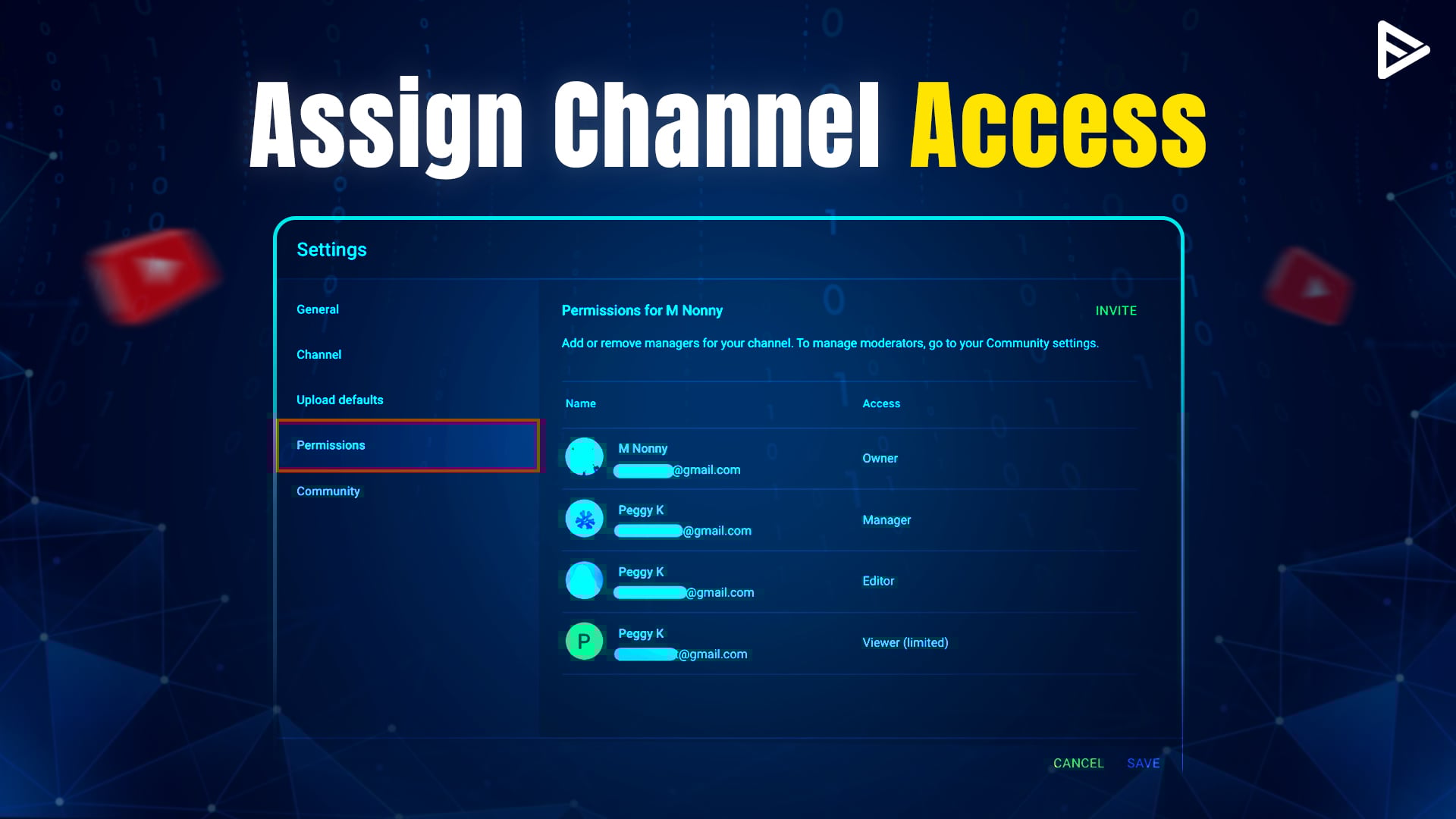
You do not have to worry about sharing your Google account details with anyone else. YouTube allows you to assign roles to other people. For example, you can choose between the manager, editor, and to add user to YouTube account.

1. Open YouTube on a browser and sign in to your channel.
2. Click on the profile icon in the right corner and select YouTube Studio.
3. Once you are redirected to YT Studio, select Settings.
4. Then, click YouTube manager permissions.
5. You must invite the person to grant access to YouTube channel.
6. Enter the person’s email ID, and from the drop-down, select the type of access you want the person to share.
7. Once you have assigned the role to the person, click done.
8. Once you have sent the invite, click save to add user to YouTube channel.
Advantages Of Adding A Manager To Your YouTube Channel
Now that you know how to add a manager to the YouTube channel. Let us tell you the reasons that can benefit your channel by giving access to manage the YT channel.
- You may add a manager to your YouTube channel without giving them access to your Google account. Instead, they may use their own Google account to administer the channel.
- Another great benefit of permitting another person to assist you in the day-to-day operations of your channel (such as responding to comments, posting videos, etc.).
- Increase your channel’s popularity and growth.
- You can manage everything the same as the owner except for financial or important credentials.
- Can manually assign roles because users can’t request access to YouTube channel until given.
How to Remove or Change Access
- Open YouTube Studio and click on Settings.
- Navigate to the Permissions tab.
- Locate the user you want to modify in the list of active team members.
- To Change a Role: Click the dropdown menu next to their current role and select a new one (e.g., changing a Manager to a Viewer).
- To Remove Access: Click the dropdown menu and select Remove access.
- Click Save at the bottom of the window to instantly apply the changes.
Final Thoughts
The biggest benefit of adding a manager to handle your YouTube channel access is time flexibility. You get time to work on other essential tasks and develop growth strategies if you buy YouTube views for your YouTube videos. A manager can assist you with day-to-day tasks like updating your channel, scheduling the publishing of videos, replying to comments, etc.
Frequently Asked Questions
Q1.Can I change a manager to an editor later?
Yes, you can change the manager role to an editor by going to channel permissions and adjusting roles.
Q2. Can two people manage one YouTube channel?
Yes, two people can manage one YouTube channel. However, the channel’s owner can grant users access and set roles to avoid channel management issues.
Q3. Can I grant temporary access to someone?
No, YouTube doesn’t offer a temporary access feature. However, you can manually revoke the permission or change the role.
Q4. Can I limit what an editor can see?
No, you can customize or limit what an editor-assigned role can see. The editors can see whatever permissions Google has fixed.
