


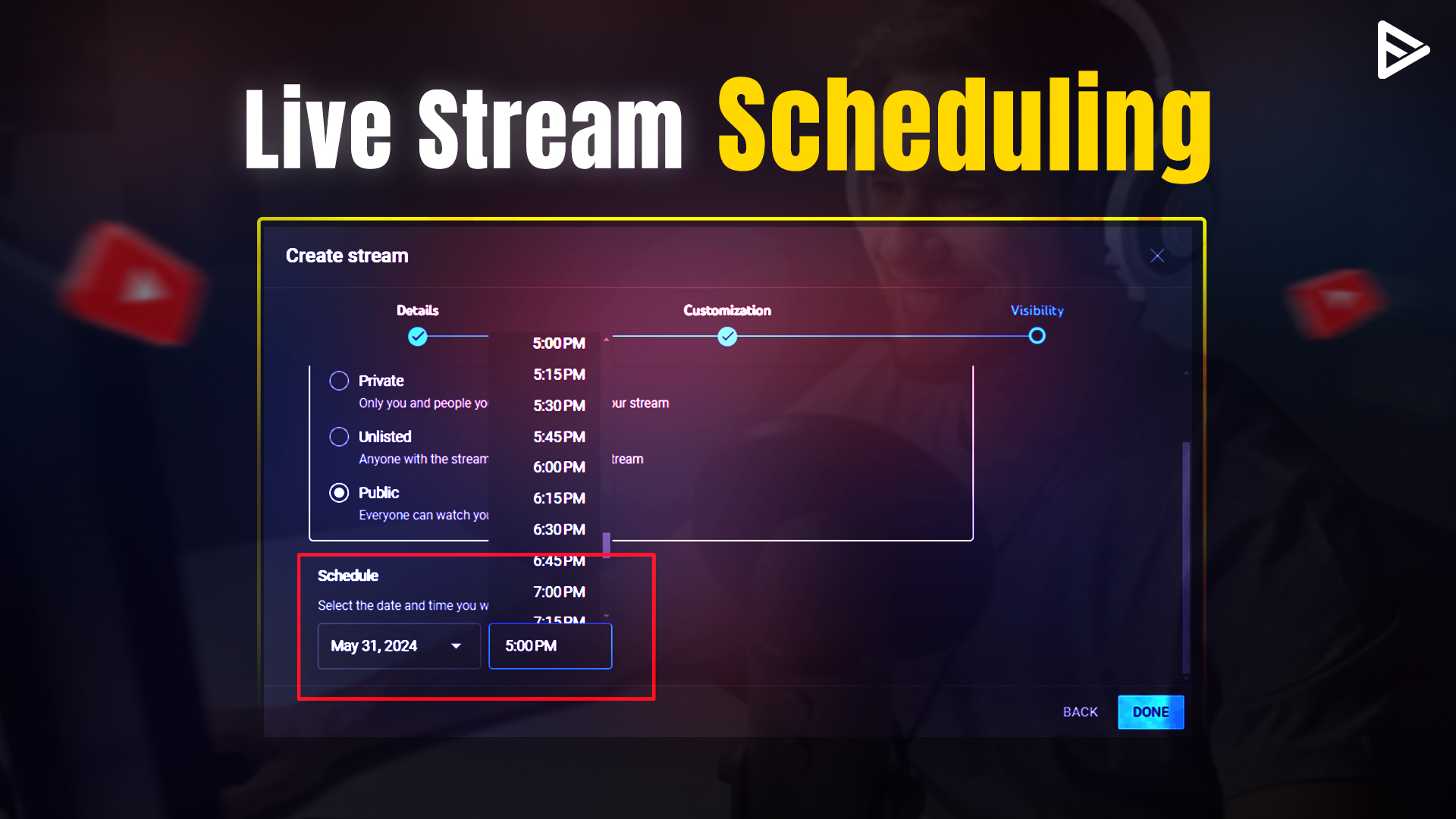
Do you want maximum viewership and engagement when going live on YouTube? Then, you must know how to schedule a livestream on YouTube in advance so that your viewers will be available on the date and time when you stream live. There’s no requirement as such to stream live. Also, scheduling your streaming session will help your viewers to know what your live stream will be about. So they can curate their queries or doubts before you start streaming. Let’s dive further into how to schedule a live stream on YouTube in advance.
Why Schedule a YouTube Live Stream?
Scheduling a YouTube livestream in advance keeps your subscribers and potential viewers informed about you going live. Besides, your viewers will find a video on your channel under the section “Upcoming Livestreams” with the scheduled date and time. This approach helps ensure your viewers get constant reminders and don’t miss out on the scheduled live stream on your YouTube channel.
Do I Need Anything Before I Schedule a YouTube Live?
Before we dive into the technical steps of how to schedule a livestream on YouTube, let’s know what you need for streaming live. To schedule a live stream on YT, you need to first enable live streaming on your channel. It can take up to 24-48 hours for YT to process this request, but usually it is processed faster. Once approved, your YouTube channel is all set to schedule a livestream in advance.
How To Schedule A Livestream On YouTube?
To schedule a livestream on YouTube, you need to have a verified account using a phone number. Follow these easy steps:
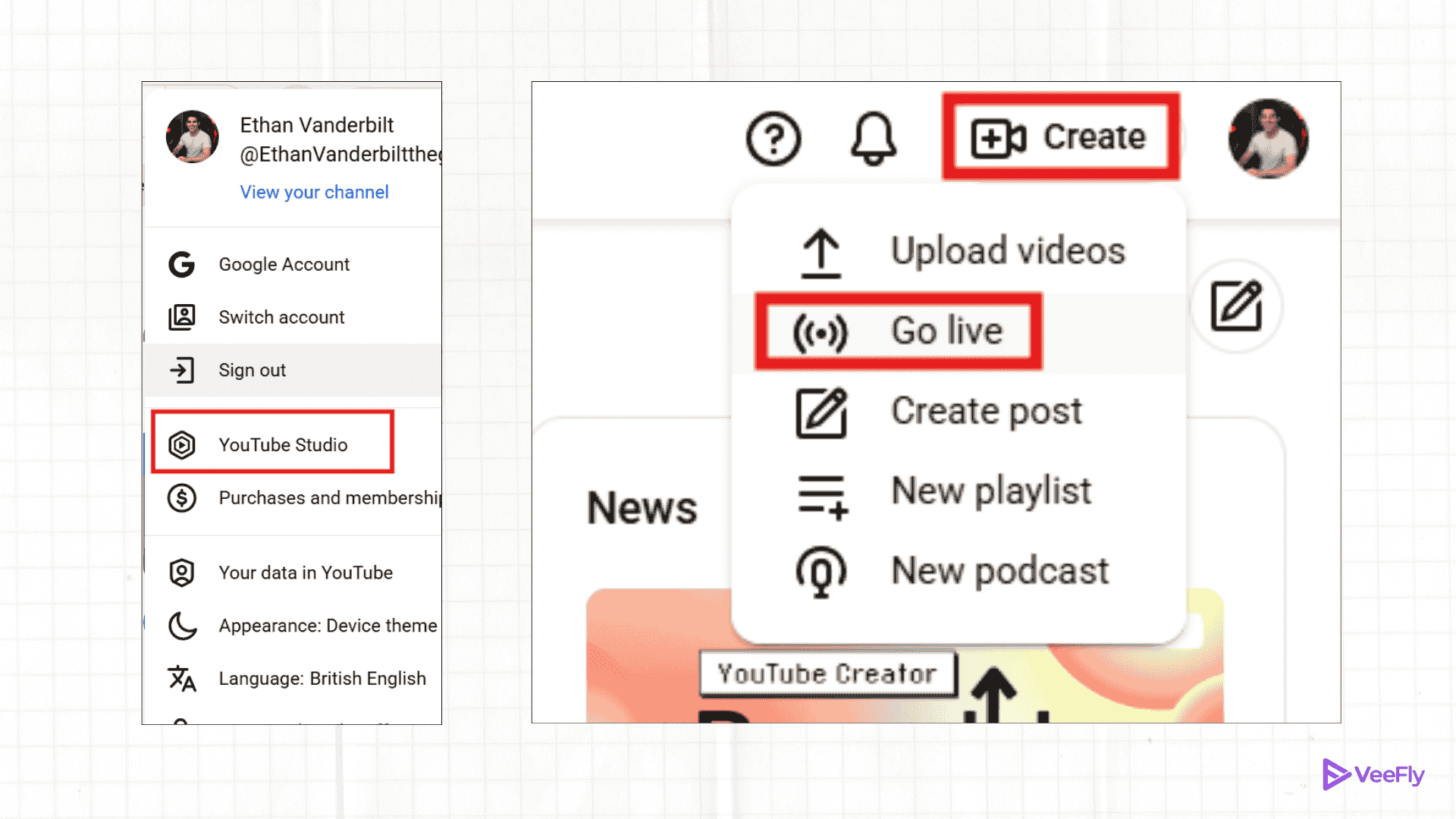
1. Go to YouTube.com on your desktop and sign in to your account.
2. Click on the Create icon on the top right.
3. Now, select the Go Live option.
4. From the sidebar on the left, click Manage(live control room).
5. Then, click Schedule Stream on the right side.
6. Under the Create stream option, add the title and description and click next. 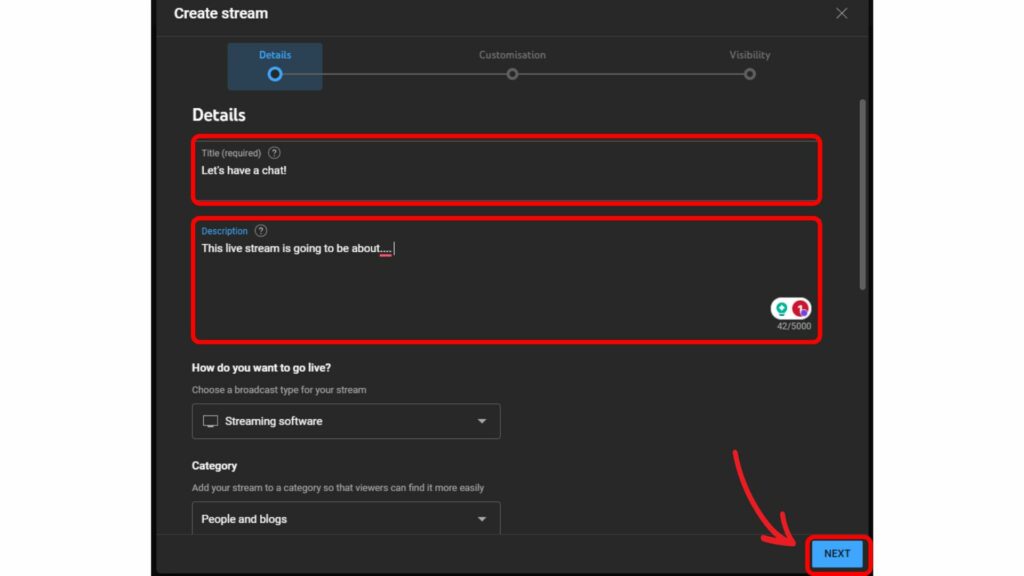
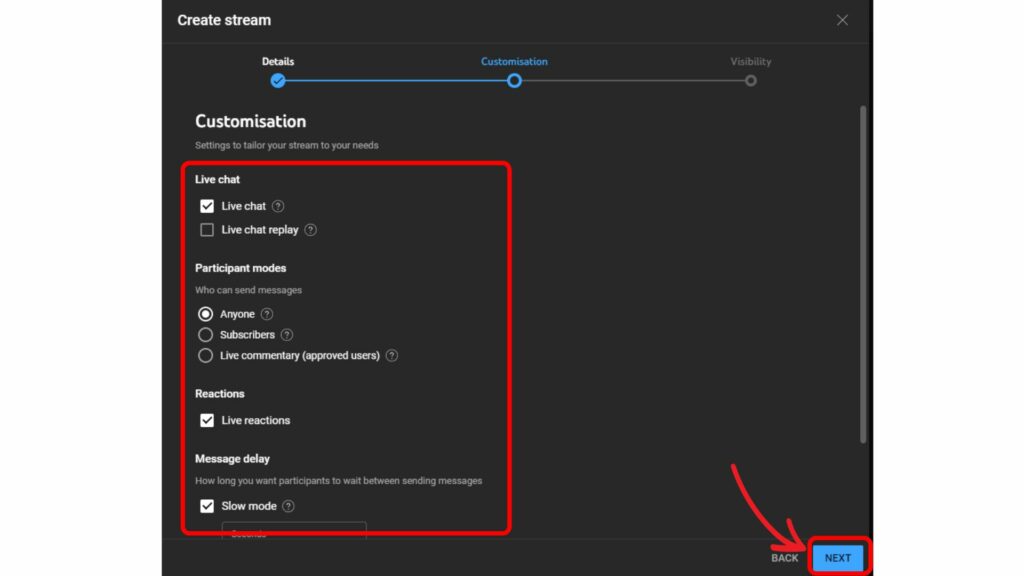
7. Then, customize, such as thumbnail, date, time, etc., all the other settings for the live stream session. Click next.
8. Under Visibility, you can select public, unlisted, or private. Also, add the date and time for when you want to schedule your live session. Click Next.
9. Finally, click Done. You have successfully completed the process to schedule a livestream on YouTube.
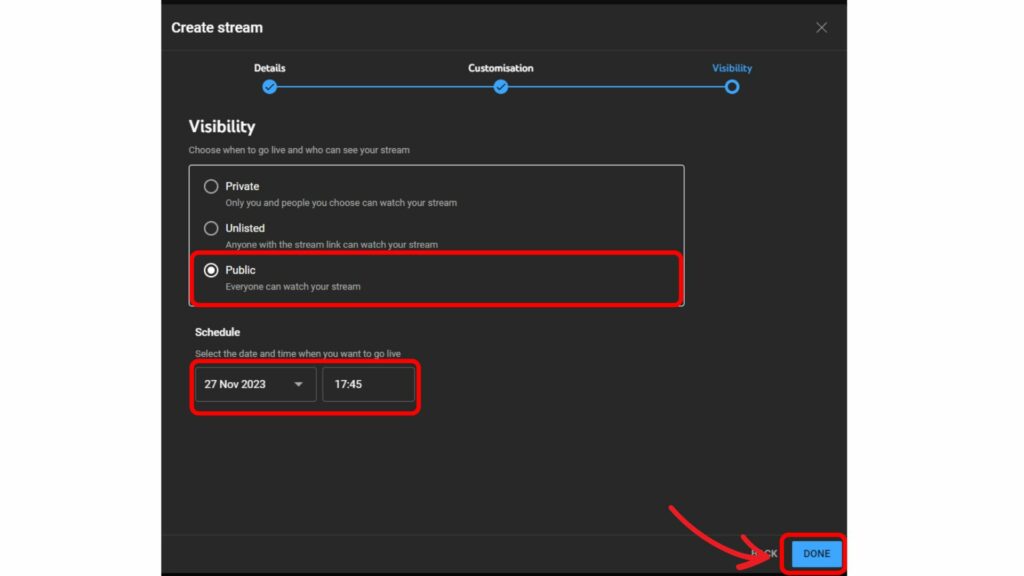
How to schedule a livestream on a YouTube PC (Computer)?
Scheduling a live stream on a computer follows the same steps as above. Let’s take a quick recap. In YouTube Studio> Create Icon(+) > Go Live > Live Control Room > Schedule Stream > reuse/same settings onboard > fill stream details (titles, description, date, time, thumbnail, visibility) > audience settings > stream methods(OBS, Webcam, Encoder) > Save everything and schedule.
How to schedule a live stream on YouTube mobile app
On a mobile device, it’s literally the same steps, just the initial interface is different, like you have to open the app and click on the center (+) icon to see the live scheduling option.
YouTube Livestream Requirements & Eligibility in 2025
The foremost requirement is that the account needs to be verified. The checklist is:
Age Limit: As of July 22, the creator of a live stream must be 16 years old.
No Strikes: The channel must not have restrictions or active community guideline strikes within the last 90 days.
Waiting Period: You must enable the live stream feature on your account. Then you have to wait 24 hours before you can start your first live stream.
Device requirement: The live stream from the webcam should be detected by a camera and a compatible browser. There is no minimum subscriber count requirement, unlike mobile.
Mobile streaming requirements: To live stream on YouTube mobile, you need 50 subscribers and a compatible device.
Some other, but not so necessary, requirements are: a high-speed internet connection, equipment, encoder software or hardware, etc.
Conclusion
Now that you know how to schedule a livestream on YouTube in advance, you can share the link on your social media accounts so more viewers can join you. Streaming live is one of the best ways to engage with your audience. Since your viewers know that you are scheduling a live session, you must be prepared to answer their queries by checking the chat section on the live session.
Frequently Asked Questions
Q1. Can I livestream without 1000 subscribers?
Yes, you can livestream on your YouTube channel without having 1000 subscribers. There is no minimum number of subscribers to have a live session on YT.
Q2. Is there a limit on YouTube livestream?
There is no time limit for livestreaming on YT. But if you want your live video to appear in the archive, then you can stream it for only 12 hours.
Q3. Does YouTube count live stream watch time for monetization?
Yes, YouTube counts the live stream watch time as it does for all the regular videos that you upload. That simply means every minute a viewer watches your stream is counted towards your total watch time.
Q4. Can I do a private YouTube livestream?
Yes, you can live-stream privately on YouTube. But you need to share the live video link with the people whom you want to view the live streaming video.
Q5. How to schedule Live Stream on YouTube with OBS?
Once you have scheduled your live stream, get the stream key, open OBS Studio, and start streaming. Choose Service YouTube -RTMPS and paste your stream key and apply. Configure audio, video, layout, etc, and you can live stream in OBS Studio.
