


Key Takeaways:
- The easiest way to add a video to Google Sites is to use the built-in YouTube option.
- You can embed a video in Google Sites using a URL or embed code.
- Google Sites does not support direct uploads of video files for playback.
- Videos hosted on YouTube generally perform better than those on Drive.
- Proper placement and sharing settings ensure visitors can watch the video smoothly.
How to add a YouTube video to Google Sites? The process is simple if you follow this guide, but the question here is why it is necessary to embed video in Google Sites. In brief, you can embed a video in Google Sites to make pages more engaging, explain concepts faster, or showcase product demos without leaving your site. Embedded videos keep visitors on your page longer and let you control layout and context. This guide walks you through every method to add video to Google Sites, plus fixes for common errors.
How to Add a YouTube Video to Google Sites?
If your video is already on YouTube, this is the quickest method. Google Sites has a built-in YouTube option, so you don’t need any code or technical setup.
Steps to follow:
- Open your website in Google Sites.
- Navigate to the page where the video should appear.
- In the right sidebar, click Insert.
- Scroll until you see YouTube.
- Search for the video or paste the YouTube link.
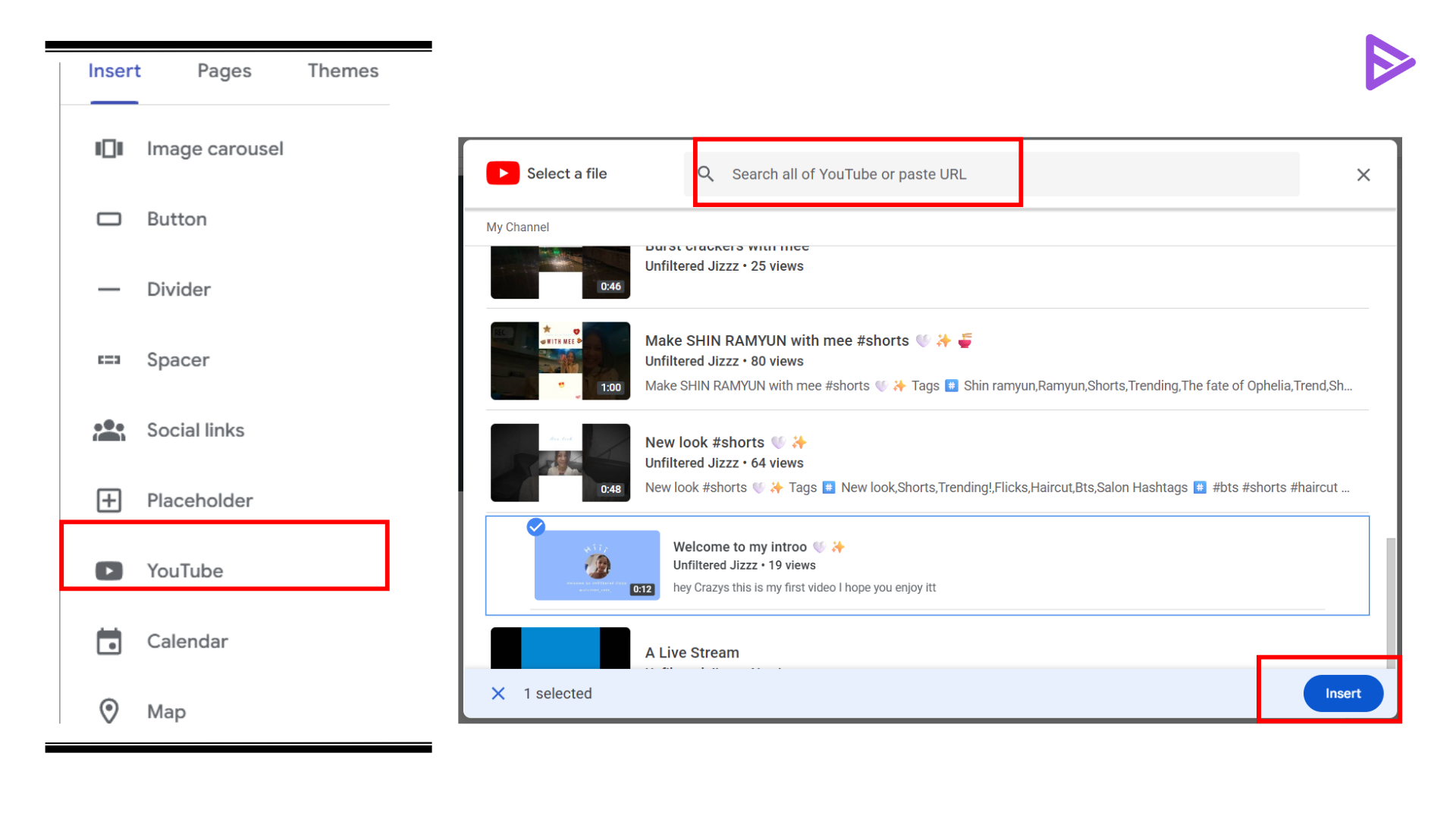
- Select the video you want to display.
- Click Insert.
- Adjust the size and placement on the page.
- Click Publish to make the change live.
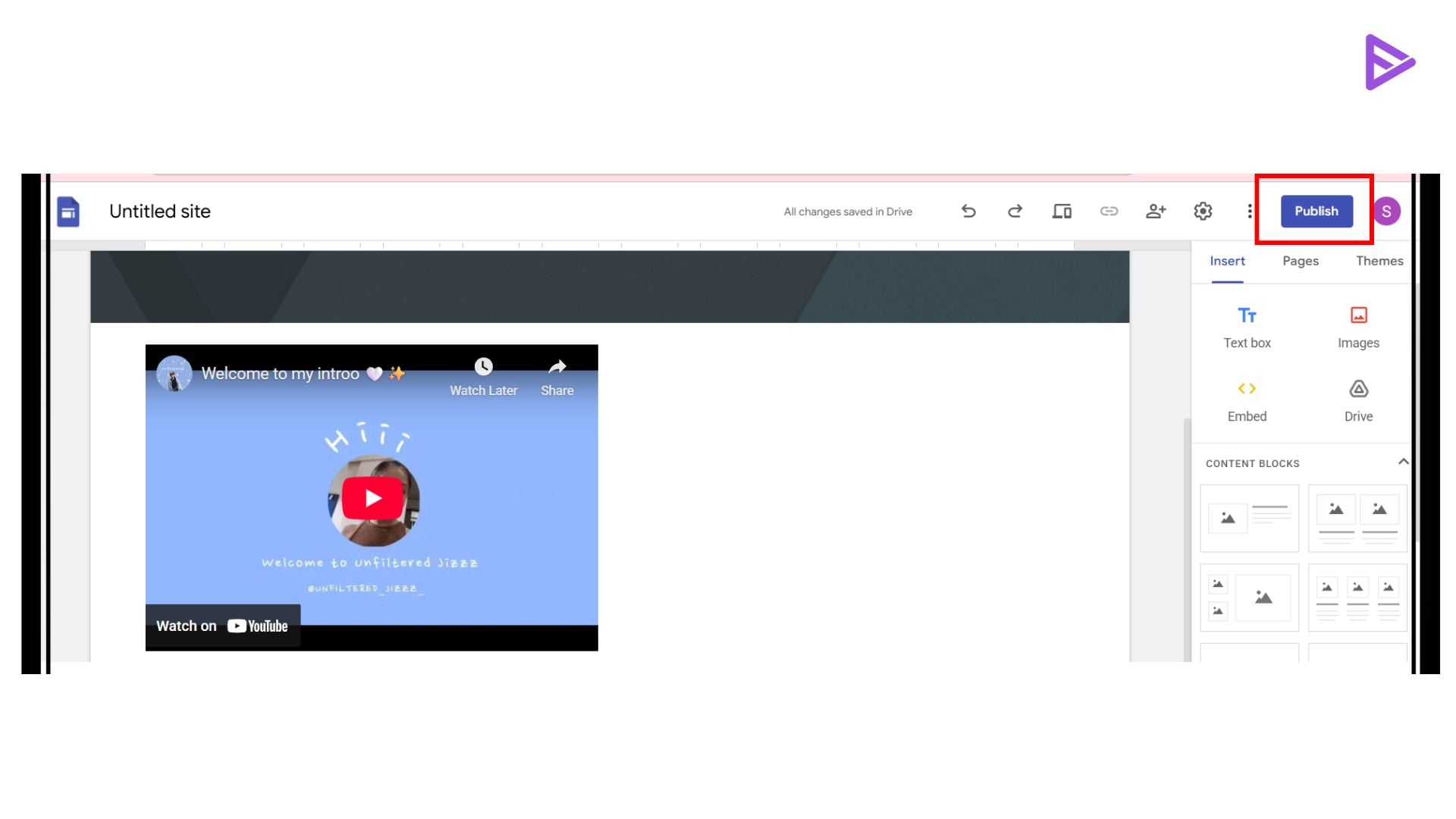
- Once published, visitors can watch the video directly on your page without leaving the site.
How to Embed a Video in Google Sites Using a URL?
Another simple option is embedding the video using its link. This works well if you already have the video URL and just want to drop it into the page.
Here’s how it works:
- Open the video you want to use.
- Copy the video URL from your browser.
- Go back to your Google Sites editor.
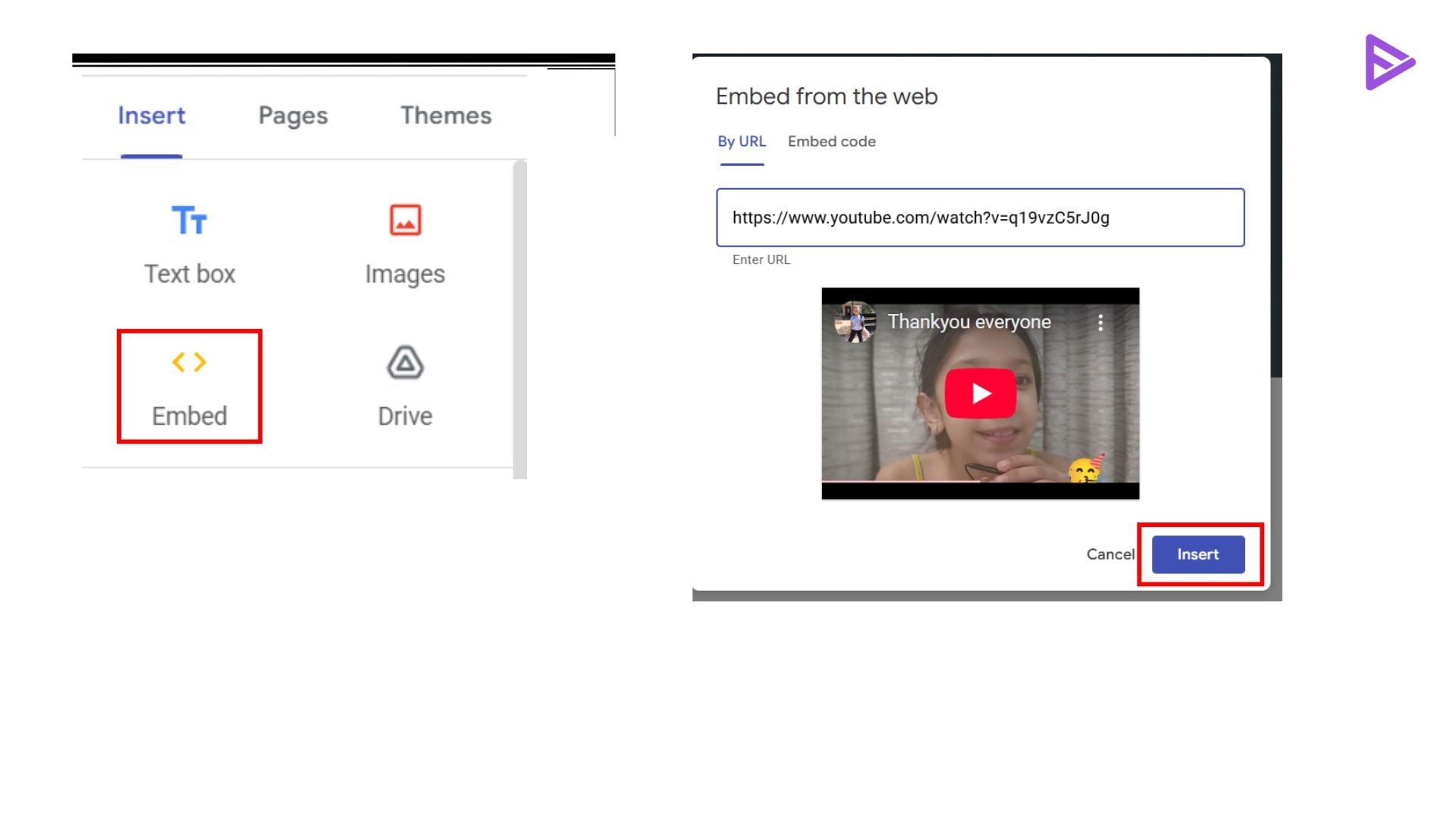
- Click Insert in the right panel.
- Choose Embed.
- Paste the video link.
- Click Insert.
- Google Sites will automatically create a video player on the page.
How to Upload Video to Google Sites Using Google Drive?
If you don’t want to use YouTube, Google Drive is another option. Here’s the process:
- Upload your video file to Google Drive.
- Make sure the sharing settings allow viewers to access the file.
- Open your Google Sites editor.
- Click Insert → Drive.
- Find the video file in your Drive.
- Select it and insert it into the page.
- The video will appear on your site as an embedded player.
- That said, many site owners still prefer YouTube because it streams videos more smoothly.
How to Insert a Video in Google Sites Using Embed Code?
Some video platforms provide an embed code instead of a simple link. Google Sites also supports this.
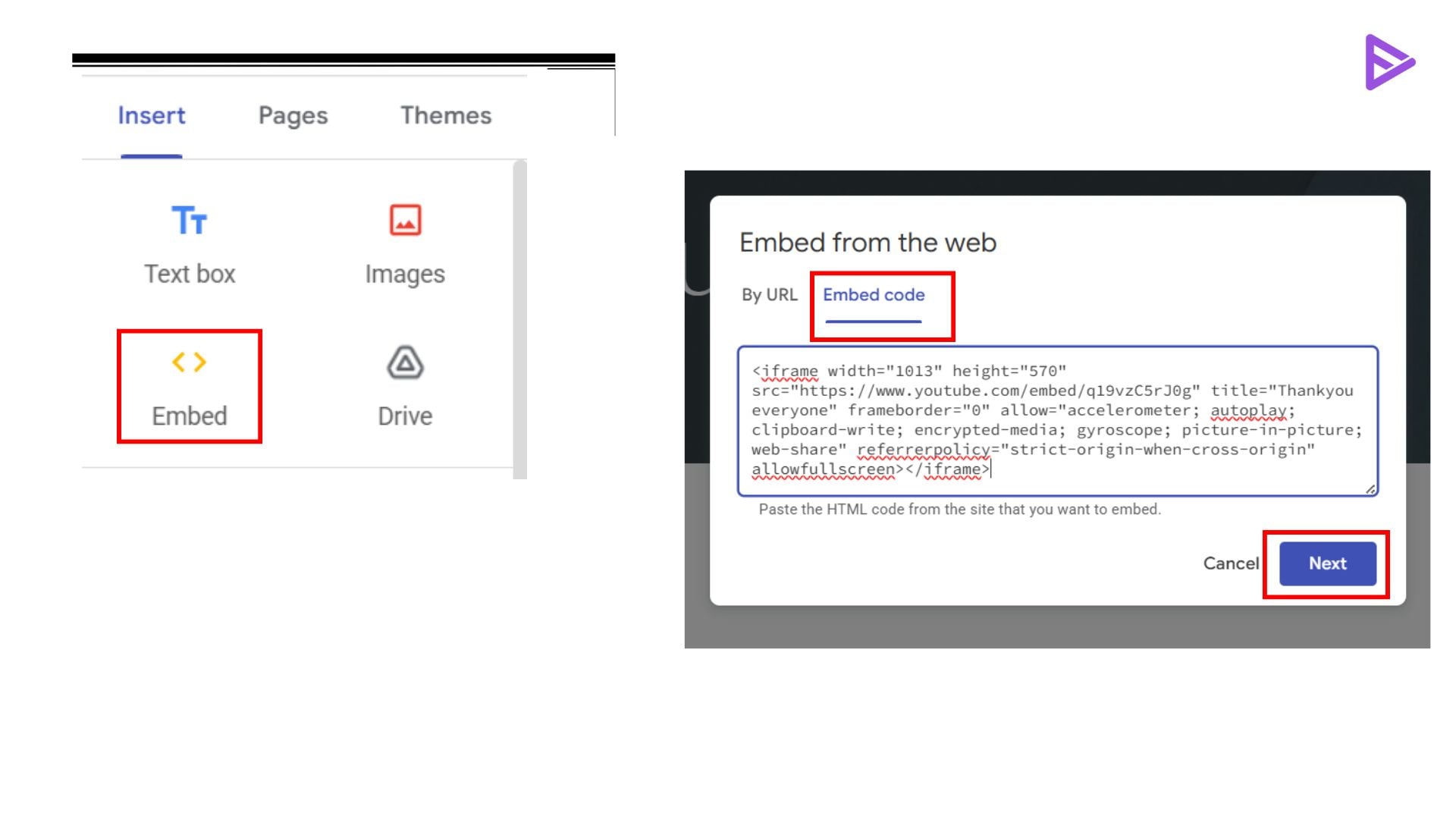
- Copy the embed code from the video platform.
- Open your page in Google Sites.
- Click Insert → Embed.
- Choose Embed Code.
- Paste the HTML code.
- Click Next and insert the video.
- This method is helpful when the video is hosted on a platform other than YouTube.
Common Issues When Embedding Videos
Sometimes a video doesn’t appear or play correctly. Usually, the problem is simple.
- The video might be set to private.
- Sharing permissions may be restricted.
- The embed link might be incorrect.
- The platform may block embedding.
Fixing the video permissions usually solves the issue.
Final Thoughts
Learning how to add a video to Google Sites is simple once you know where to find the tools. In most cases, embedding a YouTube video is the quickest option, but you can also insert videos from Google Drive or use an embed link. Just make sure the video is accessible and placed near the relevant content on your page. Done right, a video can make your Google Sites page more useful and easier for visitors to follow. Additionally, it is one way to rank YouTube videos on Google SERPs to increase watch time and engagement.
Frequently Asked Questions
Q1. What video files does Google Sites support?
Google Sites doesn’t support direct video uploads. Videos are usually embedded from Google Drive or YouTube. When using Google Drive, supported formats include MP4 (.mp4), MOV (.mov), AVI (.avi), MPEG (.mpeg/.mpg), WMV (.wmv), and OGG (.ogv).
Q2. How to embed a video not from YouTube in Google Slides?
Upload the video to Google Drive, then open your slide and go to Insert → Video → Google Drive. Select the file and click Insert to add it to the slide.
Q3. Why is my video not playing on Google Sites?
A video may not play if its privacy settings are restricted. Make sure the video is public or unlisted on YouTube, or that the Google Drive sharing permissions allow viewers to access it.
Q4. Can you resize a video in Google Sites?
Yes. After inserting the video, click on it and drag the corners of the video frame to adjust its size. You can also reposition it anywhere on the page layout.
