


Key Takeaways:
- YouTube is the easiest way to create a free, shareable video link.
- You can control privacy settings to Public, Unlisted, or Private.
- Creating a YouTube URL is the fastest way to convert a video into a link.
- Shareable links improve accessibility and eliminate file size issues.
- You can customize your video URL with timestamps to improve the user experience.
If you’re wondering how to create a video link or how to turn a video into a link, YouTube offers the simplest and most effective solution. Below are the main methods for creating and sharing your YouTube video URL.
Easy Methods to Create a YouTube Video Link
One of the most common ways to create a video link on YouTube is:
Method 1: Upload and Copy the YouTube Link
- Sign in to your YouTube account
- Click the Create (camera icon) button
- Upload your video file
- Once processed, click Share
- Copy the generated link
This method is ideal if you want to quickly convert a video into a link and share it with anyone.
Method 2: Create an Unlisted (Private) Shareable Video Link
If you want a more controlled approach to create a shareable video link, use the Unlisted setting.
- Upload your video to YouTube
- Under “Visibility,” select Unlisted
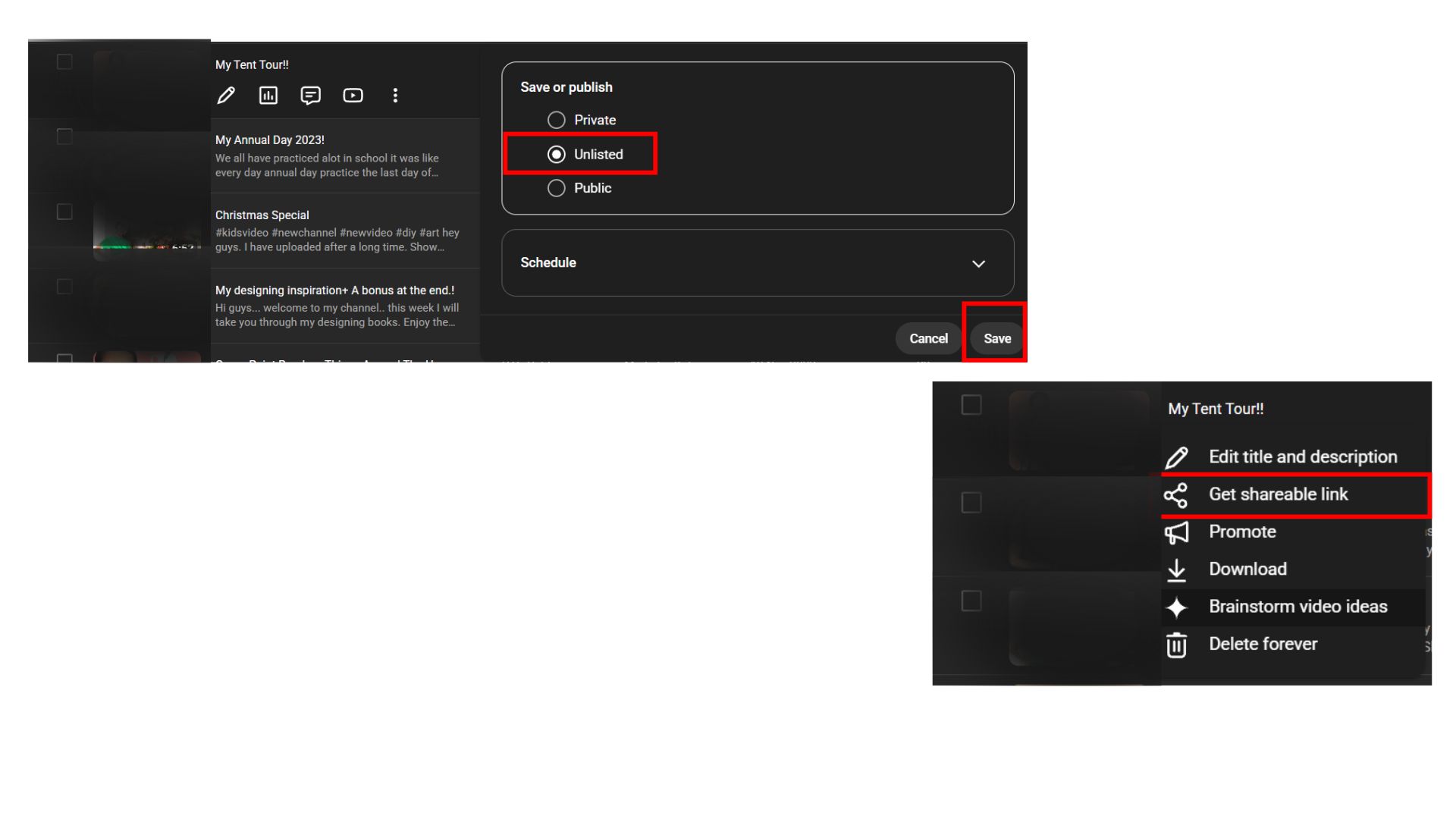
- Save or publish your video
- Copy the link from the Share option
Only people with the link can view your video, making this perfect for client work or private.
Method 3: How to Make a YouTube Link with Timestamp
You can enhance your link by directing viewers to a specific moment in the video.
- Open your uploaded video
- Click Share
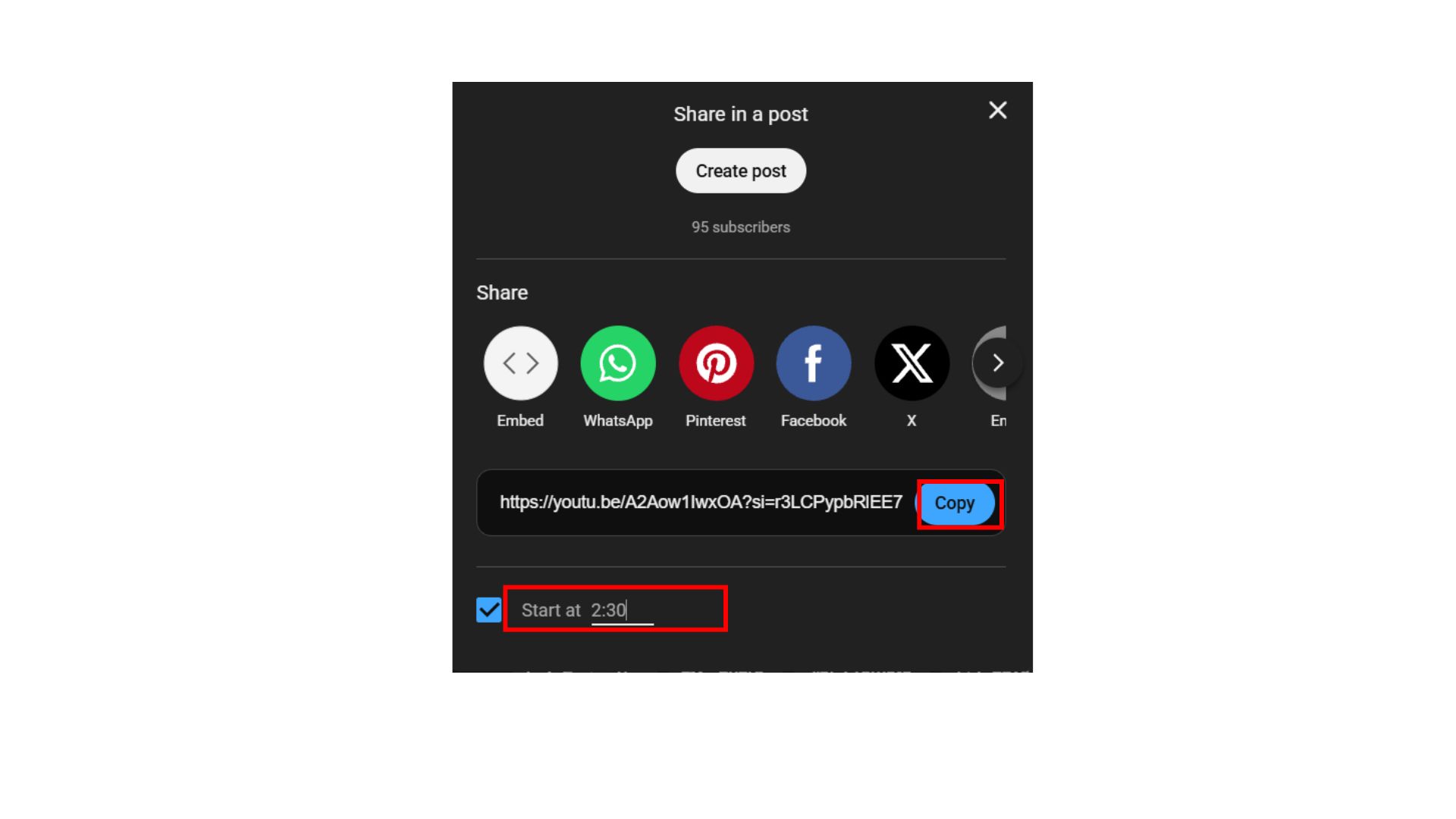
- Check the Start at box
- Enter the desired timestamp
- Copy the updated URL
This is a smart way to create a video link for tutorials, presentations, or long videos.
Method 4: How to Create a Video Link from YouTube Shorts
Even short-form videos can be turned into links.
- Upload or open your YouTube Short
- Tap or click Share
- Copy the link
This method works the same way and allows you to turn a video into a link instantly for mobile-friendly content.
Method 5: Create a YouTube Link on Mobile
If you’re on your phone, the process is just as simple.
- Open the YouTube app
- Upload your video or select an existing one
- Tap Share
- Tap Copy Link
This is the fastest way to create a shareable video link on the go. If you’re also looking to grow your channel while sharing links, learning how to create a YouTube subscribe link can help boost engagement alongside your video URLs.
Why You Should Create a Shareable Video Link Instead of Sending Files?
Choosing to create a YouTube video link instead of sending raw files offers several clear advantages:
1. No File Size Limits: Large video files often fail to send via email or messaging apps. When you convert a video to a link using YouTube, size is no longer an issue.
2. Instant Access for Viewers: A YouTube URL allows users to stream instantly—no downloads needed. This makes your content more accessible across all devices.
3. Easy Sharing Anywhere: Once you create a video link, you can share it via email, text, social media, or websites with a single click.
4. Better Viewer Experience: YouTube automatically optimizes playback quality based on internet speed, ensuring smooth viewing.
5. Built-in Privacy Controls: With Public, Unlisted, and Private options, you can control exactly who sees your content while still using a simple link.
6. Simple Updates Without New Links: If you replace or edit your video on YouTube, your existing URL can remain the same, helping maintain consistency.
7. Professional Presentation: Sharing a YouTube link looks cleaner and more professional than sending bulky attachments. For professionals, embedding YouTube videos in LinkedIn posts can enhance visibility when sharing video links in a business context.
Final Thoughts
Mastering how to create a YouTube video link is one of the easiest ways to streamline video sharing. Whether you’re trying to make a YouTube link, create URL for video, or turn a video into a link, YouTube provides a fast, reliable, and free solution.
By using the right method, you can create a shareable video link that is accessible, customizable, and easy to distribute, without the hassle of large file transfers. Additionally, if you’re promoting across platforms, linking Twitter to YouTube ensures your video links reach a wider audience.
Frequently Asked Questions
Q1. Can I convert any video file into a YouTube link?
Yes, you can convert video to link by uploading almost any standard format (MP4, MOV, AVI) to YouTube. Once uploaded, YouTube automatically generates a URL for your video.
Q2. How to create URL for video that can be embedded on a website?
After you create a YouTube video link, click “Share” → “Embed.” This gives you an embed code, which is ideal for displaying the video on blogs or websites.
Q3. What is the difference between a YouTube link and a video file?
A video file is a downloadable asset, while a YouTube URL is a hosted link. When you turn a video into a link, users stream it online instead of downloading it.
Q4. How to create a shareable video link that works on all devices?
When you create a video link on YouTube, it is automatically optimized for mobile, tablet, and desktop, ensuring universal compatibility.
