


Key Takeaways
- Add clickable links to your YouTube description by pasting full URLs (including https://) in YouTube Studio.
- Place your most important link at the top of the description where viewers can see it without clicking “Show More.”
- Use strong calls-to-action (CTAs) to encourage viewers to click your links and take action.
- Include website, affiliate, social media, product, and playlist links strategically without overcrowding the description.
- Optimize descriptions with summaries, timestamps, hashtags, and disclosures to improve SEO, user experience, and conversions.
YouTube is more than a video-sharing platform; it’s a powerful traffic-driving machine. Whether you’re promoting a website, blog, affiliate product, online store, social media profile, or another YouTube video, knowing how to put links in YouTube description can help you turn viewers into subscribers, customers, and followers.
Many creators overlook the description box, but strategically placed links in the YouTube description can significantly improve engagement, conversions, and audience growth.
In this guide, you’ll learn how to add links to your YouTube descriptions, optimize them for maximum clicks, and avoid common mistakes.
Why Are Links in YouTube Descriptions Important?
The YouTube description is one of the few places where creators can directly guide viewers outside of YouTube. By adding relevant links, you can:
- Drive traffic to your website or blog
- Promote affiliate products and earn commissions
- Grow your social media following
- Increase newsletter subscriptions
- Direct viewers to related videos and playlists
- Generate leads and sales
A well-optimized description also helps YouTube understand your content, improving discoverability and SEO.
How to Add Link to YouTube Description on Desktop
If you’re wondering how to add link to YouTube description, follow these simple steps:
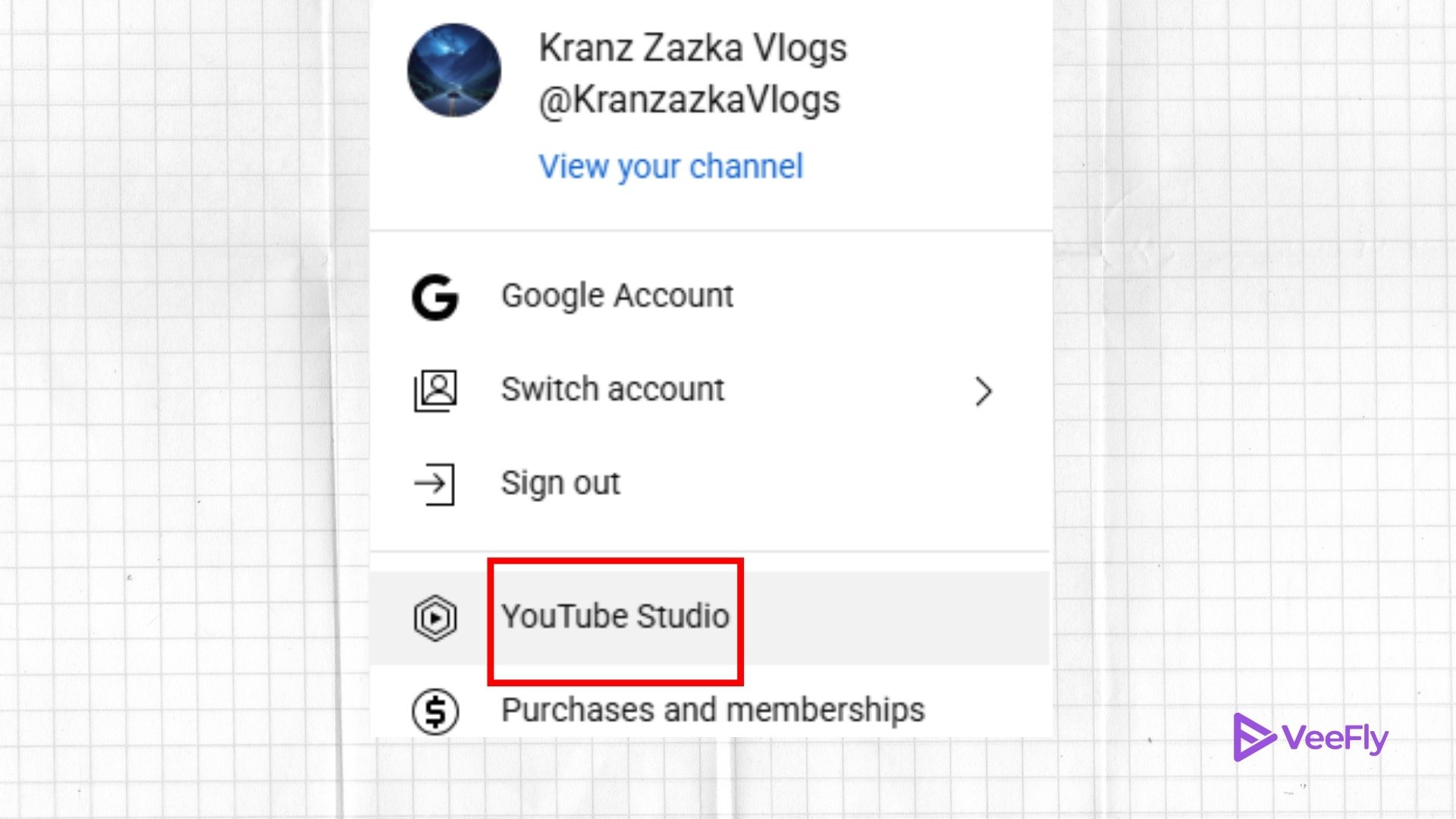
Step 1: Open YouTube Studio
Sign in to your YouTube account and open YouTube Studio.
Step 2: Go to Content
Click Content from the left-hand menu to view all your uploaded videos.
Step 3: Select a Video
Choose the video where you want to add your link.
Step 4: Edit Description
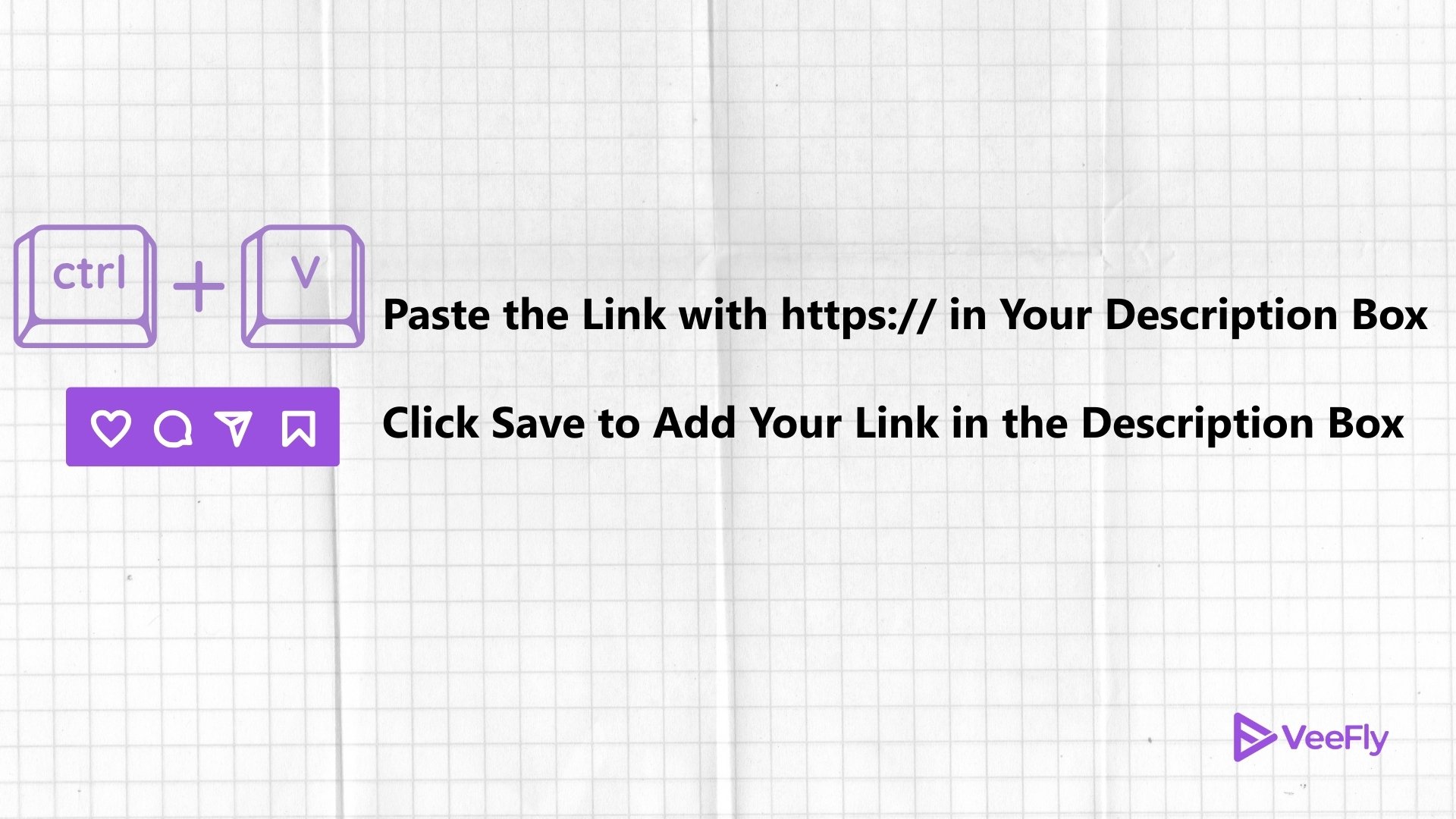
In the Description box, paste the URL you want viewers to visit.
Example:
https://www.yourwebsite.com
Step 5: Save Changes
Click Save in the top-right corner.
Your link will automatically become clickable as long as it contains the full URL, including “https://”.
How to Link in YouTube Description Using Mobile
You can also edit descriptions directly from your smartphone.
Step 1: Open the YouTube App
Launch the YouTube app and sign in.
Step 2: Access Your Videos
Tap your profile picture and select Your Videos.
Step 3: Edit Video
Find the video you want to update and tap the three-dot menu.
Step 4: Tap Edit
Open the editing screen and navigate to the description section.
Step 5: Paste Your Link
Add your URL and save your changes.
The process is identical whether you’re adding a website link, social media profile, or affiliate URL.
Best Places to Put Links in YouTube Description
Simply adding a URL isn’t enough. Placement matters.
1. Put Your Most Important Link Above the Fold
The first few lines of your description are visible before viewers click “Show More.”
This section receives the highest visibility, making it the ideal location for:
- Product links
- Landing pages
- Blog posts
- Lead magnets
- Affiliate offers
2. Include a Clear Call-to-Action
A plain URL often gets ignored.
Instead, tell viewers what they’ll get when they click.
Examples:
- Get the full tutorial here:
- Download the free checklist:
- Try the tool I mentioned:
- Visit our website:
Strong CTAs encourage more engagement and improve click-through rates.
3. Mention the Link Inside Your Video
Many successful creators remind viewers during the video that relevant resources are available in the description.
For example:
“Check the link in the description for the complete guide.”
This simple reminder can significantly increase clicks.
Types of Links You Can Add to YouTube Descriptions
YouTube allows creators to include various kinds of links.
Website Links
Drive traffic to your homepage, blog, or landing page.
Affiliate Links
Promote products and services while earning commissions.
Always disclose affiliate relationships when using affiliate links.
Social Media Links
Direct viewers to platforms like Instagram, X, LinkedIn, Facebook, or TikTok.
Product Links
Showcase products featured in your videos.
YouTube Links
Promote:
- Related videos
- Playlists
- Channel subscriptions
- Community posts
How to Create a YouTube Description Hyperlink
Many creators search for ways to create a YouTube description hyperlink with custom anchor text.
Currently, YouTube does not allow traditional HTML hyperlinks in descriptions.
Instead, YouTube automatically converts full URLs into clickable links.
For example:
https://www.example.com
will become clickable, while:
Click Here
cannot be linked to a custom URL.
Therefore, always include the complete URL.
Best Practices for Links in YouTube Description
Keep Important Links Near the Top
Most viewers never expand the full description.
Place your most valuable links first.
Limit the Number of Links
Too many URLs can overwhelm viewers and reduce clicks.
Focus on 3–5 important links instead of adding dozens.
Use Link Tracking Tools
Tools like UTM parameters, URL shorteners, and analytics software can help measure traffic and conversions.
Organize Links Properly
Use spacing and headings.
Example:
Resources Mentioned:
Website:
https://yourwebsite.com
Instagram:
https://instagram.com/yourprofile
Free Course:
https://yourcourse.com
Add an Affiliate Disclosure
If you’re promoting affiliate products, include a disclosure statement.
Example:
“Some links in this description may be affiliate links, meaning I earn a commission at no extra cost to you.”
This improves transparency and compliance.
Additional Elements to Include in Your YouTube Description
Besides links, your description should also contain:
Video Summary
Briefly explain what the video covers.
Keywords
Naturally include relevant keywords to improve SEO.
Timestamps
Break long videos into chapters.
Example:
00:00 Introduction
01:15 How to add links
03:45 Link placement tips
06:20 Common mistakes
Hashtags
Use a few relevant hashtags such as:
- #YouTubeTips
- #ContentCreator
- #YouTubeGrowth
- #Subscribe Link
Encourage viewers to subscribe directly.
Common Mistakes to Avoid
Missing HTTPS
Links without “https://” may not become clickable.
Adding Too Many Links
An overloaded description can reduce effectiveness.
No Call-to-Action
Viewers need a reason to click.
Ignoring Mobile Users
Always check how your description appears on mobile devices.
Forgetting Affiliate Disclosures
Transparency helps build audience trust.
Can You Add Multiple Links in YouTube Description?
Yes. YouTube allows creators to include multiple links in a single description. However, prioritizing the most important links near the top generally delivers better results than listing dozens of URLs.
Why Are My Links Not Clickable?
If your links aren’t working, check these common issues:
- Missing “https://”
- Broken URL
- Restricted channel features
- Unsupported formatting
- Temporary YouTube processing delays
Review the URL carefully and save your changes again.
Final Thoughts
Learning how to put links in YouTube description is one of the simplest ways to generate more traffic, sales, and engagement from your content. Whether you’re promoting a website, affiliate product, social media profile, or another video, strategically placed links can help convert viewers into loyal followers and customers.
Focus on placing your most important link at the top of your description, use strong calls-to-action, and keep your description organized. With the right strategy, your YouTube description can become a powerful marketing tool that works for every video you publish.
Frequently Asked Questions
Q1. How can I add a long link?
To add a long link, copy the entire URL from its source and paste it into the YouTube description box. Once you click Save, the link will automatically be added to your video description.
Q2. Why are my links not clickable in YouTube description?
If your link doesn’t start with a prefix like “http://,” it is more likely to be unclickable. Before adding it to your description, check whether the link is valid.
Q3. Can I include multiple links in my YouTube video description?
Yes. YouTube lets you add multiple links in your video description. In fact, there is no limit to how many links you add to your video. But it is always better to only add relevant links and not spam your description box with URLs once you know how to put links in YouTube description.
Q4. How can I track clicks on the links in my YouTube video description?
YouTube doesn’t have a way to track clicks on links in the description, but if the link leads to a website landing page, you can check the number of YouTube views in Google Analytics.
Q5. How do I remove or edit links in the video description after publishing?
To remove or edit links in the video description after publishing, follow these steps: Open YouTube Studio> Select Content> Select the video’s thumbnail> Make the changes to the video description> Click Save.
