


Live stream on YouTube is a popular method for creators to go live and bring viewers together in real time to engage with their content. According to industry reports, more than 37% of viewers on YT consider live streams on YouTube as the most resonating method to connect with their favorite creators online. Let’s walk through the steps of how to livestream on YouTube.
What is Live Stream on YouTube?
As the name suggests, YouTube Live allows creators to go live in real time with their audience to promote their content. A live stream can be hosted for various reasons, such as Q&A, an interactive session for announcements, a merchandise launch, tutorials, a gaming stream, etc. It is a widely popular method used by content creators to engage directly with their viewers.
How to Live Stream on YouTube?
YouTube creators may interact with their audience in real-time with the Live streaming feature. Up to 500 hours of video content are posted to YouTube every minute, making it the second most popular search engine. Whether it’s a school function, a workplace meeting, or a conference, live streaming on YouTube has made millions of people’s lives easier, particularly during this epidemic.
Whether you’re a content creator or a brand, live streaming has been extremely popular in recent years for carving out a niche or market for yourself. This strategy is highly beneficial when promoting videos on YouTube.
YouTube Streaming Requirements
Before you start, here are the YouTube live stream requirements.
- First and foremost, you need to have a verified YouTube account. Once verified, you’ll need to wait 24 hours to start your first live stream.
- The YouTube live streaming requirements for mobile devices are that you must have at least 50subscribers.
- There should be no live-streaming restrictions on the channel in the past 90 days.
- You can also get closer to the 1k-subscriber milestone by buying YouTube subscribers.
- The devices you need are a webcam, a mobile device, and an encoder.
- Streaming softwares such as Restream, OBS Studio, Streamlab, Wirecast, XSplit, etc.
How To Stream on YouTube From Mobile?
Let’s see the steps on how to stream on YouTube using your mobile phone.
- Open the YouTube app.
- Click on the camera option or (+) Icon at the bottom of the screen and press ‘go live.’
- Tap More Option to schedule the stream, set age restriction, live chat, monetization, etc.
- Create a title for your live-stream video
- Add a thumbnail description, upload or choose a thumbnail picture.
- Click Go Live, and you are now live-streaming from your mobile.
- To share the mobile screen, tap Create Channel > Share Screen
- To end the livestream, click Finish.
However, if you want to get on the YouTube live bandwagon without reaching the 1K-subscriber level, you can.YouTubers can live stream to YouTube directly from their smartphones using the ManyCam mobile app, without needing a minimum number of subscribers. The best thing is that it’s effortless to use and is compatible with both iOS and Android smartphones.
How to LiveStream on YouTube through Built-in or External Webcam
You can live broadcast on YouTube directly from your web browser using a built-in or external USB camera. A webcam could suffice if you want to express your views and interact with your audience in real time.
You can also live broadcast over your browser with a higher-end camera, such as a digital camcorder or DSLR. A USB capture card is required to get the video signal into your computer. YouTube will then recognize the camera as a plug-and-play webcam.
Here’s how to livestream on YouTube using your web browser once you’ve got your camera setup:
- Log into your YouTube account and go to the top-right corner of the screen to the “Create a video or post” option.
- From the drop-down option, choose “Go Live.”
- If requested, give YouTube and your browser any necessary permissions for live streaming (e.g., camera, microphone).
- Ensure “Webcam” is chosen in the navigation bar at the top of the Live Control Room.
- Choose a date and time for the live stream and give a title to your live stream.
- From ‘more options,’ select enable age restrictions, disable live chat, and monetization. (for YPP members only)
- Choose or upload a picture for your thumbnail
- That’s it! You are streaming live on YouTube from your webcam.
Like Mobile and Webcam, live streaming is also possible through Encoder streaming.
Encoder Streaming:
It is yet another streaming software that allows YouTubers to stream video and audio for free. It realizes the simplicity of using a camera or mobile device, but it may also miss a few audio features.
Steps to use an encoder to live stream on YouTube on a PC:
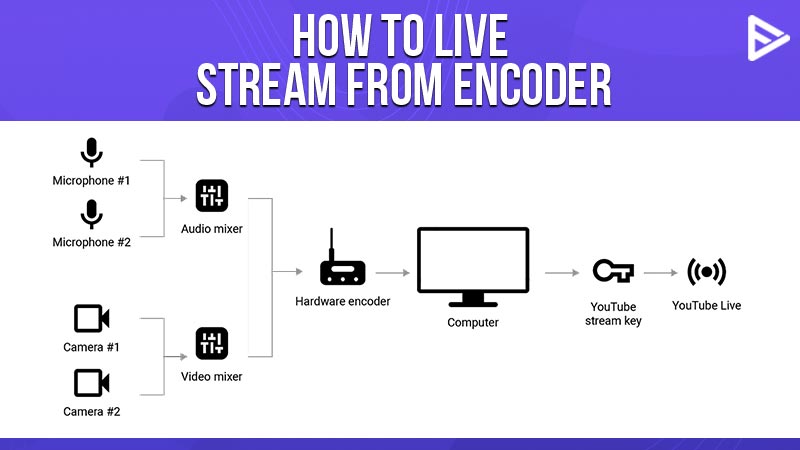
- Download Encoding Software and select your preferred streaming software.
- Click on ‘Go Live’
- On YouTube, click ‘Create a video or post’ and proceed to Stream in the top navigation bar.
- Give a title to your live stream, select a date and preferred time, upload an appropriate thumbnail, and choose or upload a picture for your video.
- Press ‘ Create Stream’
- Copy the “Stream name/key” from the pop-up window. (Do not reveal this string of characters.)
- If the window does not display or is unintentionally closed, check for this information in the Live Control Room’s bottom-left corner.
- Open a new tab for your preferred streaming software and paste the ‘stream name.’
When you are ready, hit the stream button.
Tips For Streaming on YouTube
Once you have learned how to livestream on YouTube, we will share some essential tips for maximizing the value of hosting a live stream.
- Always plan ahead of the live. Outline the topics of discussion and points you want to cover. Prepare visuals in advance for an interactive session. A well-planned live video will keep the viewers engaged.
- Check the equipment. Before going live, you must have a stable internet connection and ensure the mic works fine. A clear and lag-free stream will keep the viewers hooked.
- Promote the live stream in advance. A maximum number of viewers must join the live stream to boost engagement and visibility. Share the live link on all social media platforms and send email notifications to subscribers.
- Engage with the audience. Livestreaming will be pointless without engaging and interacting with the viewers. It is essential to go through chat comments and respond to as many comments as you can. This will encourage more viewers to join the next live streams that you will host.
Benefits of Live Stream on YouTube
Going live on YouTube from time to time can have its own set of benefits.
1. Conducting a live stream on YouTube makes it easier for individuals who cannot attend physical events to participate. Virtual engagements allow people to participate on a global scale.
2. You get to interact with your fans in real time, which, otherwise, is impossible through other engagement methods.
3. Since you can quickly interact with your fans in a live stream on YouTube, responding to compliments, humorous engagements, and positive or negative comments is convenient.
4. A live stream also encourages viewers to check out your channel and watch your other videos, thus increasing their overall watch time and views.
5. More viewers watching your video indicates to the YouTube algorithm that it is likable, thus impacting its ranking when viewers search for your videos.
6. Prepare your goal. Have a clear idea of what you want to achieve with YouTube Live and steer the stream in the direction of the desired outcome.
7. Practice on camera before going live to avoid fumbul or blunder.
8. Promote your content on other social platforms, helping you gain engagement.
9. Heavily engage with your audience, making each participant feel valued.
10. Go live at the right time. Use analytics to see when viewers engage most with you.
Remember, before you go for a live stream on YouTube, ensure your video descriptions and titles are SEO-friendly. An AI YouTube description generator and AI YouTube title generator can make your task easier by crafting YT SEO-friendly descriptions and titles in just a few seconds.
Conclusion
Conducting a Live stream on YouTube is super easy and beneficial for content creators who want to build a brand. Additionally, combine this strategy with the choice to buy YouTube views, and you will see your channel grow exponentially. The above three ways are used to live stream on YouTube. Following these steps will give you a head start on making live content on YouTube.
Frequently Asked Questions
Q1. What equipment do I need for streaming?
The essential equipment is an internet connection, a webcam, a microphone, streaming software, a capture card, lighting, etc.
Q2. Do you need 1000 subscribers on YouTube to livestream?
There is no minimum subscriber requirement to live stream from a desktop. However, to start live streaming from a mobile device, you need at least 50 subscribers. Additionally, you must have a verified YouTube channel.
Q3. How much does YouTube pay per 1000 views on a live stream?
On average, YouTube pays between $1 $10 per 1000 views. However, it depends on the niches and rate per impression, which can be high in some niches and some not.
Q4. Is YouTube live streaming free?
Yes, YouTube Live is free for all users with a verified YouTube channel. But ensure you invest in professional-grade streaming equipment for a quality stream.
Q5. Can I Make Money Streaming on YouTube?
Yes, there are several ways to monetize through YouTube Live. Super Chats and channel membership are two ways you can earn money through live streaming.
