


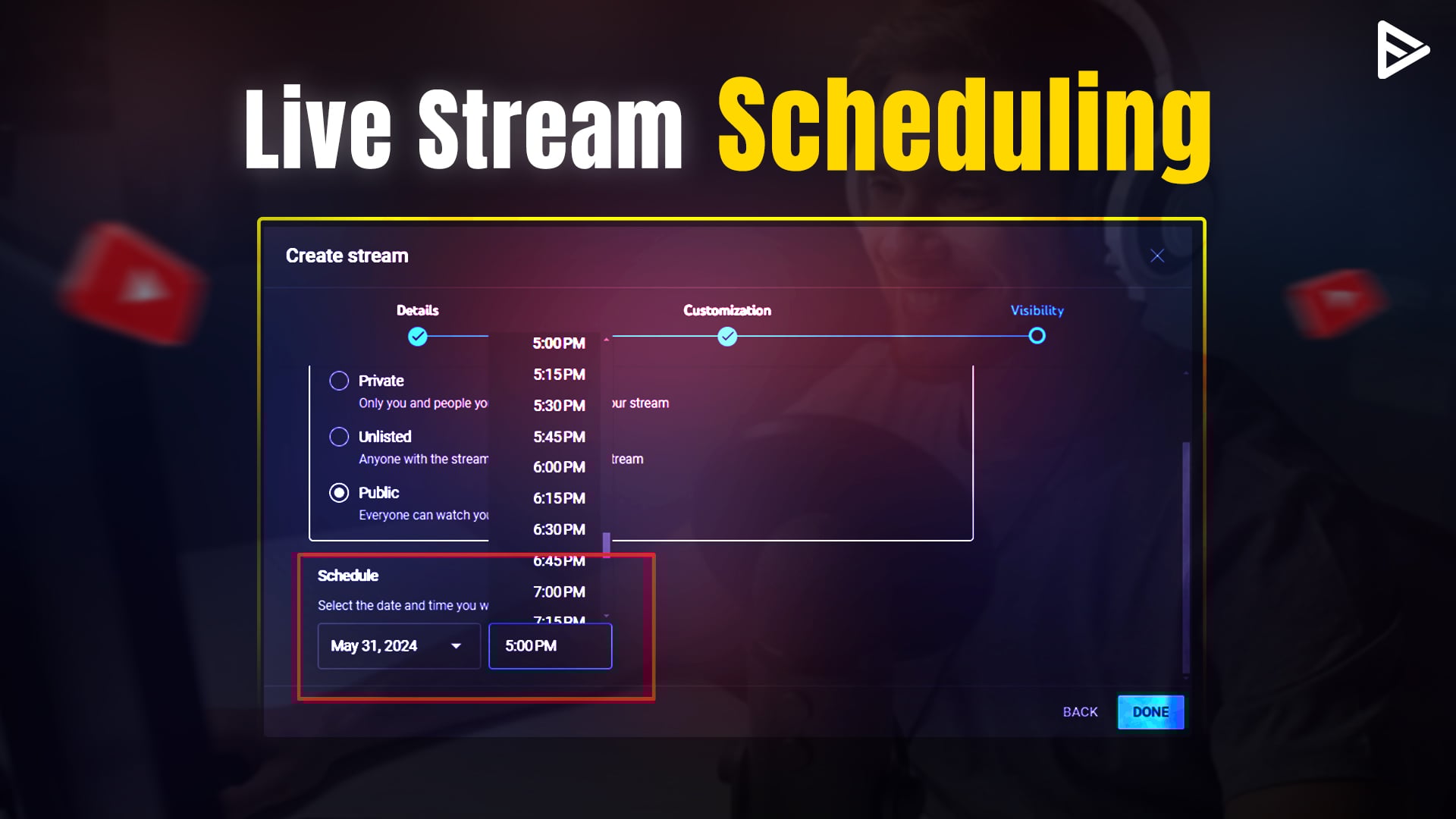
YouTube Live Streaming: Key Takeaways
- To live stream, the creator must verify their channel, be 16+, and have no restrictions in the last 90 days and wait 24 hours.
- There is an option for going live from a mobile app, desktop (using YouTube Studio), webcam, or encoder. Each has its own set-up requirements.
- Live streaming increases engagement through chat, saves on cost, makes content unique, and assists with product promotions.
- We have different tools for different needs: mobile for vlogging, webcam for workshops/Q&A, and encoders for advanced creators with big audiences.
- Success tips may also include preparing high-quality equipment, engaging content types, chat moderation, metric analysis, promotions, internet and lighting requirements, and so on.
YouTube Live Streaming Requirements
Let’s see the requirements to enable live streaming on YouTube:
- You need to verify your channel with your phone number
- No restrictions on your live stream within 90 days
- Streamers age should be 16+
- Once enabled, you can do live streams after 24 hours.
How To Go Live Stream on YouTube? (Quick Steps)
Conducting a live streaming session on YouTube is easy. However, you need to fulfill the requirements to enable live streaming as mentioned above.
On YouTube Mobile APP
- Open the app, then tap the (+) icon at the bottom.
- Choose Go live from the options
- Choose orientation (portrait and landscape)
- Tap Edit to set title, description, thumbnail, and choose audience type(public, private, and unlisted)
- Start the live or schedule it for later.
- Use the manage option to turn the camera on, mute, or add Q&A stickers.
On Desktop
- Go to YouTube Studio
- Create > Go live
- Create Stream(live control room)
- Add details (titles, descriptions)
- Set visibility (public, private, and unlisted)
- Set streaming method (webcam or encoder)
- Configure by adjusting the camera, microphone, and other settings.
- Go live to start and End the Stream to finish it.
Steps to Go Live on YouTube Using a Webcam
Now that you know about going live through the YouTube mobile app, let’s explore the steps to go live from a desktop using a webcam.
- Sign in to your YouTube account on a computer or desktop system using your credentials.
- Click on the ‘Create’ option that appears at the top-right corner.
- Click ‘Go Live’ from the menu that appears. next, click on the ‘Webcam’ tab.
- Similar to going live from mobile, enter your live streaming details and click next.
- Your webcam should capture your photo that appears as your live stream thumbnail.
- Once you are ready with your setup, click on ‘Go Live’ to start your live stream.
Go Live on YouTube Using an Encoder
Although the exact technical steps may vary depending on your choice of encoder, you can follow these steps to start your stream using streaming software.
- Open the web browser on a desktop system and log in to your YouTube account.
- Click on the ‘Create’ icon appearing in the top right corner.
- You will now be taken to the live streaming section on YT.
- Open your encoding software and navigate to its settings.
- Some encoding softwares have the option to stream directly to YouTube. If you see it, click on it.
- In case you do not see YouTube in your encoding software, copy the stream key from YouTube live stream and paste it in the encoding software where it says ‘ Enter Stream Key.’
- Add the webcam, microphone, and other sources to your encoding software. Add other relevant details of your live stream.
- Once ready, start the live stream from your encoder, and soon you’ll be live on YouTube.
What are the Benefits of Live Streaming on YouTube?
We have see how to enable YouTube live streaming on phone and desktop. Let’s see the benefits of going live on YouTube.
Increases Engagement with your Audience
The chat options available in YouTube Live Streaming encourage your viewers to engage with one another as well as allow you to interact with your loyal fans on a highly personal note. You can respond to compliments, react to humorous comments, and solve your viewers queries immediately.
Highly Cost-effective
You can live stream on YouTube and publish it on your channel for free. Besides, you can also repurpose live stream video as per your needs.
Makes your channel Stand Out
A live video tends to grab more attention than normal videos. Besides, the live streaming activity makes your content look unique from other creators who are using traditional methods to capture their viewers.
Encourages Selling Products or Niche Services
As a YouTuber, if you aspire to do affiliate marketing or wish to sell your unique products or services, you can do so using YT live streaming. Nearly 70% of people use YouTube to read reviews of products.
Mobile or smartphone device
Live streaming through mobile devices is an excellent option for casual Vlogs and updates. It provides a relaxed atmosphere to your viewers and fans who turn up for the live stream. Besides, you just need 50 subscribers to go live on YouTube through mobile devices.
Webcam
If you wish to go live from your desktop system, you can rely on YouTube’s live streaming studio that connects to your computer’s camera via your web browser. This approach of going live is more suitable if you wish to do some live workshops or want to answer viewers’ questions on any technical topic.
Encoder
Encoders are streaming software that gives you broader control over your live streaming activity. However, this option is highly suitable for advanced-level creators who have more than 1000 subscribers and have a large number of followers who turn up on the YT live stream.
Helpful Tips for Streaming Live on YouTube
Now that you know how to enable live streaming on YouTube Studio. Let’s see some helpful tips that you must know to make your livestream successful.
- Good quality equipment, lighting, and internet connectivity are necessary for a better video.
- Choose ‘engaging content’ types such as Q&A, product launch, or live announcement.
- Interact with the audience, listen to them carefully, and consider a moderator.
- Remain natural, at ease, and review analytics later to optimize future live streams.
- Promote the live stream on social media, and go live during peak usage times in relation to your audience.
Conclusion
Irrespective of your niche, YouTube live streaming is highly beneficial for expanding your videos’ reach and growing your channel. With this detailed guide, you are well equipped with the know-how to do live streaming on YT using the mobile app or webcam. Go for a live stream now and see how it impacts your channel.
YouTube live streaming is a good platform for gamers, news, and organizations that want to share live updates. You must have seen the ‘live’ notification on Facebook and Instagram. Live streaming on YouTube has become very popular since the pandemic forced us to attend events, meetings, and programs online.
Frequently Asked Questions
Q1. How do I fix YouTube is not enabled for live streaming?
If your channel has violated the community guidelines. It could be age restriction, or you might not have enabled the live streaming.
Q2. How do I enable monetization on YouTube live stream?
YouTube has rolled out features like fan funding, which worked as a tip collection jar for creators and streamers. Super chat is another feature that helps viewers donate and support the YouTubers.
Q3. What is the eligibility for YouTube live streaming?
YouTube lets you live stream only if you come across the eligibility criteria, that is, 50 subscribers. Yes, as soon as you generate this many users, you can start streaming anytime.
Q4. Does YouTube pay per stream?
Once you enable live streaming YouTube pays $6-8 for 1000 streams. You receive an average payout per stream of $0.008.
Q5. What are the best streaming settings for YouTube Live?
A video resolution of 1080p with a frame rate of 30 FPS and bitrate of 3000 to 8000 kbps is ideal for the best live streaming quality.
Q6. How do I live stream on YouTube without 1000 subscribers?
You can do a YouTube live stream through a desktop or webcam, even if you don’t have 1000 subscribers. It used to be 1000 subscribers before. But now YouTube has removed that restriction. However, if you are doing a live stream through mobile app, you must have at least 50 subscribers on your channel.
Q7. Which Streaming software should I use for YouTube?
OBS Studio and Streamlabs are popular softwares that content creators prefer to use while going live on YouTube.
